

Printing Documents
This section explains how to print your document packet. Printing in Migrator is used to produce a physical copy of your forms for signature collection. Uploading documents and document submission are handled by your firm or Forms Logic on your behalf.
4.1 Print the Document Packet
To print the document packet, follow the steps below.
- Inside the workflow, click the Action button under the Documents section. Select Print/Package/Send from the dropdown.
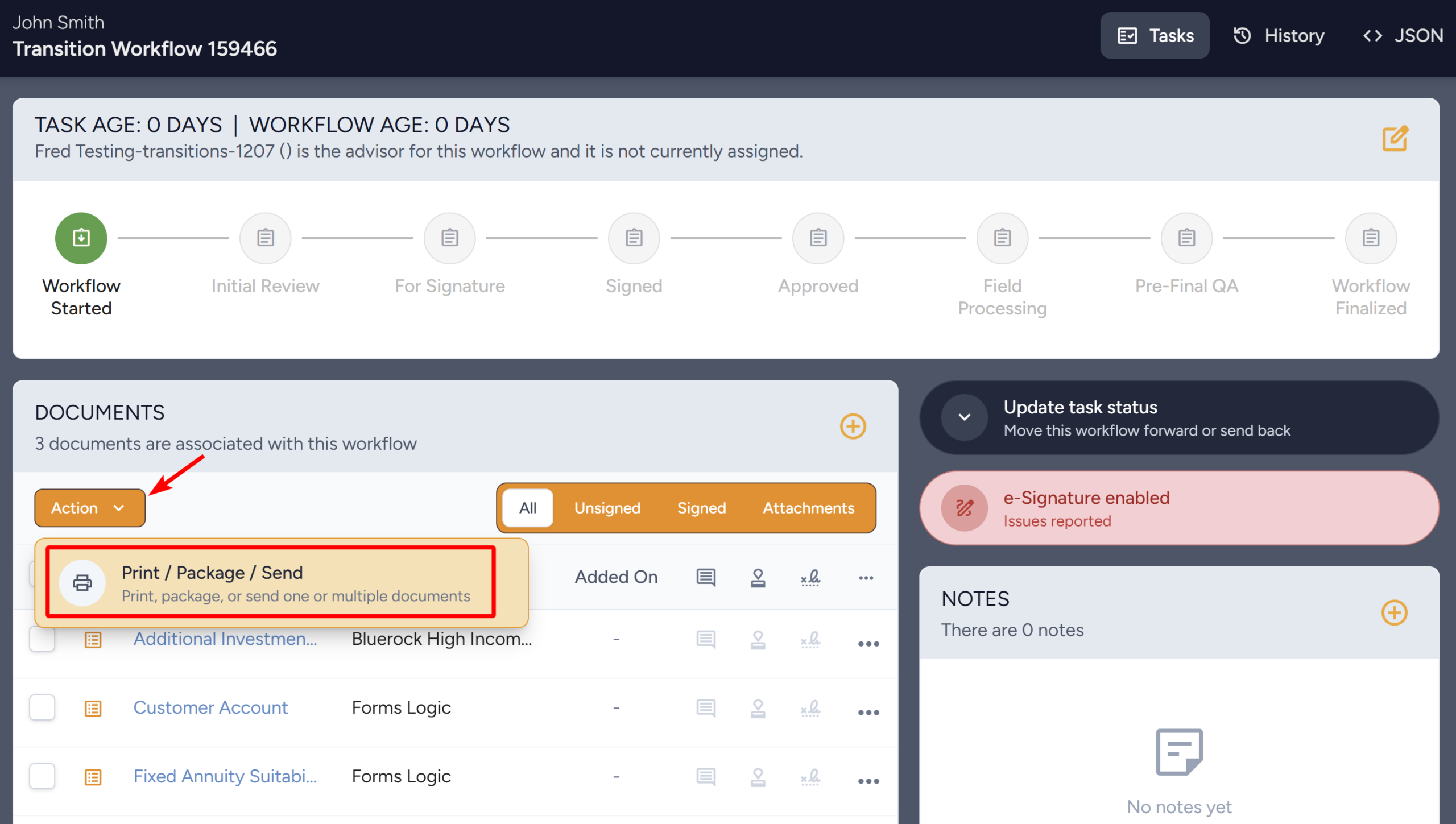
- The Print/Package/Send Documents drawer will open.
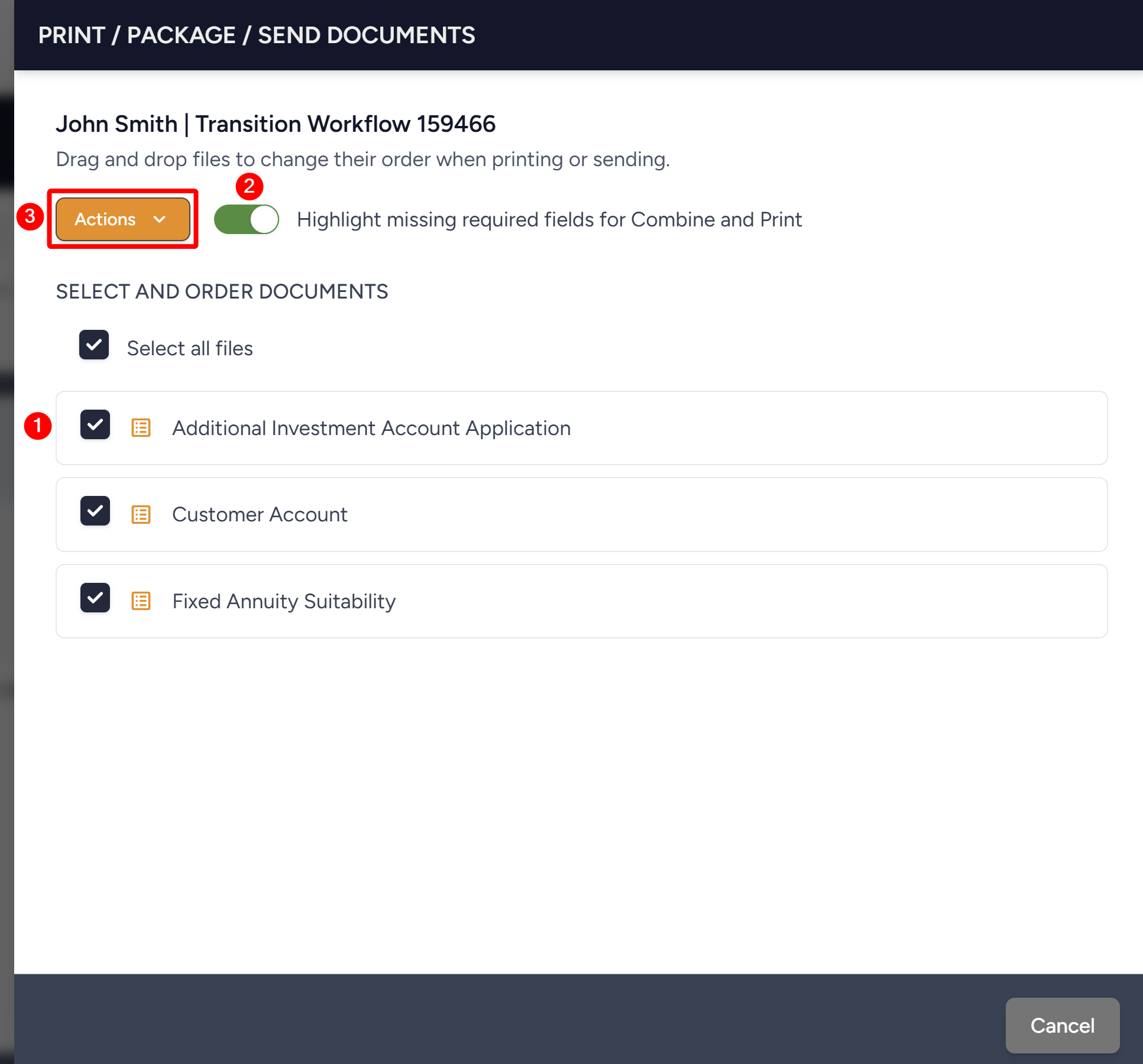
- Select the forms/documents you want to include in this generated PDF. You can reorder them as well.
- Toggle on/off if you want the missing required fields to be highlighted in the generated print PDF.
- Click the Actions button.
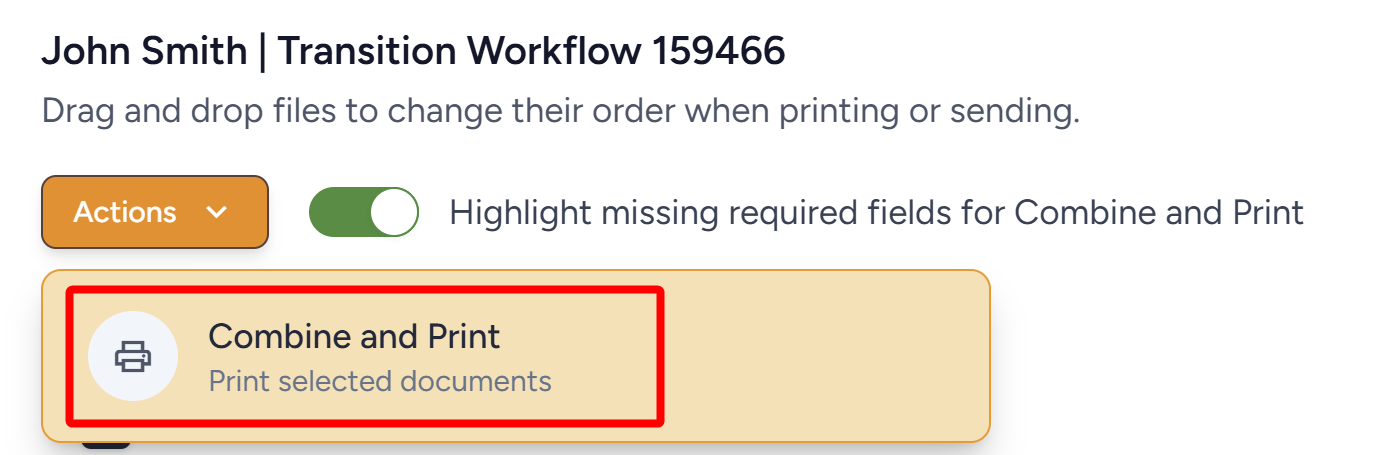
- From the dropdown, click Combine and Print.
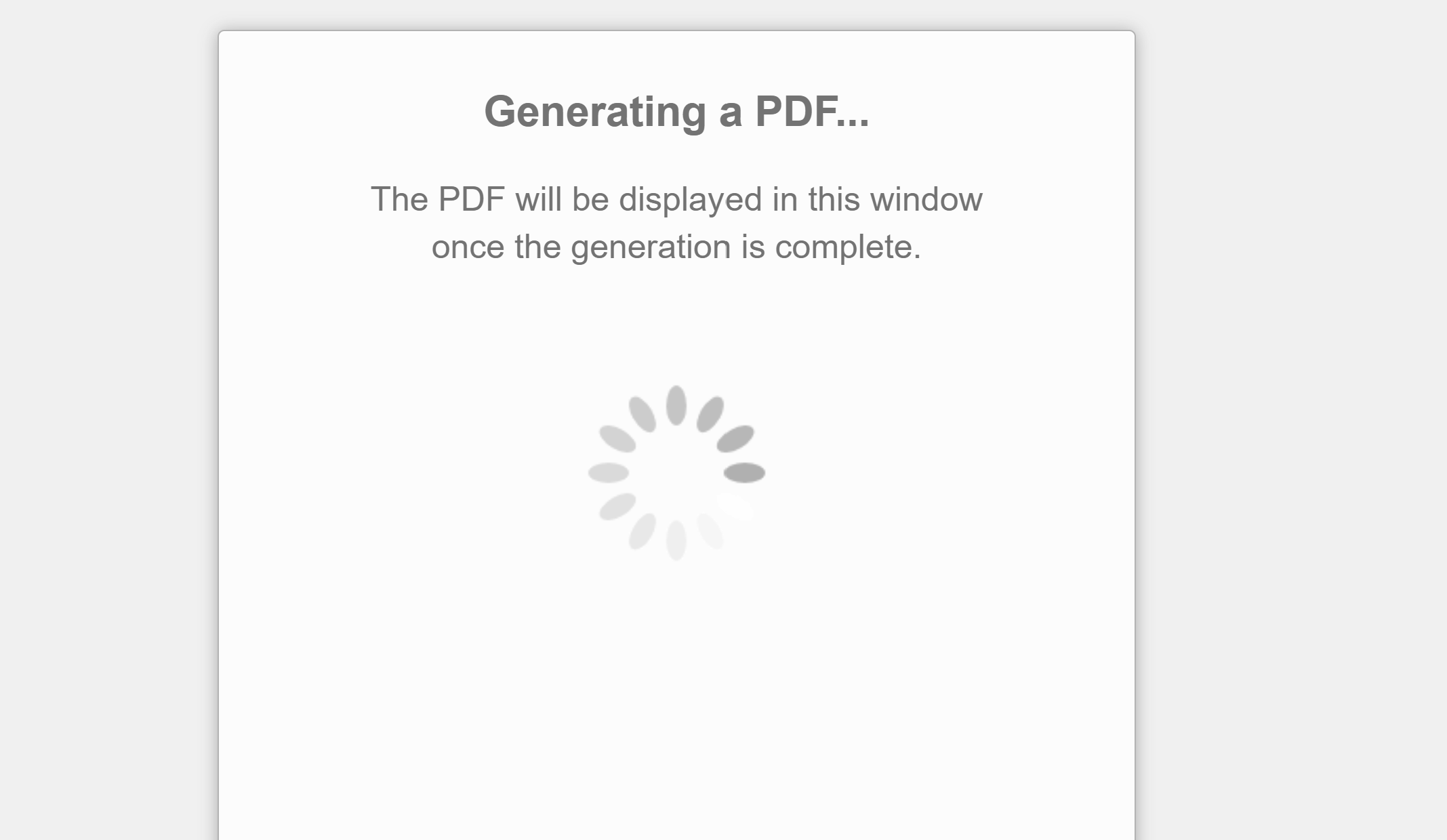
- A PDF of the combined forms/documents will generate.
- If highlighting missing required fields was toggled on, any required fields that have not been filled in will be highlighted in red on the generated PDF as shown below.
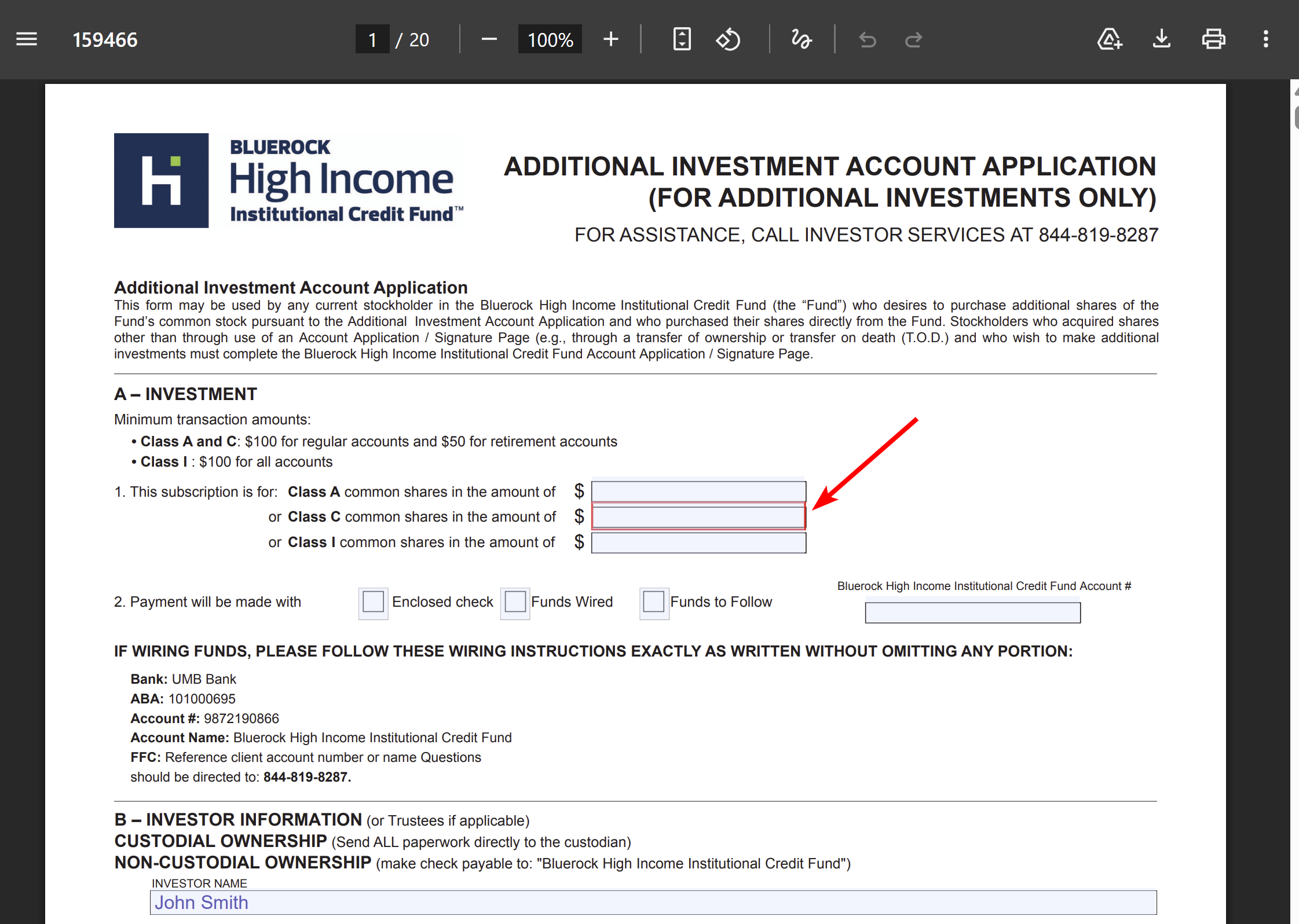
- Once the PDF has generated, you can:
- Print it directly, or
- Download it and send it to your client.
Note
If you need to upload signed documents or manage any other document processing steps, contact your firm administrator. Those steps are handled outside of your Migrator access.