

Running a Transition
Once the transition has been configured, the spreadsheet has been uploaded, and E-sign users have been set up, you are ready to run the transition. Running the transition generates the individual workflows that will appear in the advisor’s Workflows & Tasks list in Navigator.
6.1 Run the Transition
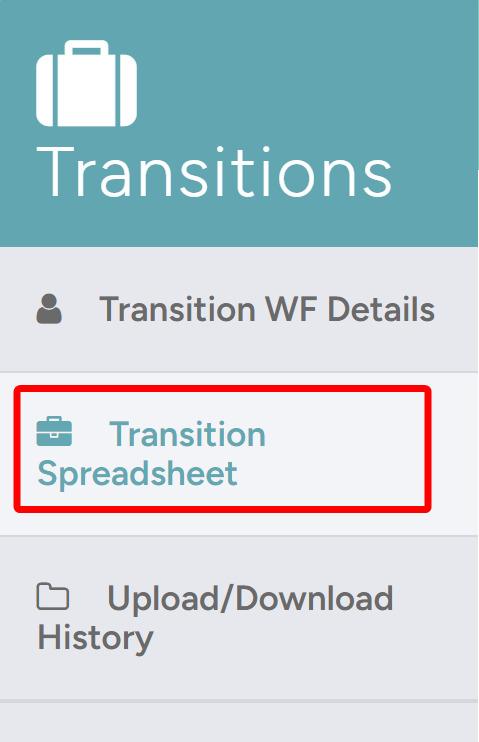
- Inside the transition, navigate into the Transition Spreadsheet tab.
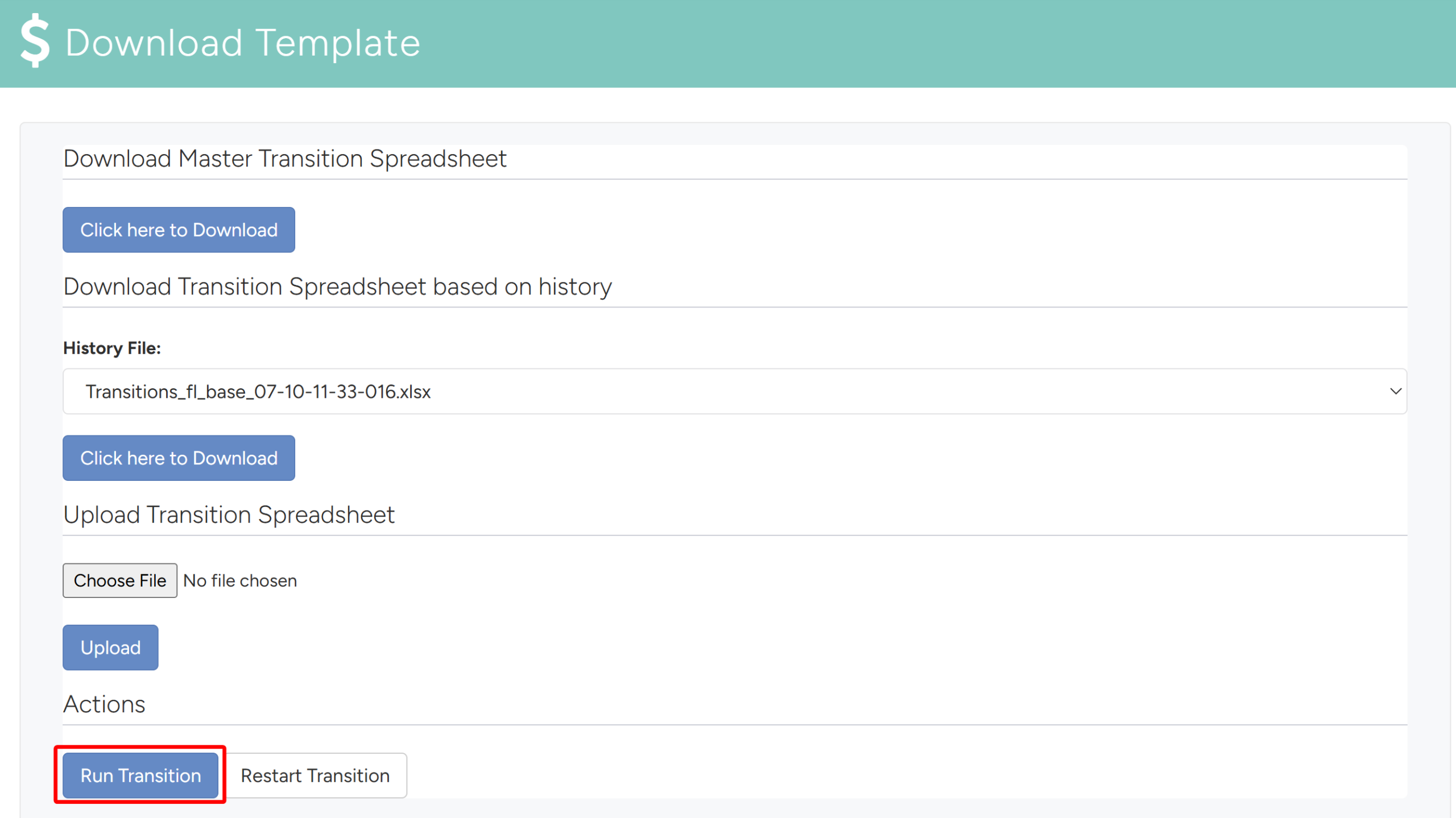
- In the Action section at the bottom of the page, click Run Transition.
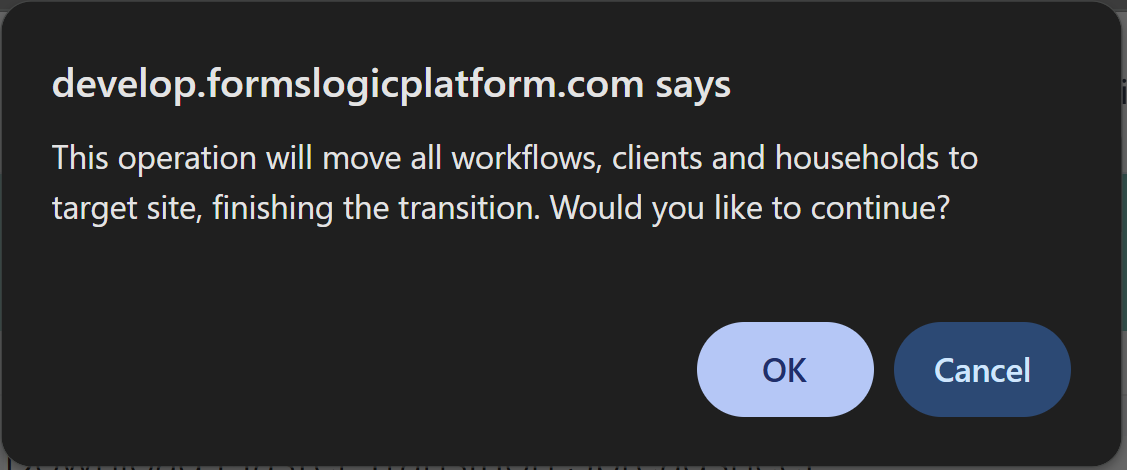
- A confirmation message will populate warning of what this action will do and asking to confirm. Click OK to restart the transition.
- The system will process the transition and generate the workflows for the advisor in the target site.
Note
Processing may take a moment depending on the number of accounts in the transition. Once complete, the advisor’s workflows will appear under Workflows & Tasks in the Navigator platform.
6.2 Confirm Workflows Have Been Generated
After running the transition, verify that the workflows have been created correctly in the target site.
- Navigate into the transition’s target site.

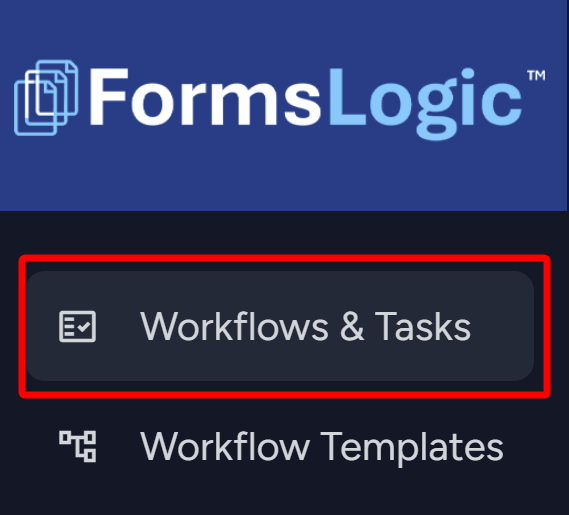
- From the side navigation menu, navigate into Workflows & Tasks.
- Confirm that the expected workflows appear in the list with the correct client names, account types, and custodians — In this case, Jess and John Smith were the clients in the transition.

6.3 Restart a Transition
If a transition needs to be rerun, use the Restart Transition option.
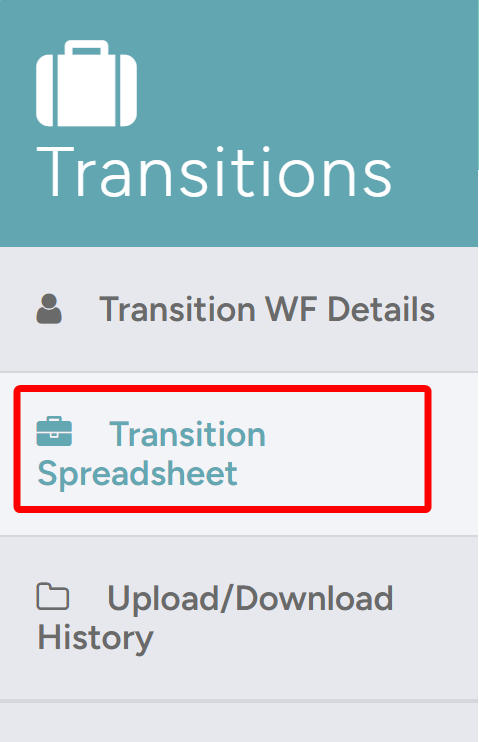
- Inside the transition, navigate into the Transition Spreadsheet tab.
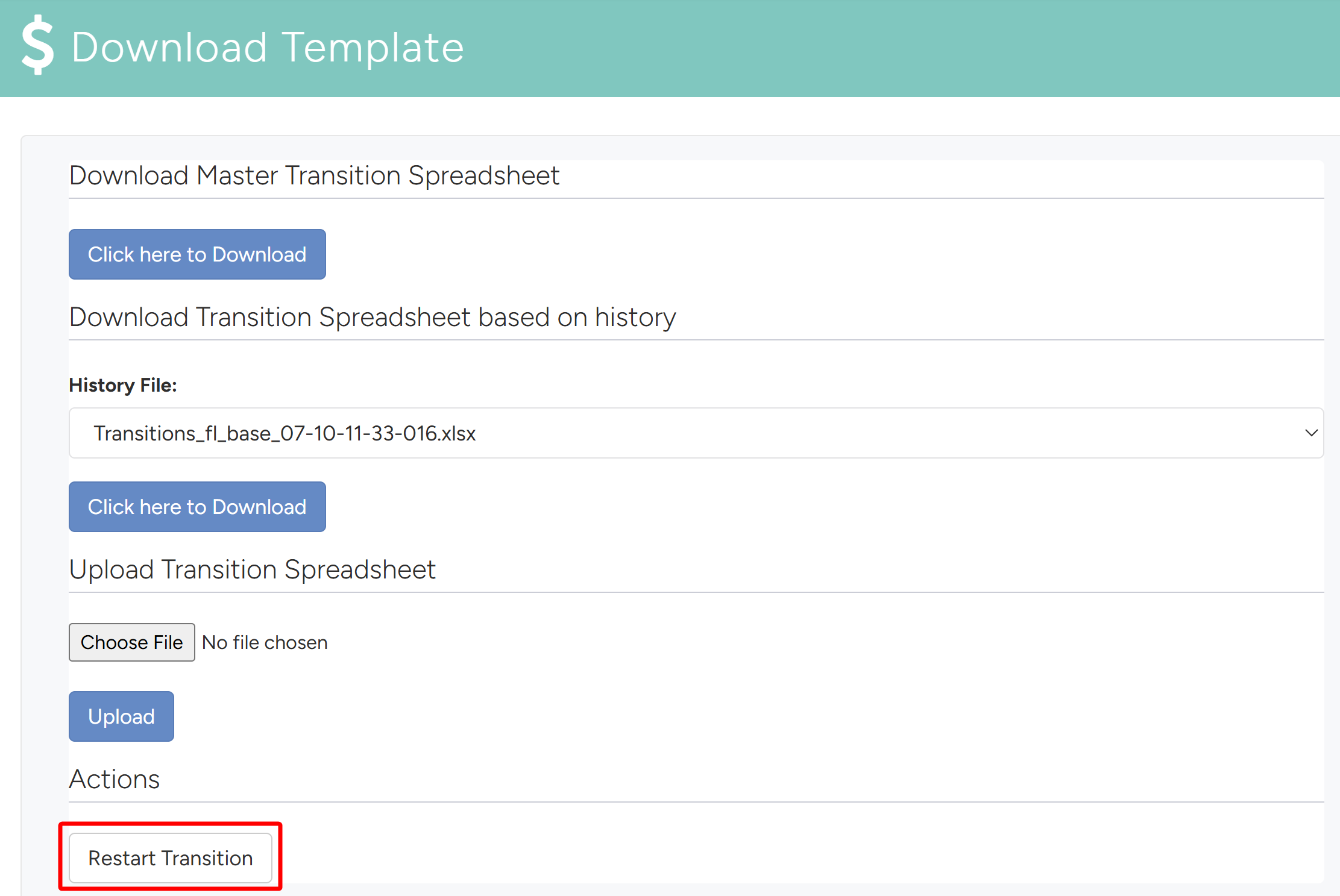
- In the Action section at the bottom of the page, click Restart Transition.
- A confirmation message will populate warning of what this action will do and asking to confirm. Click OK to restart the transition.
