

Creating a Transition
This page explains Form Subscriptions. It will explore how to add a Subscription, unsubscribe from a Forms Vendor, mark a form Active or In-Active, and the difference between Inherited and Set Locally Form Vendors.
3.1 Start a New Transition
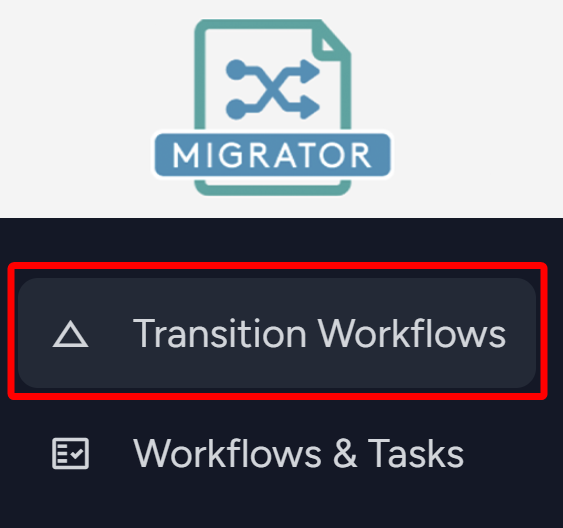
- From the side navigation menu, select Transition Workflows.
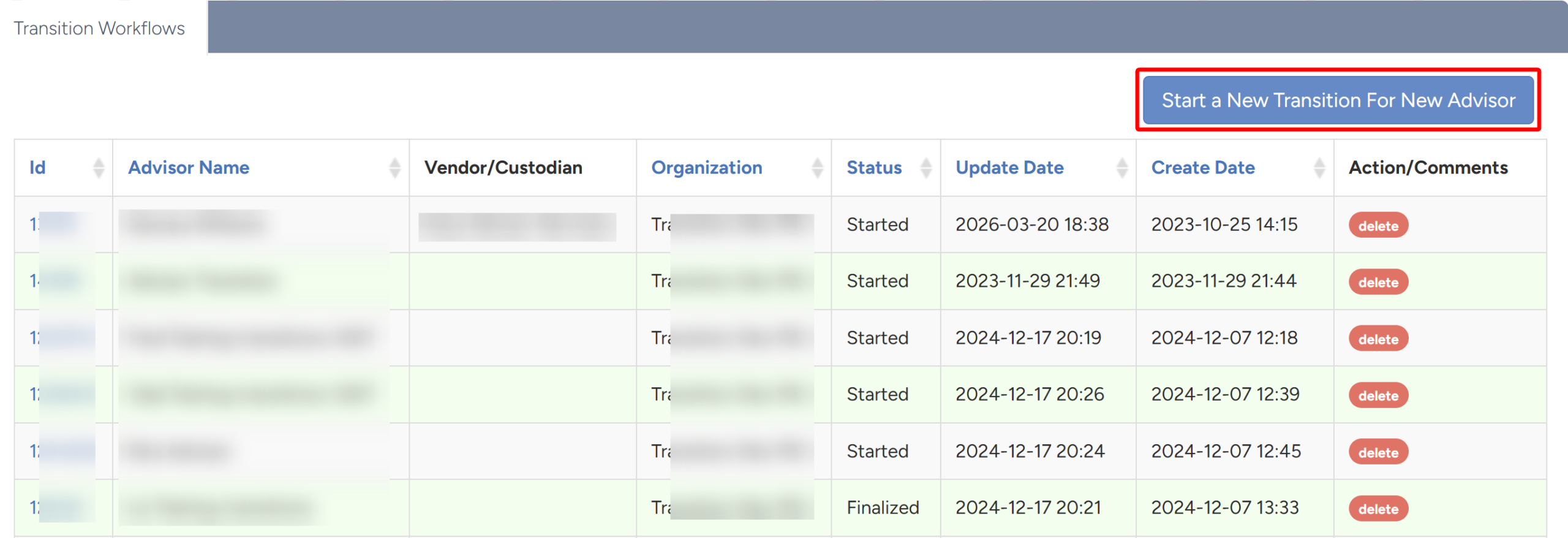
- The Transition Workflows page will load. Click Start a New Transition For New Advisor in the upper right corner.
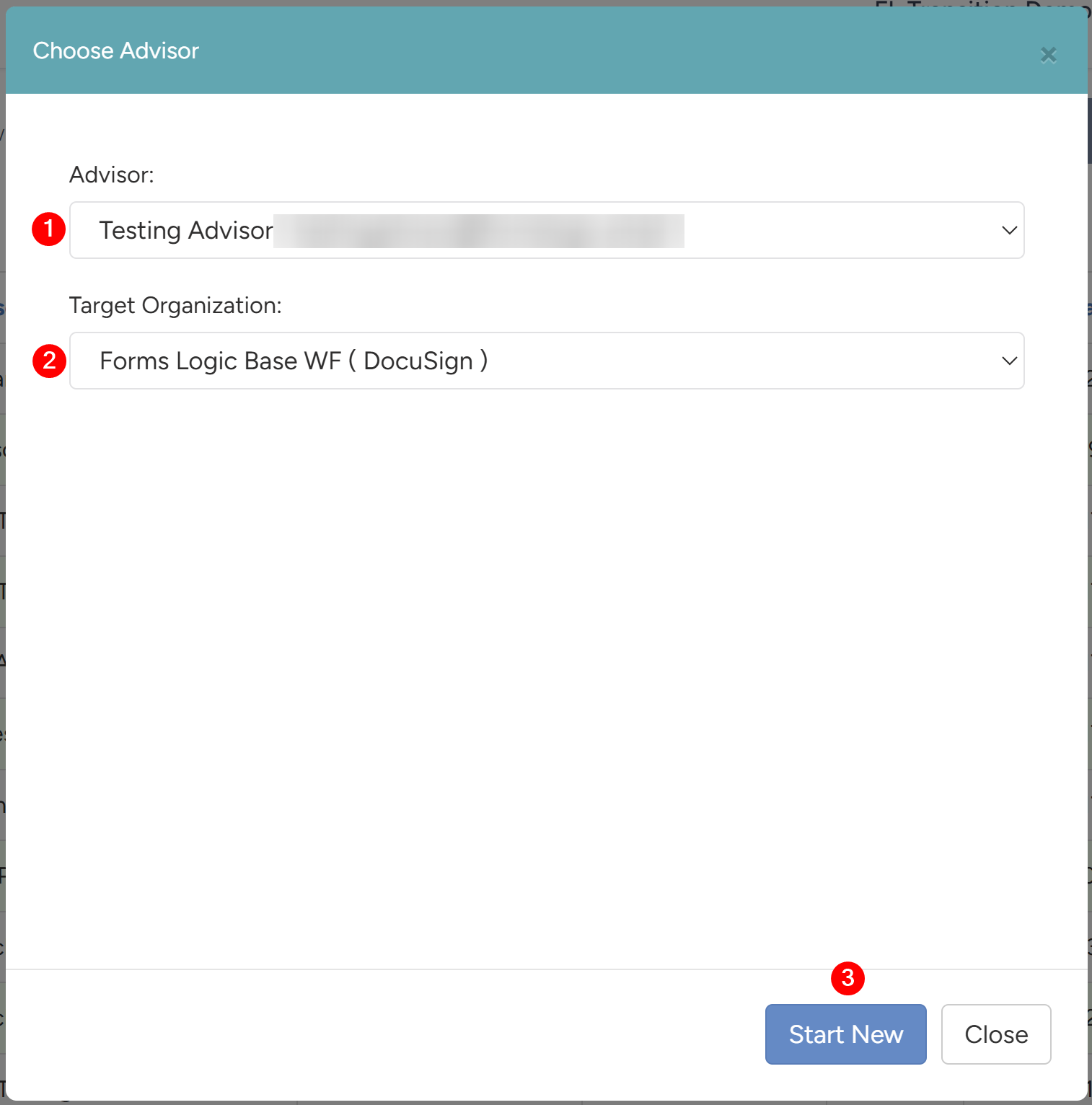
- This panel will open.
- Select the Advisor the transition is for.
- Select the Target Organization.
- Click Start New.
- The system will navigate into the Transition.
3.2 Configure Transition WF Details
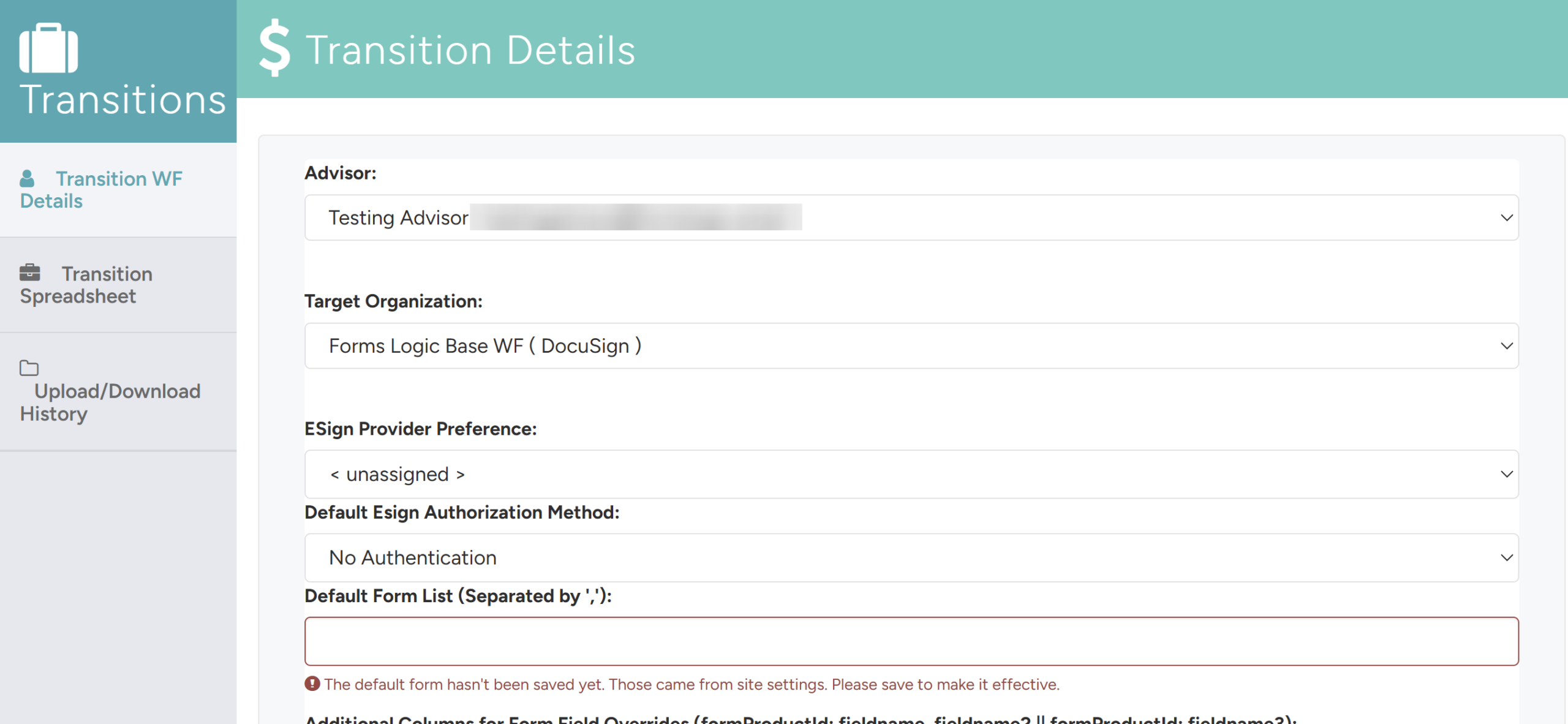
The Transition WF Details tab is where you can configure the transition.
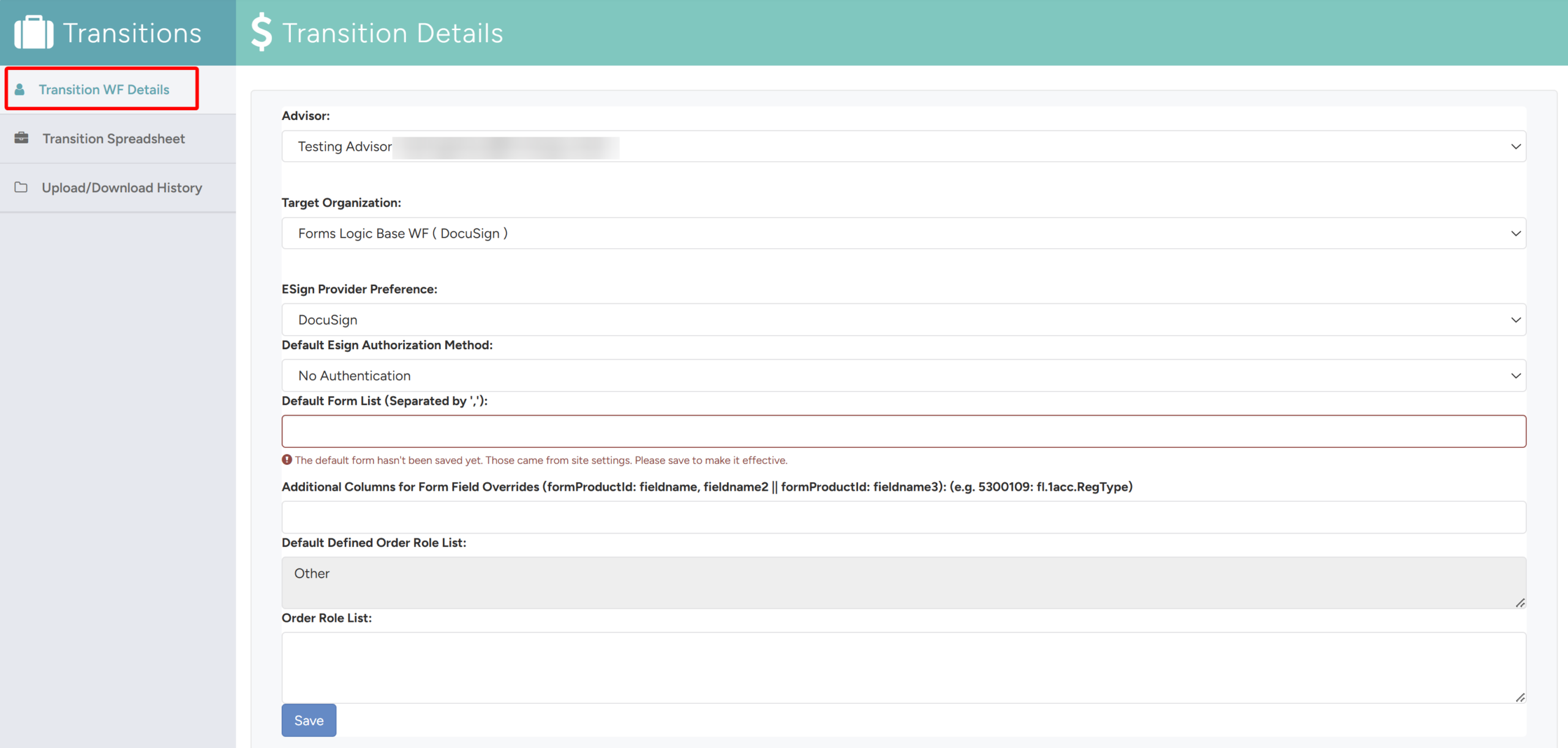
You can configure the following fields for the transition:
- Change the Advisor and Target Organization if needed.

- ESign Provider Preference — Select the E-sign provider to be used for this transition, if applicable.

- Default ESign Authorization Method — Select the authentication method to be used for E-signature (e.g., No Authentication, SMS, KBA). This sets the default for all workflows generated from this transition.

- Default Form List — Enter the form IDs to be included by default in the transition workflows, separated by commas.

- Additional Columns for Form Field Overrides — If your transition requires form field overrides, enter them here using the format shown: formProductId: fieldname (e.g., 5300109: fl.1acc.RegType). Separate multiple entries with ||. This configuration will be added to the transition spreadsheet when uploaded.

- Default Defined Order Role List — Displays the default role order for the transition. Update if needed using the Order Role List.

- Order Role List — Enter any additional role ordering if required for this transition.

- Click Save to save the transition configuration.
