Form Subscriptions
This page explains Form Subscriptions. It will explore how to add a Subscription, unsubscribe from a Forms Vendor, mark a form Active or In-Active, and the difference between Inherited and Set Locally Form Vendors.
2.1 About Form Subscriptions
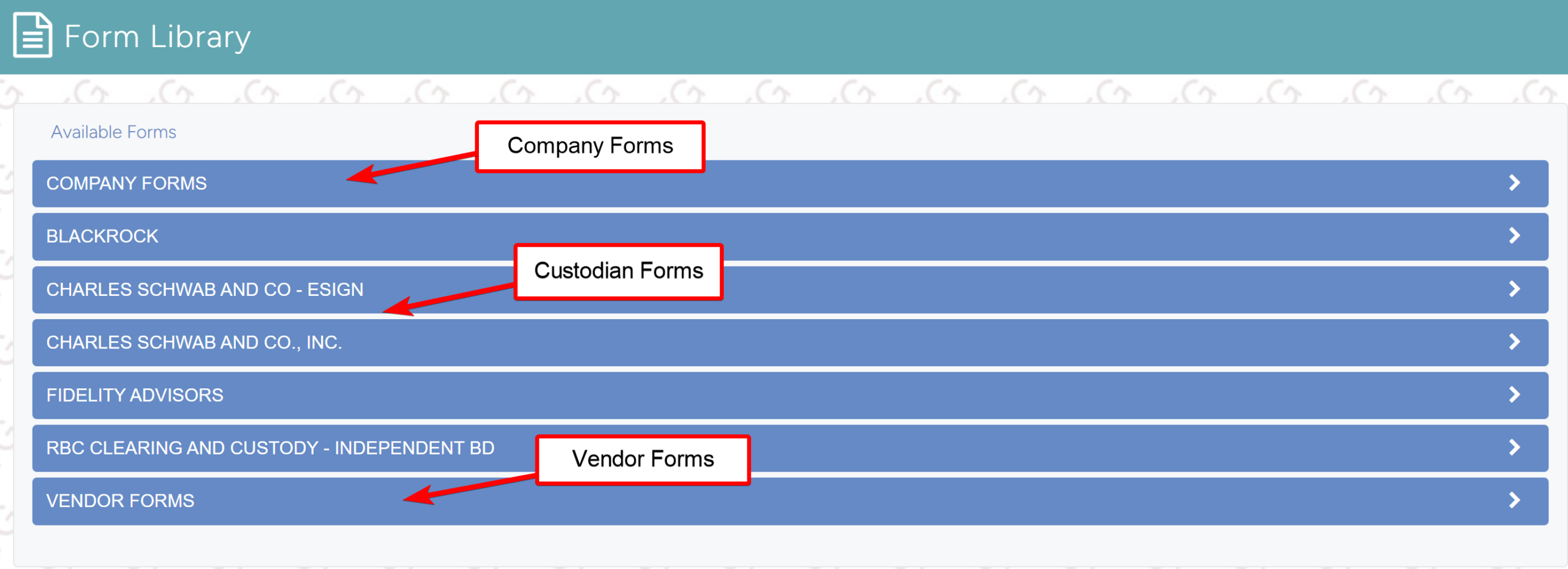
A subscription is defined as enrolling to receive forms from a vendor company with which you have a sales agreement. Once you subscribe the feed will automatically update new released forms. The forms library is broken down to three sections:
- Company Forms: These are your proprietary forms
- Custodian Forms: These are for custodial accounts
- Vendor Forms: These are for companies that you have a direct sales agreement
Note
2.2 How to Add Subscriptions
Note
User must be an admin role to have access to the admin panel.
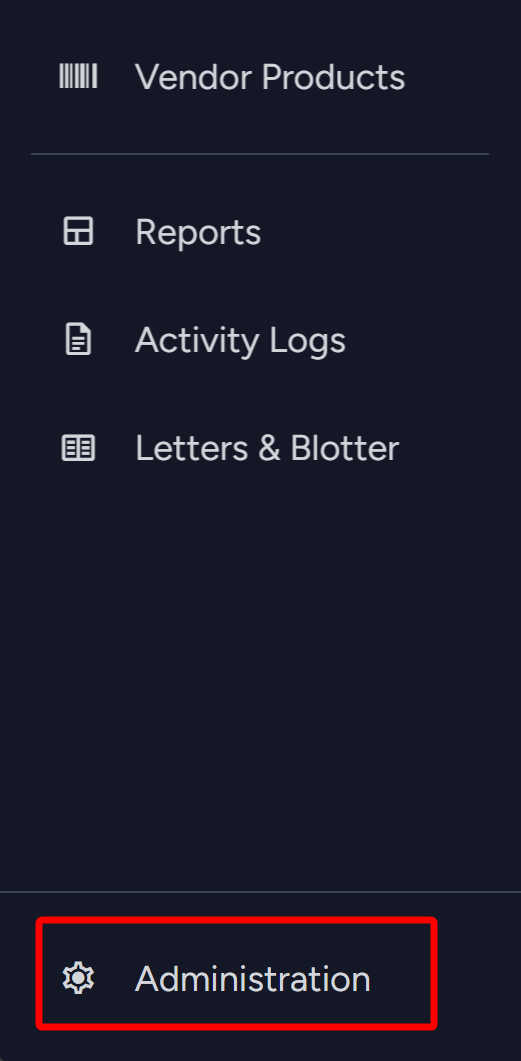
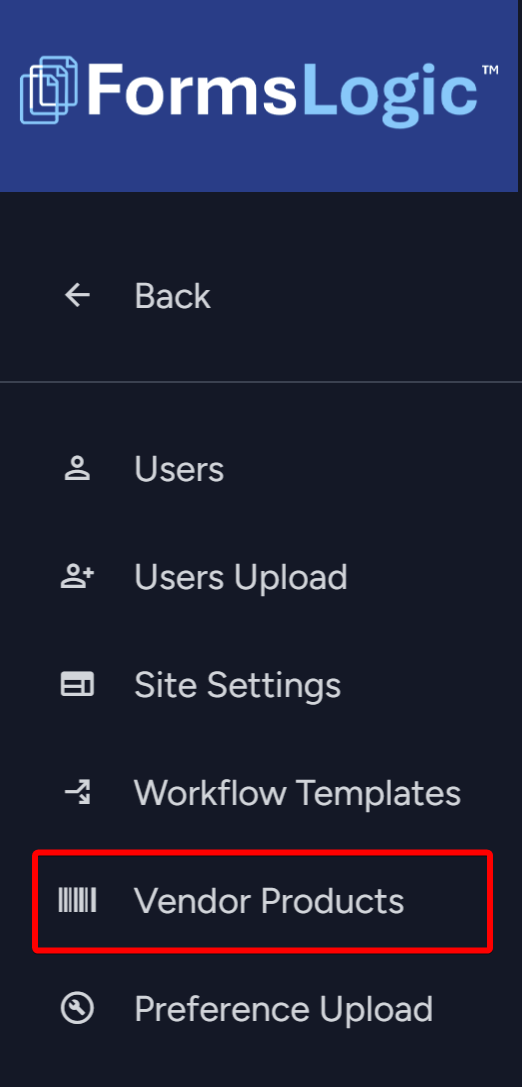
- From the side navigation menu, navigate to Administration > Vendor Products as shown below.
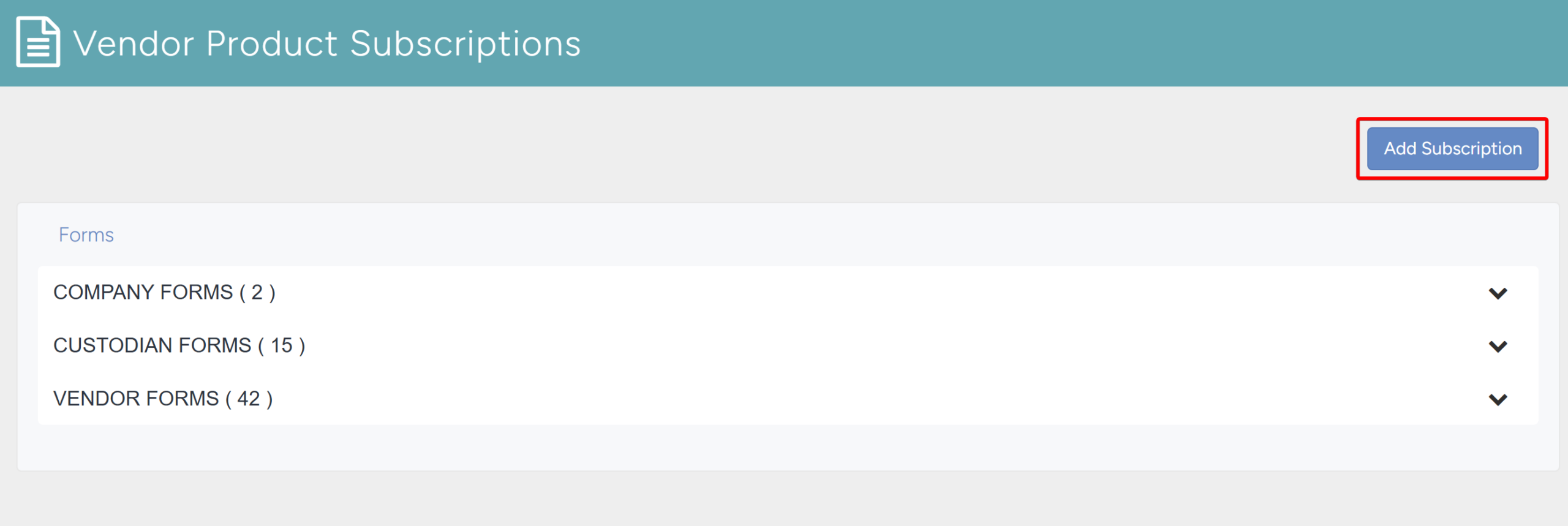
- The system will show the screen shown below. To add a Subscription, click the Add Subscription button.
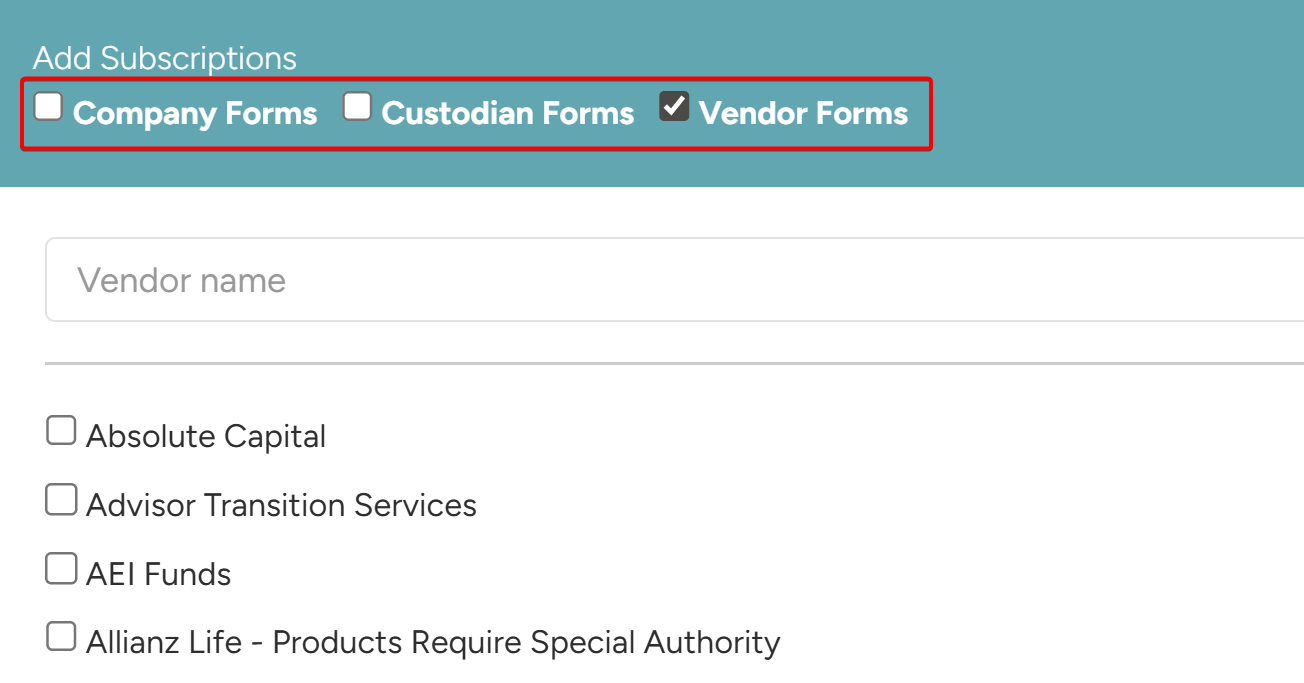
- The Add Subscriptions screen will open. Choose the category of forms that you want to add the form to – Company Forms, Custodian Forms, or Vendor Forms.
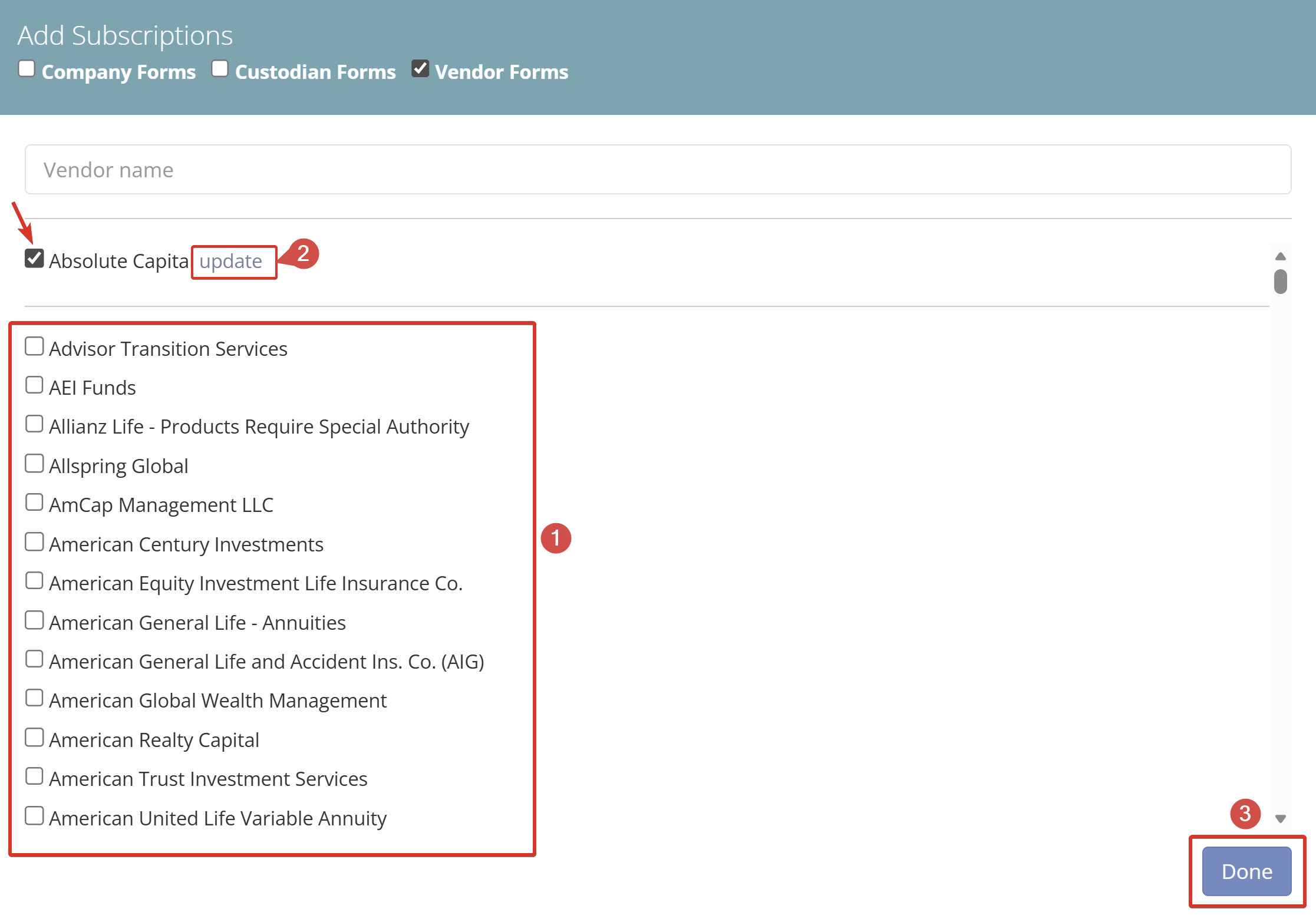
- To finalize adding the subscription:
- Check the company that you want to add.
- Click the Update button to the right of the company you selected.
- Click the Done button.
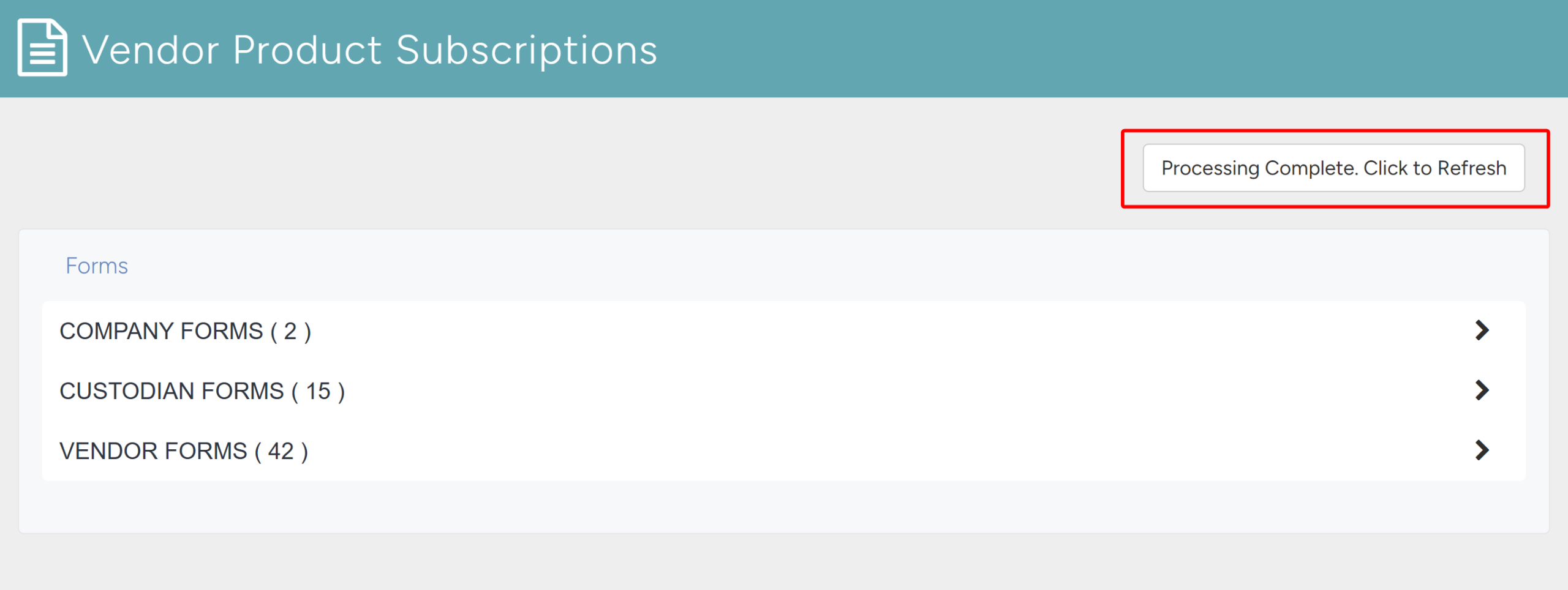
- The system will automatically start processing the information. Once processing is complete, click the Processing Complete – Click to Refresh button in the upper right to refresh.
- Click on the category of the form which gives you the list of companies. From the drop down, find the Vendor you added and click on it.
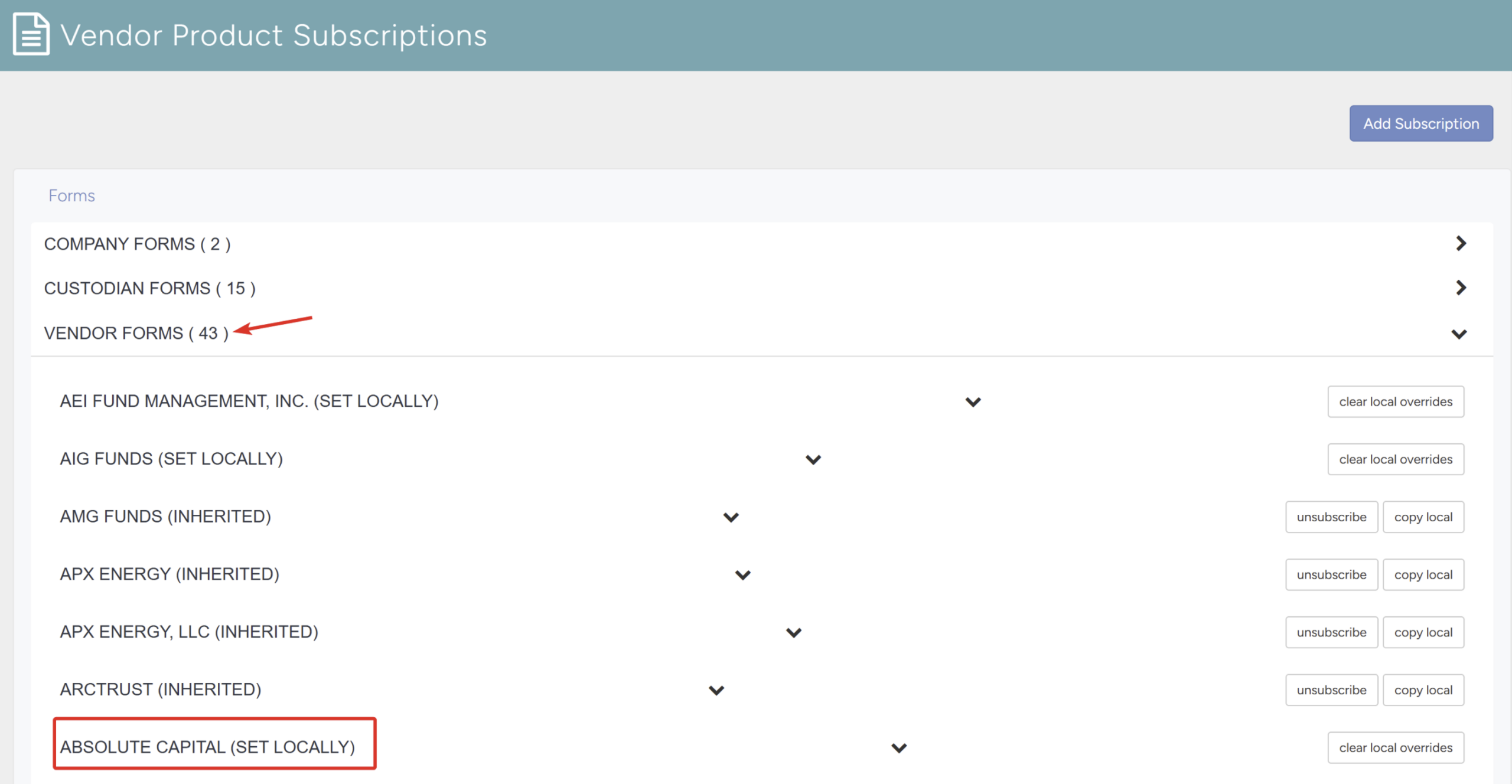
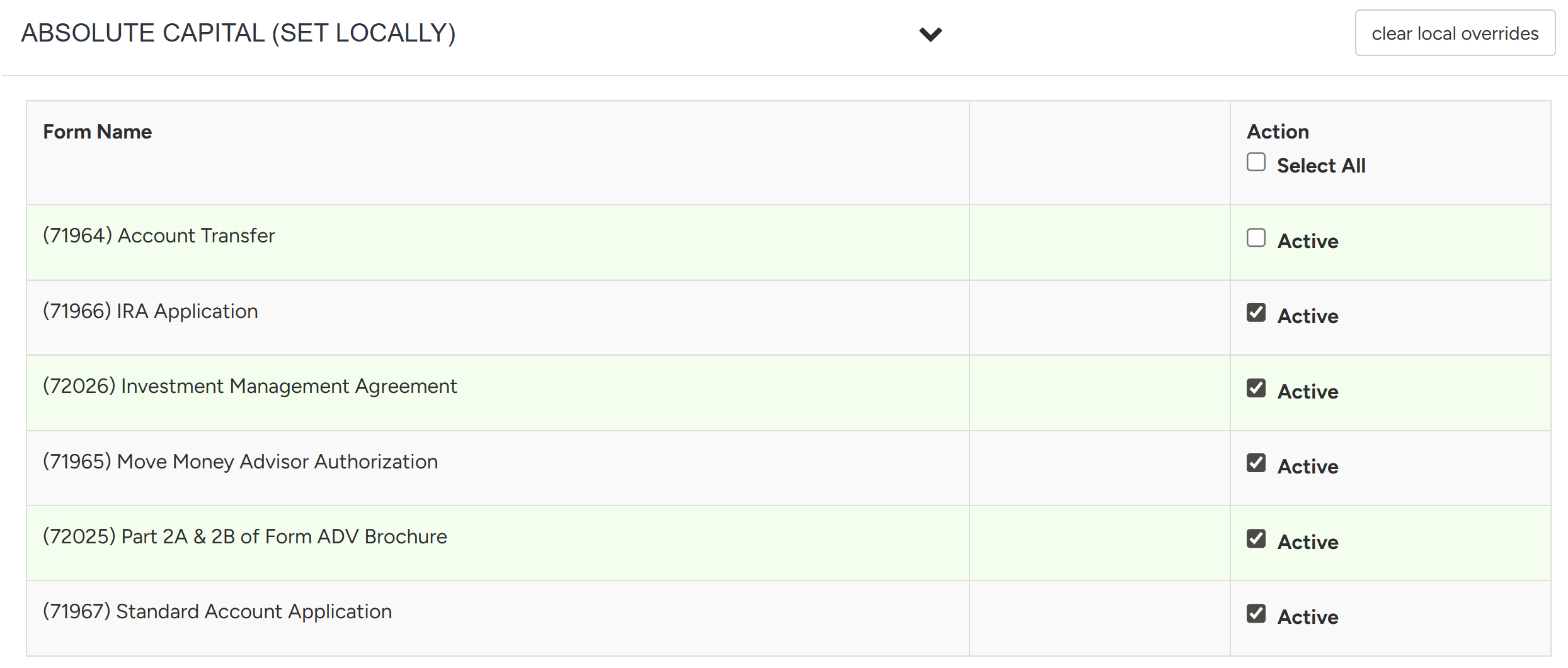
- The drop down will show the list of forms for the vendor
2.3 Mark a Form Active or In-Active
- Navigate to view all forms available to a specific Vendor.
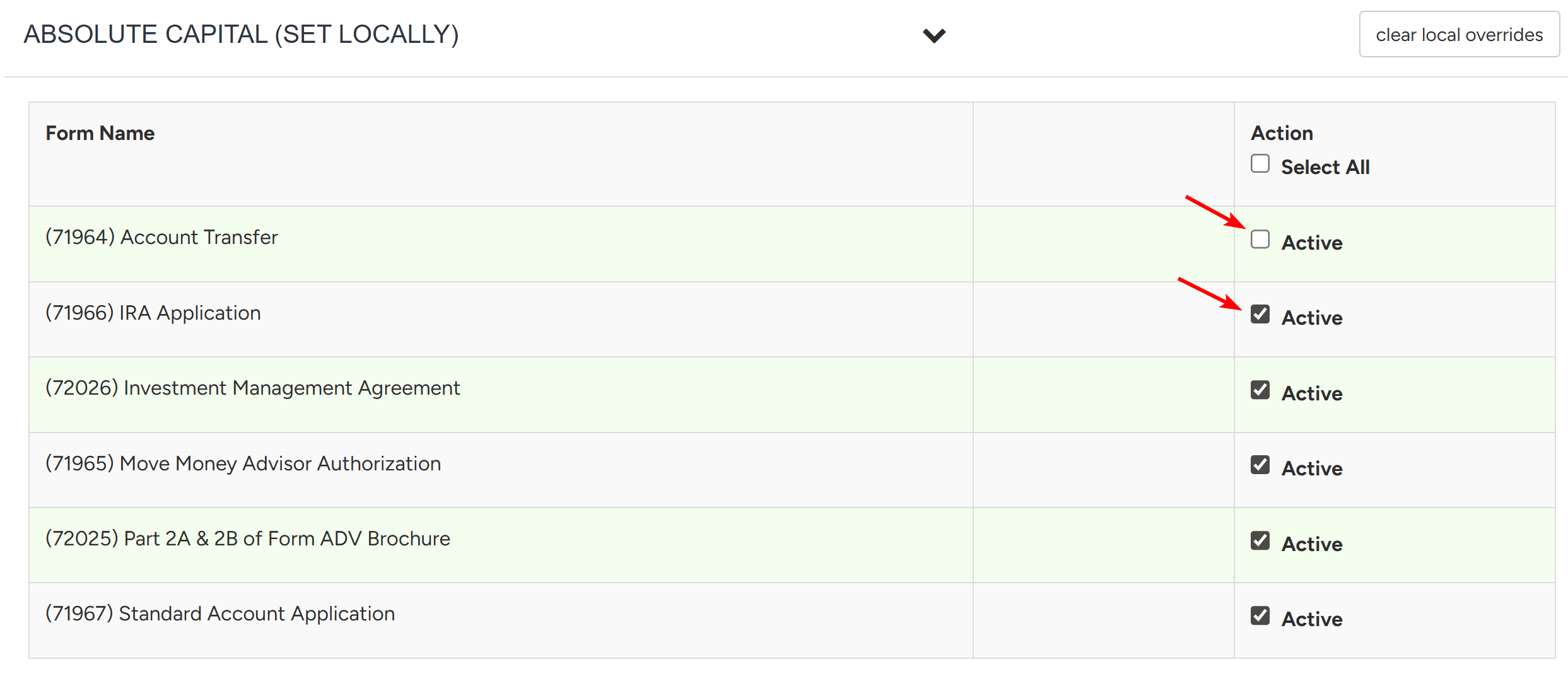
- To activate a form, select the checkbox. To remove a form, deselect the checkbox.
2.4 Inherited vs Set Locally
- There are two types of Form Vendors:
- Inherited: Form Vendors can be subscribed at the Org Level.
- Set Locally: Form Vendors can also be subscribed to at the White Label Level.
- Forms can also be left inactive at the Org Level but Active at the White Label Level.

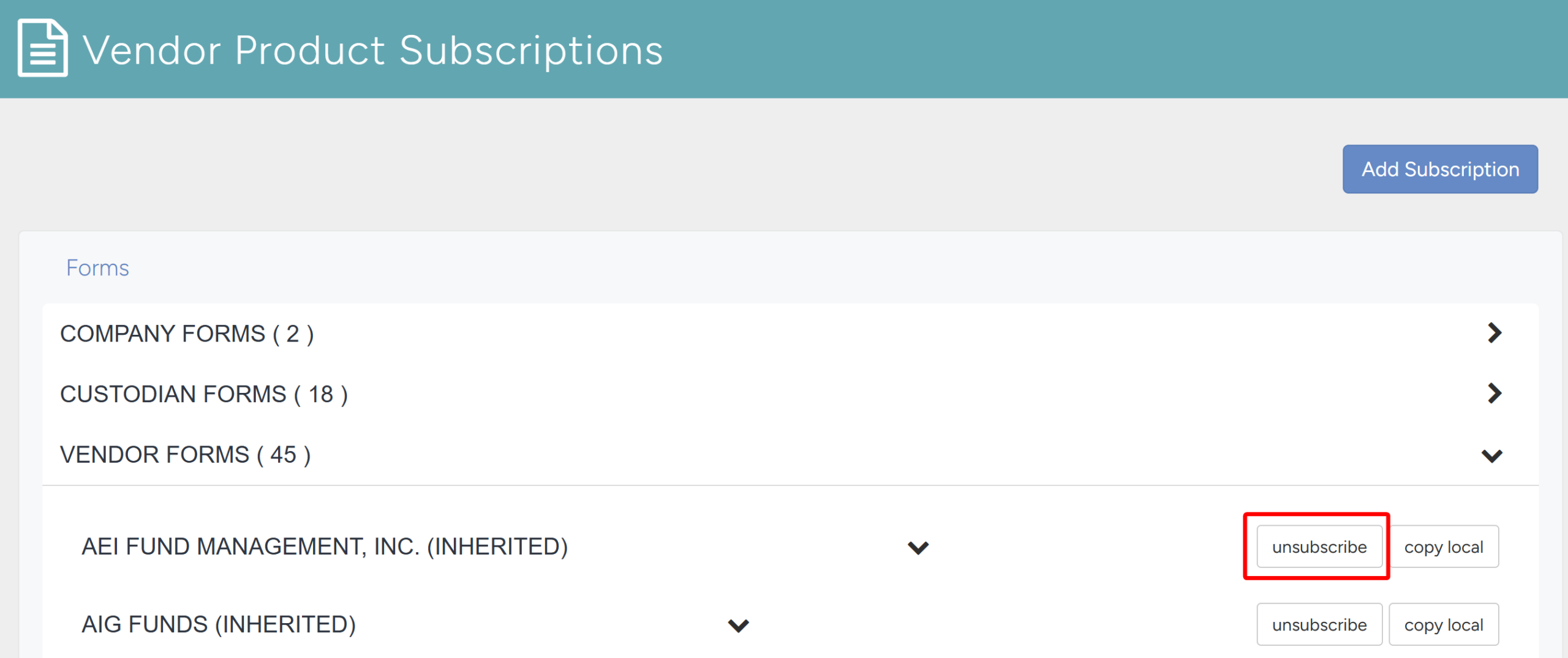
2.5 Unsubscribe from a Forms Vendor
- Navigate to the Vendor Product Subscription screen.
- Click Vendor Forms to open list of the Vendors.
- To unsubscribe, click the Unsubscribe button.