Login to Forms Logic
This page explains how to Login to the Forms Logic platform, how to Login with Two-Factor Authentication, and how to recover a forgotten password.
1.1 Login
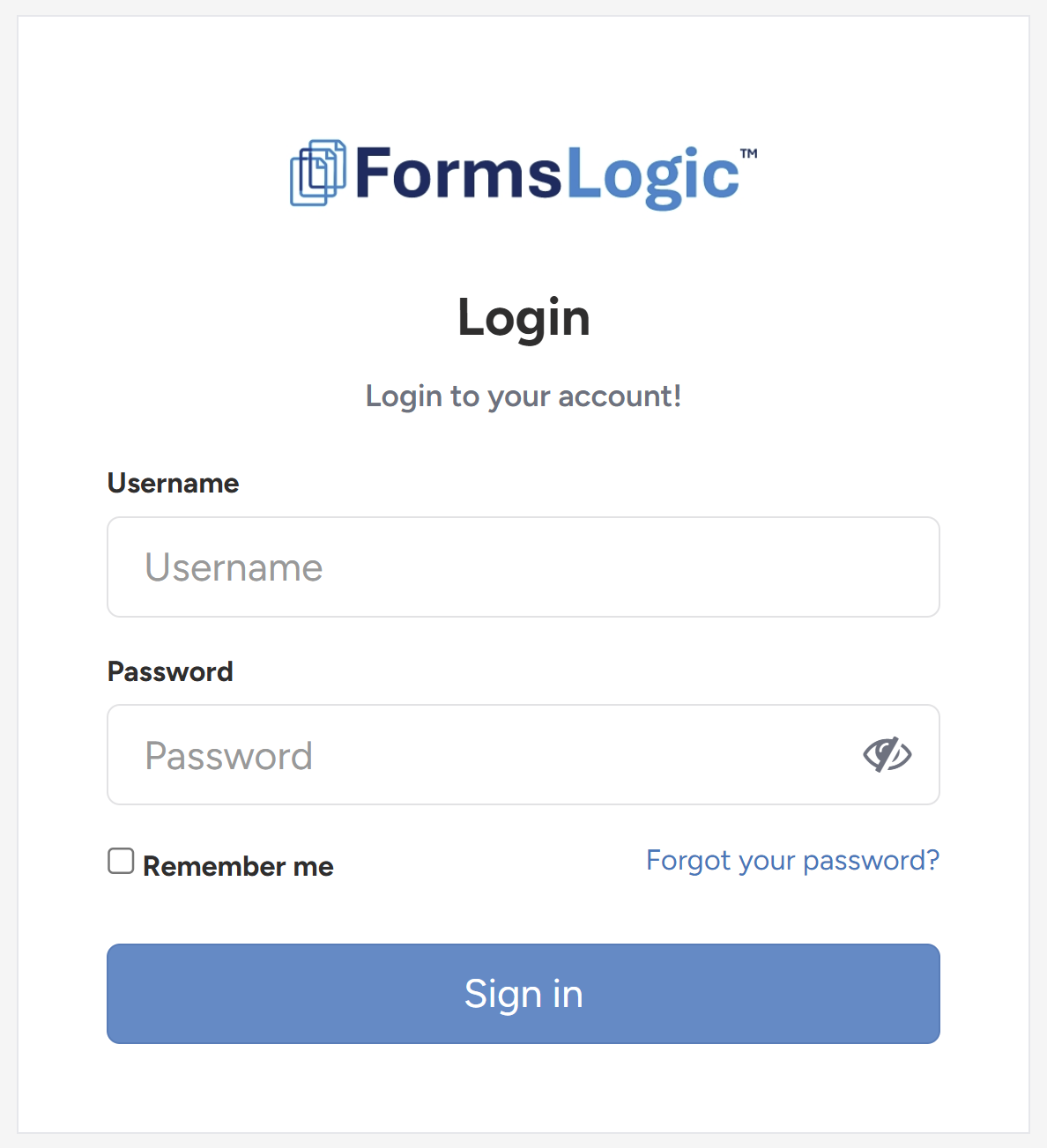
- Visit the Forms Logic Website and click Login in the upper right corner.

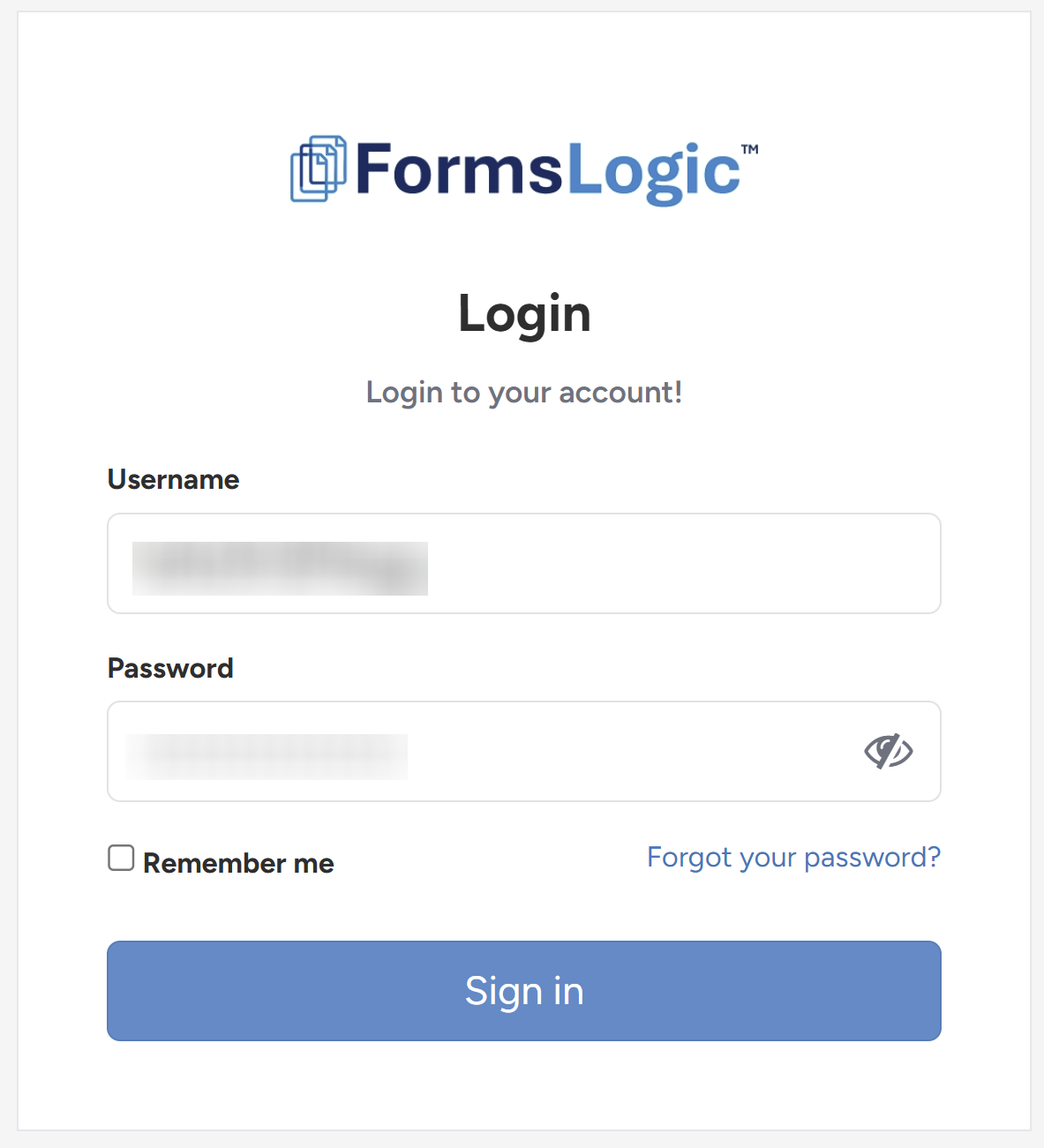
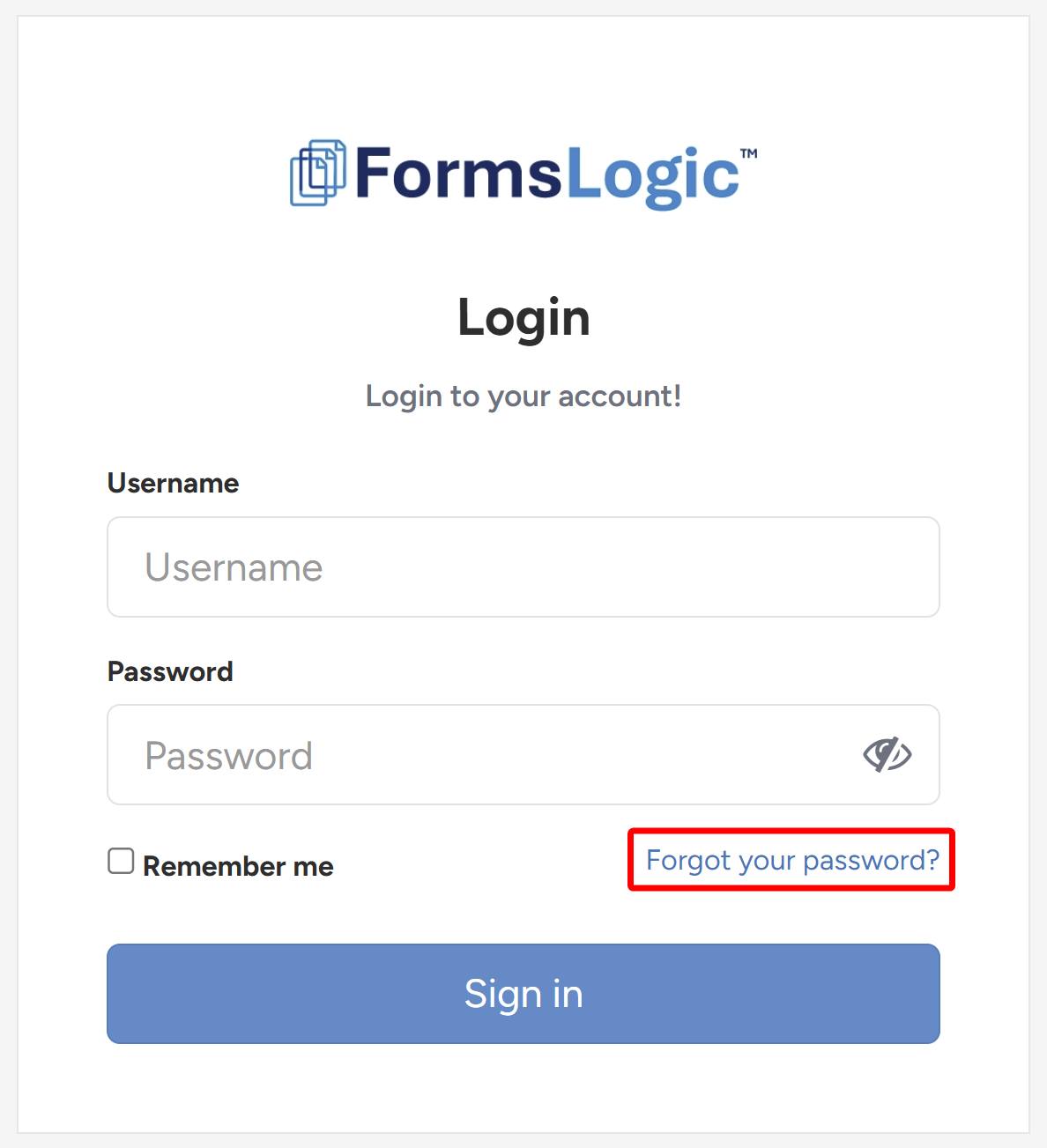
- The system will navigate to the login screen, where you will fill in your Username and Password and click Sign in.
Note
You can navigate directly to Forms Logic Login Page by visiting Login Page.
1.2 Login with Two-Factor Authentication
If your organization has enabled Two-Factor Authentication (2FA), you will be prompted for a verification code after entering your username and password. The first time you log in with 2FA enabled, you will be guided through a one-time setup process.
Note
For further information about Two-Factor Authentication, see the following guide:
1.2.1 First-Time Setup
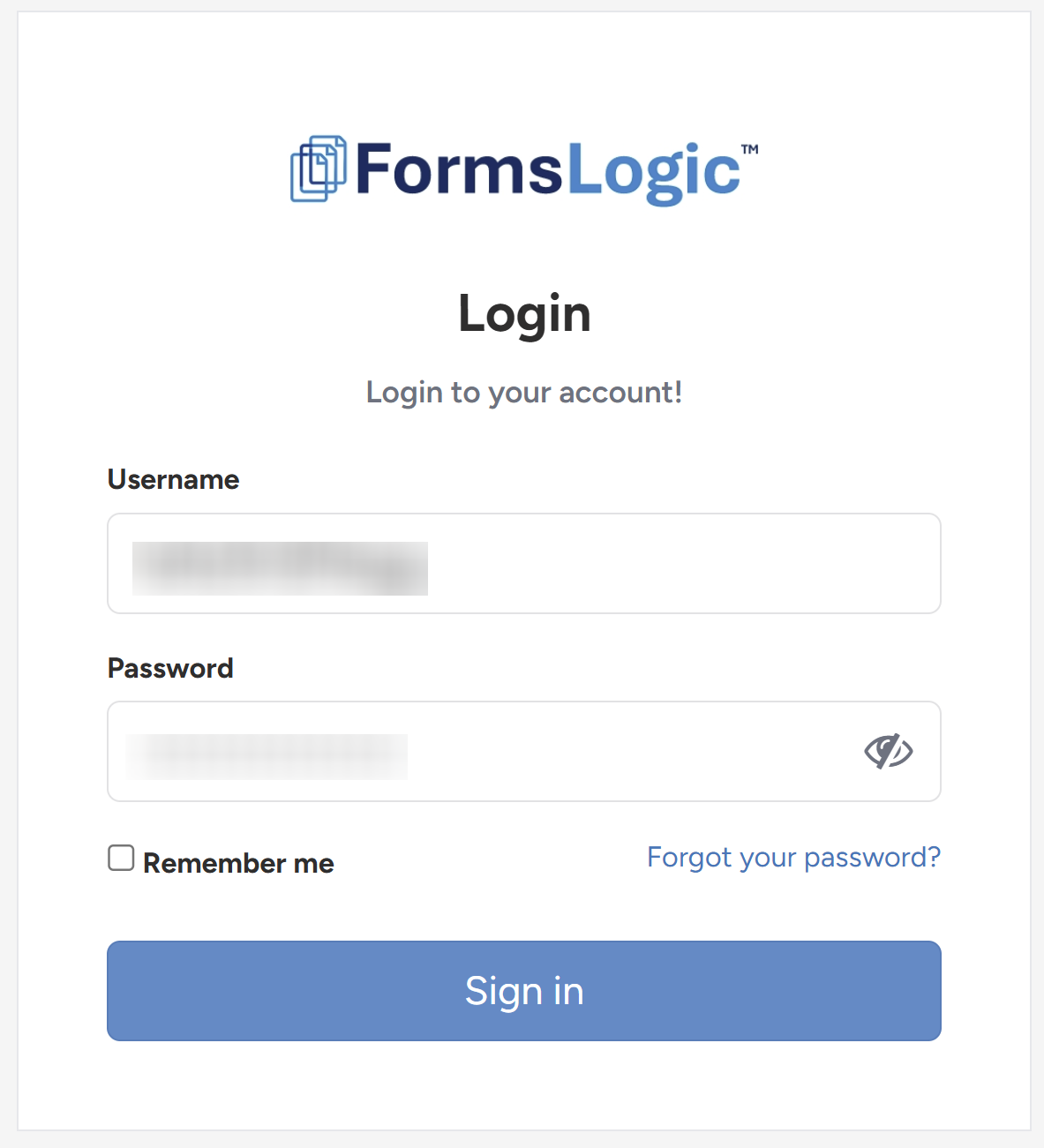
- On the login page, enter your username and password and click Sign In.
- The 2FA setup screen will display a QR code. Open your authenticator app and scan the code, or copy it manually if scanning isn’t available.
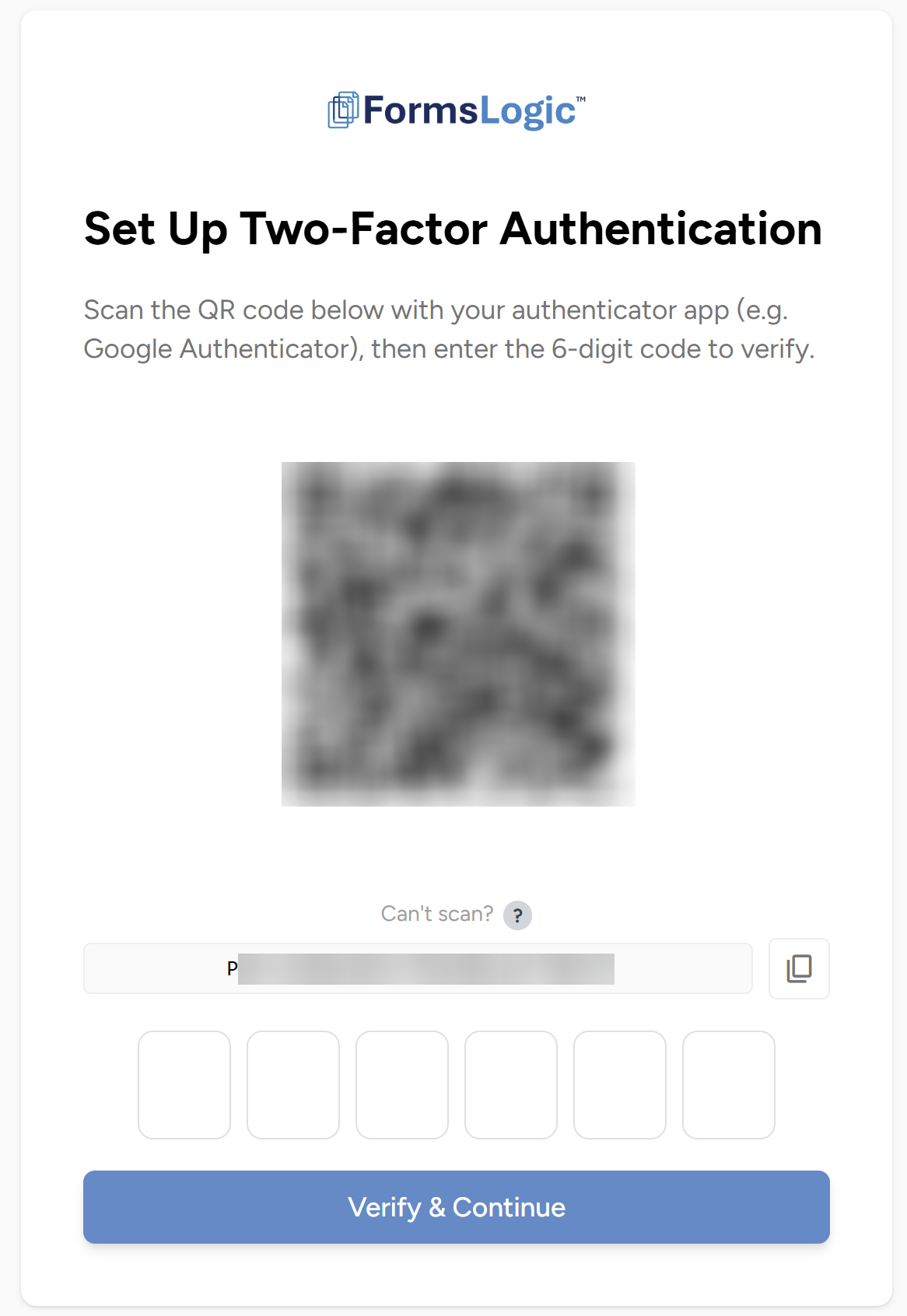
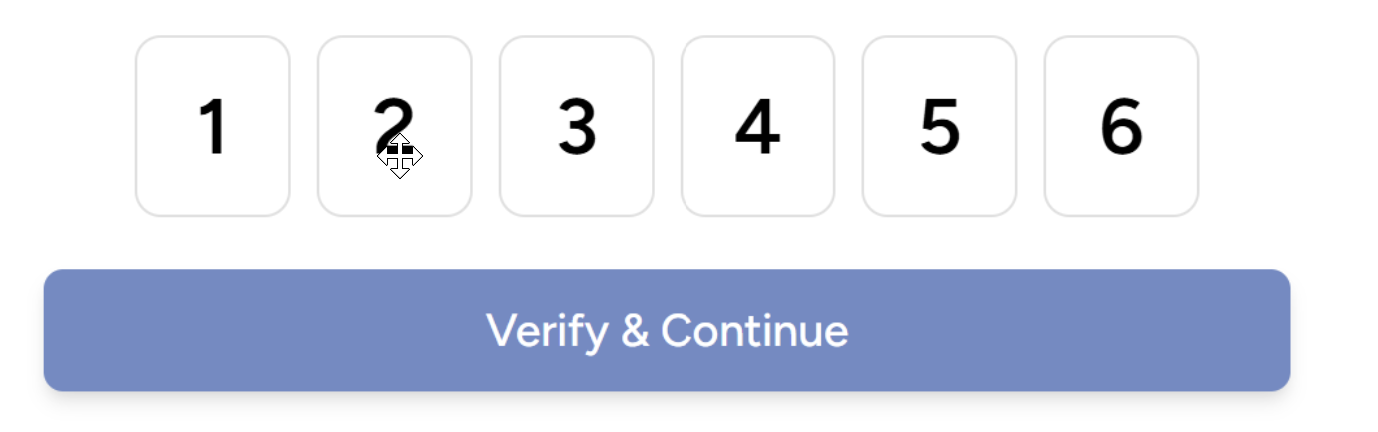
- In your authenticator app, find the 6-digit code for Forms Logic. Enter it into the verification field and click Verify & Continue.
- Your backup codes will be displayed — save these in a secure location. They can be used to regain access if you lose your authenticator app.
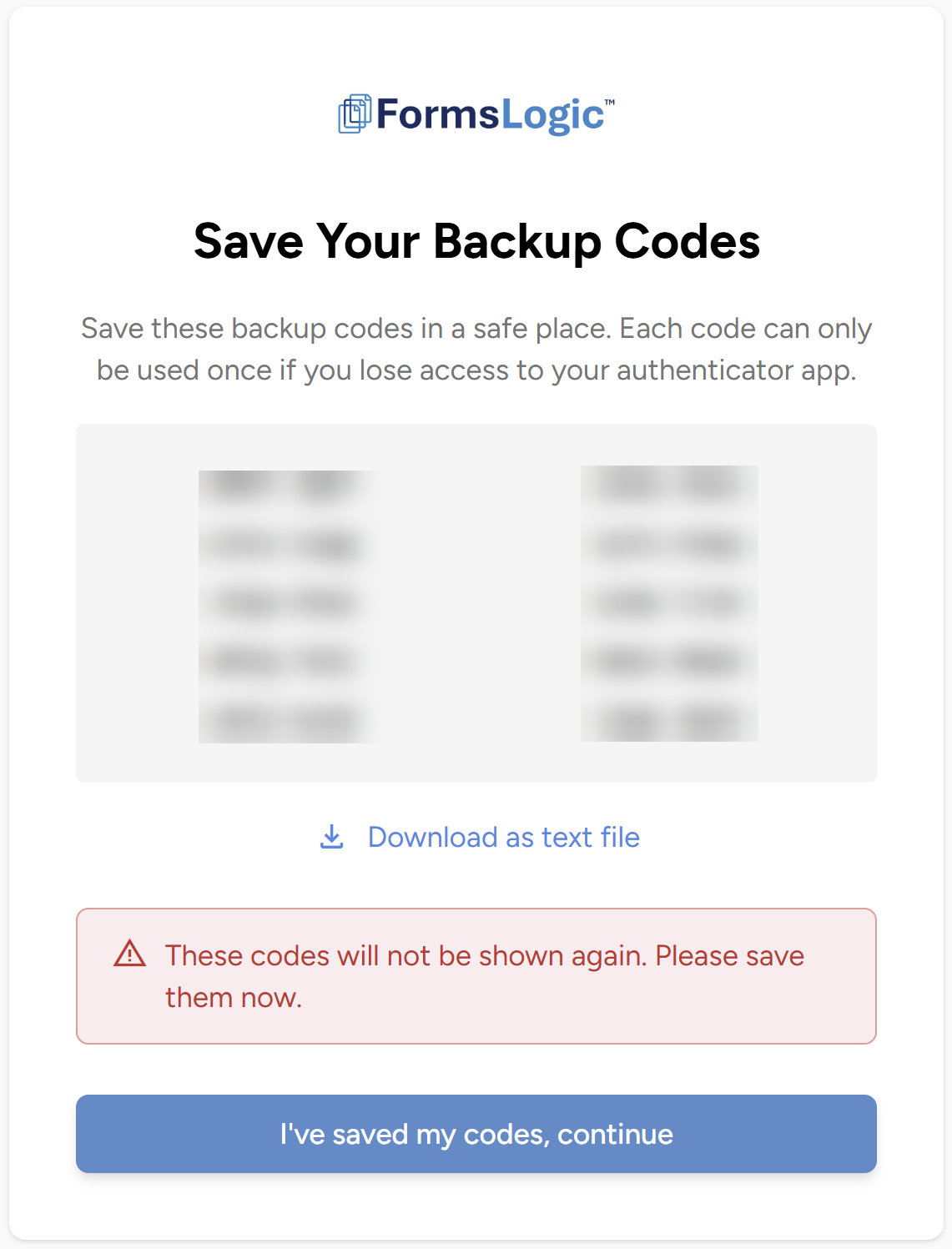
- Click I’ve saved my codes, continue to proceed to the platform.

1.2.2 Logging In After Setup
Once 2FA is configured, the process is straightforward each time you log in.
- Enter your username and password and click Sign In.
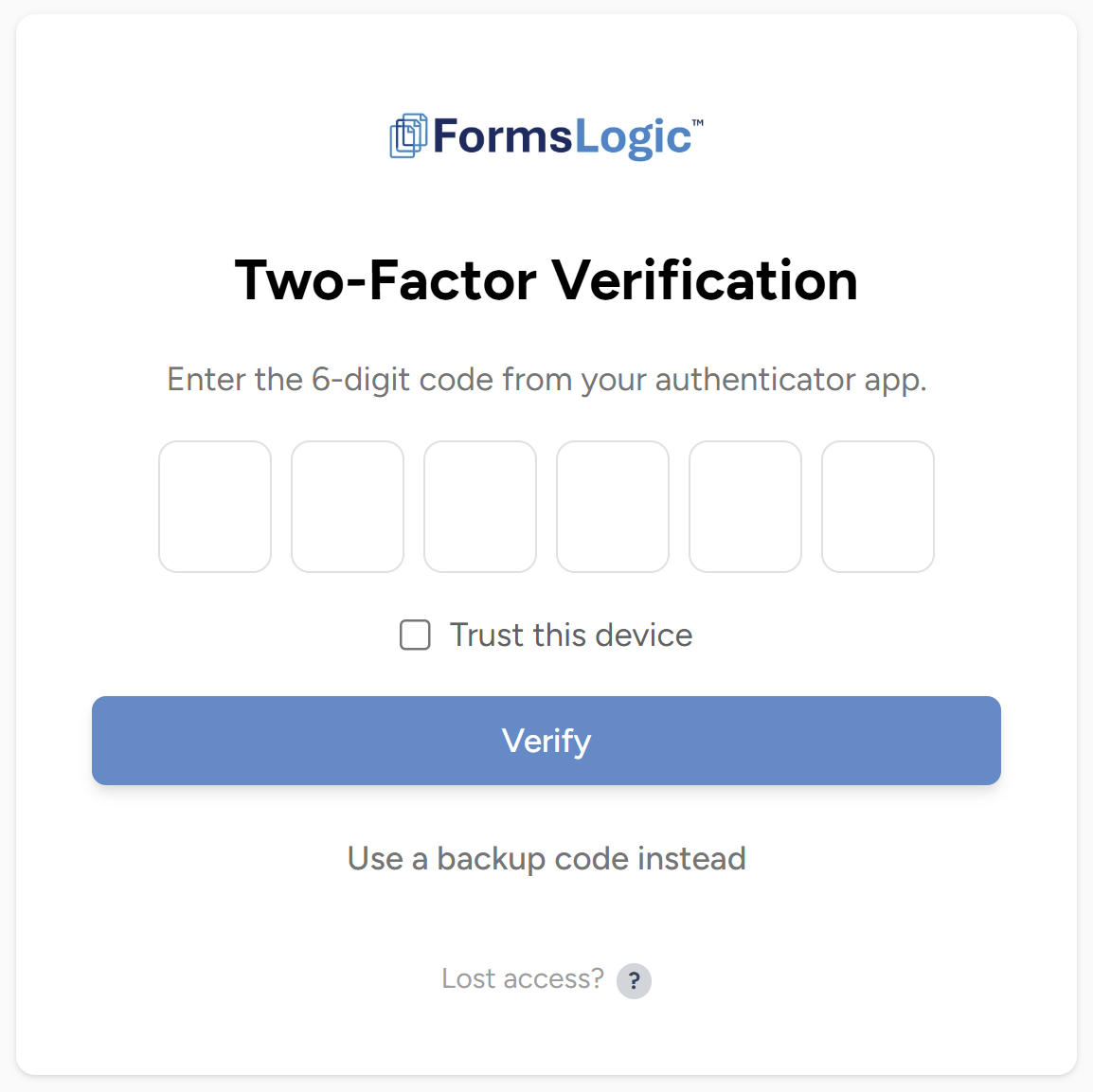
- You will be prompted to enter the 6-digit code from your authenticator app. In your authenticator app, find the 6-digit code for Forms Logic, enter the code, and click Verify.
1.3 Forgot Password
- In the case of a forgotten password, click the Forgot your password? link – which will take you through the process of resetting your password.
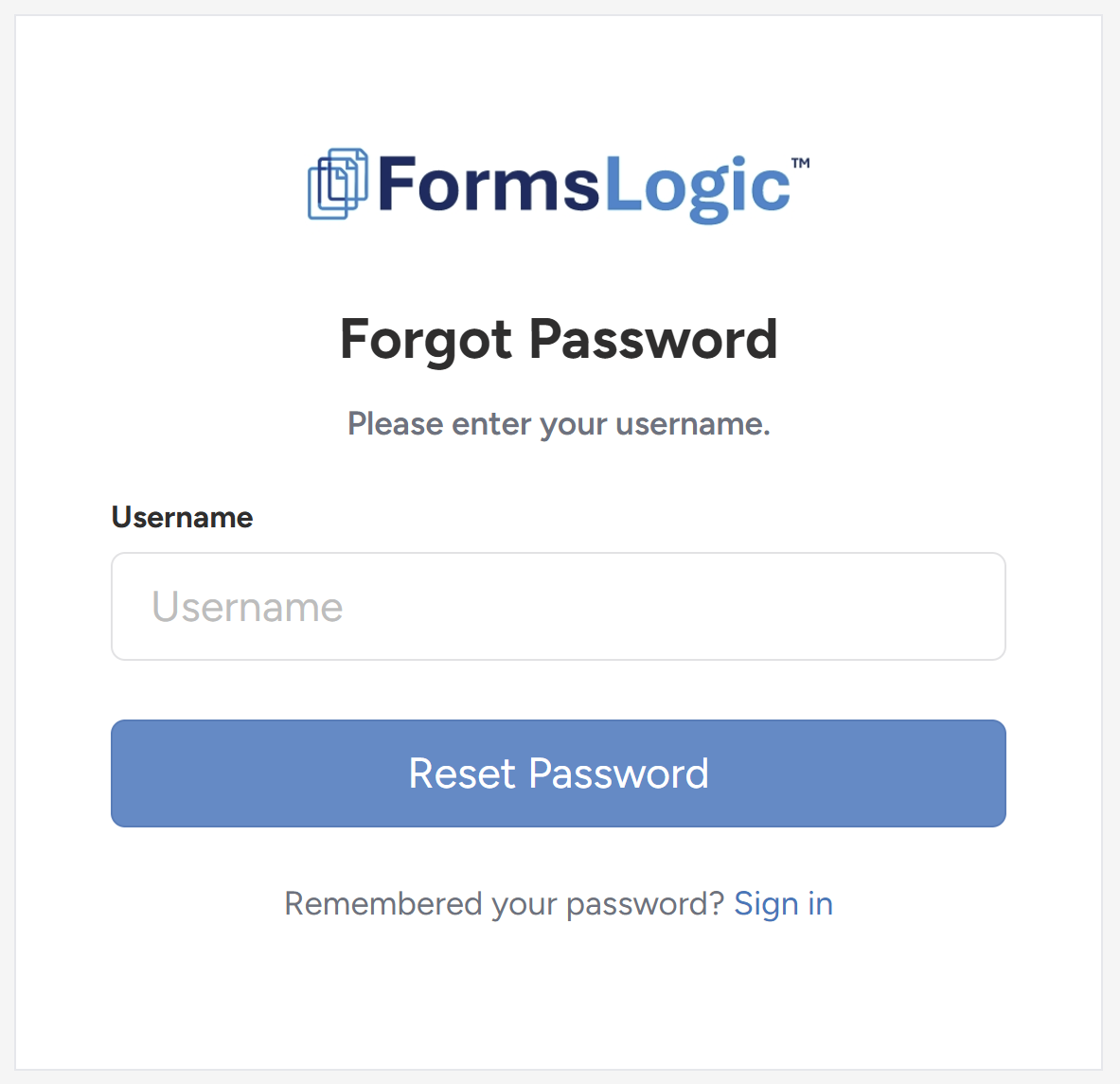
- The system will navigate to the Forgot Password screen. Fill in your username and click Reset Password.
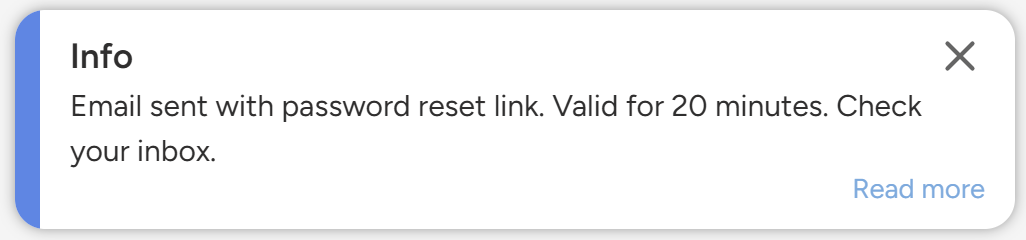
- The system will validate the username and will send the password reset instructions to the registered email account. In the upper right, an info banner will be displayed informing the email was sent.
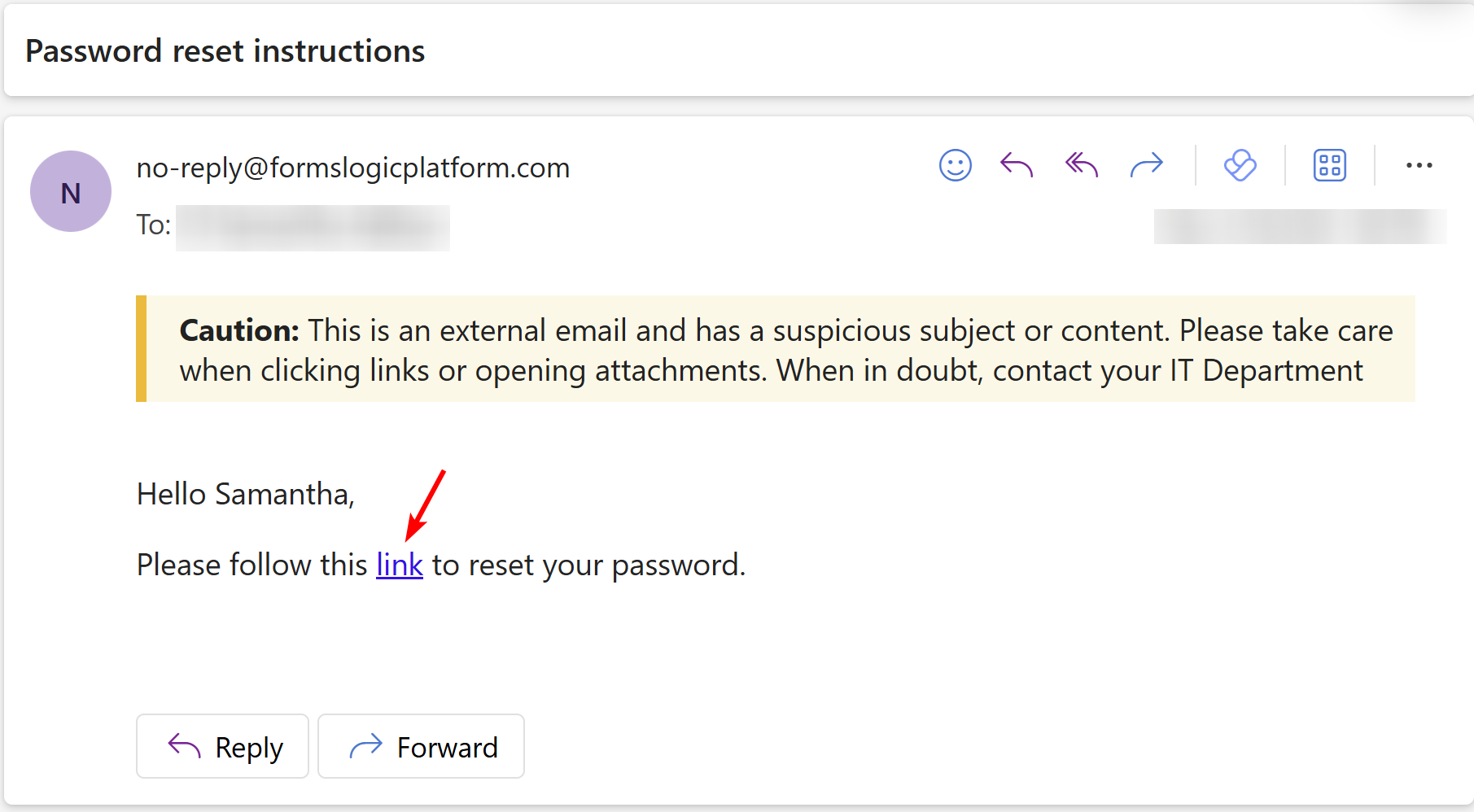
- In your email account, find the password reset instructions email. Click link to reset the password.
Note
All official emails are sent from no-reply@formslogicplatform.com.
- The reset password screen will show. Enter in the new password and click Reset Password.
- The Password must be 8 characters long.
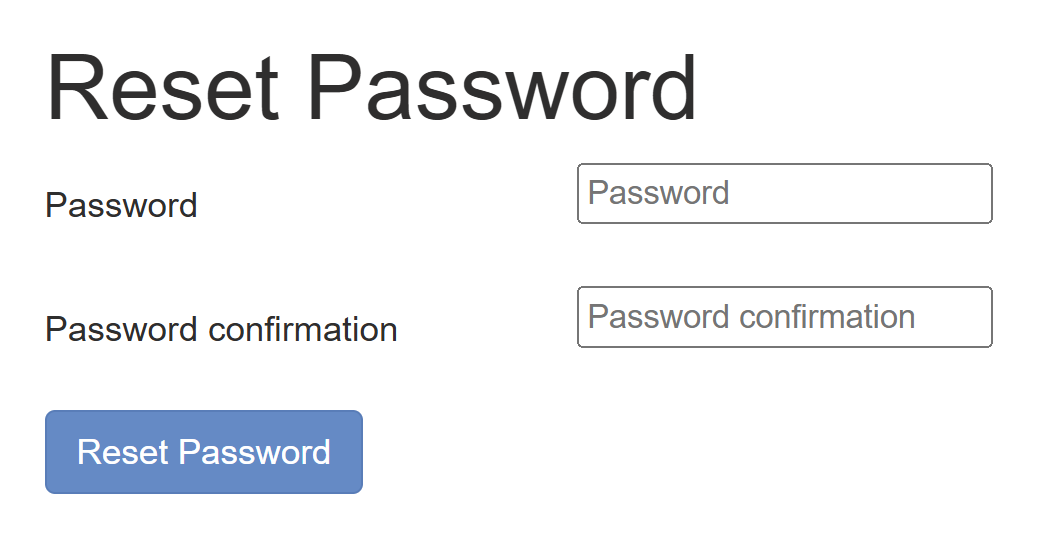
- You will automatically be redirected to the Login page where you will enter your username and new password.