Vendor Products
The Company Vendor Products feature allows administrators to add and manage vendors and their associated forms within Forms Logic. Once added, vendors and their forms become available in the Forms Library and can be selected when creating workflows.
3.1 Adding a Vendor and Vendor Forms
To add a new vendor and its associated forms, follow the steps below.
- From the side navigation menu, navigate to Vendor Products.
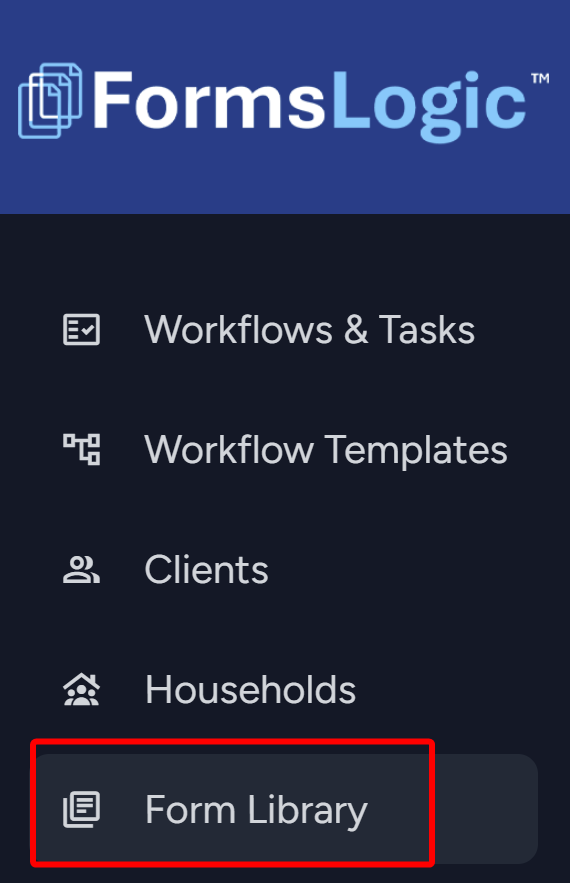
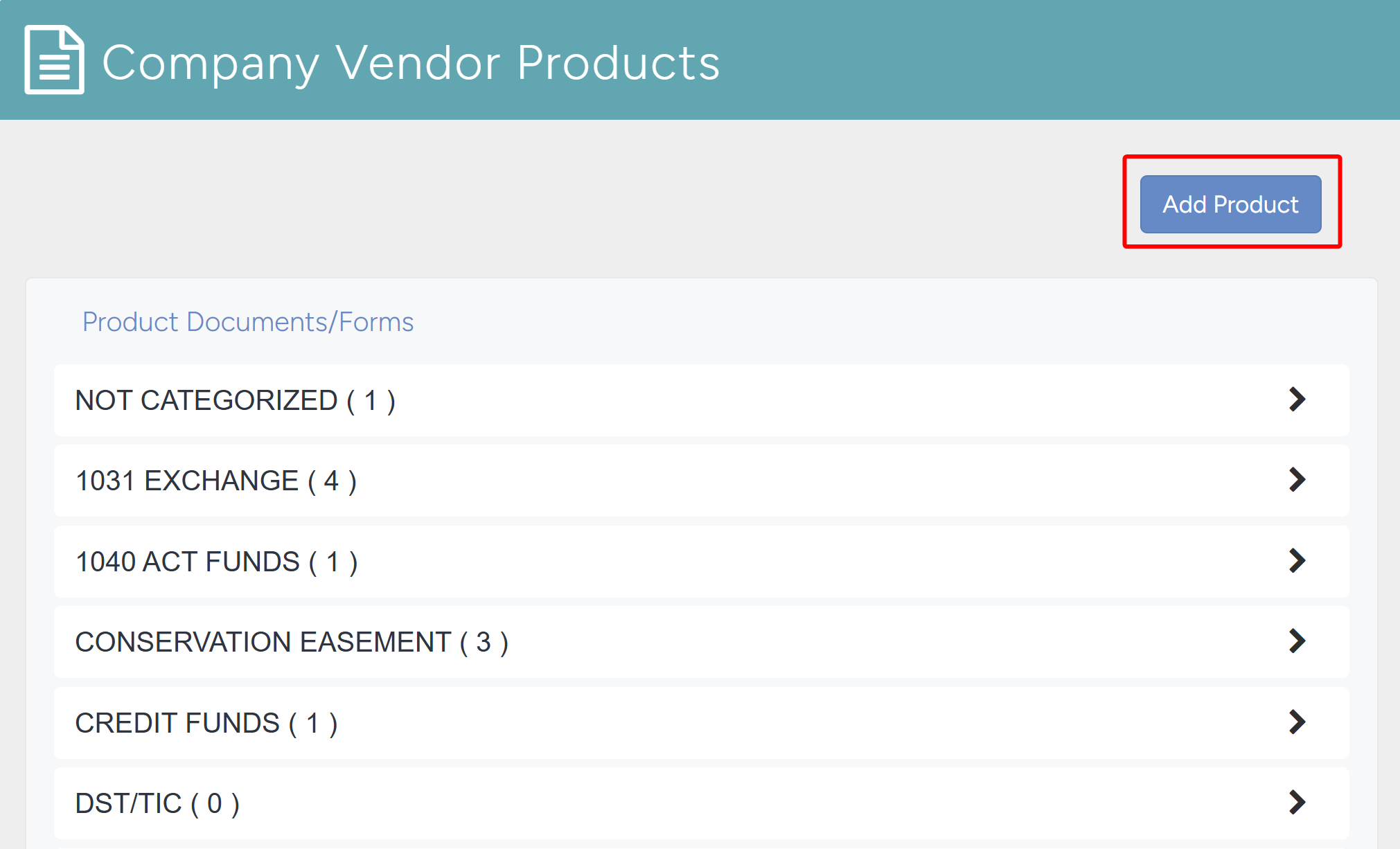
- The system will navigate to the Company Vendor Products page. Click the Add Product button.
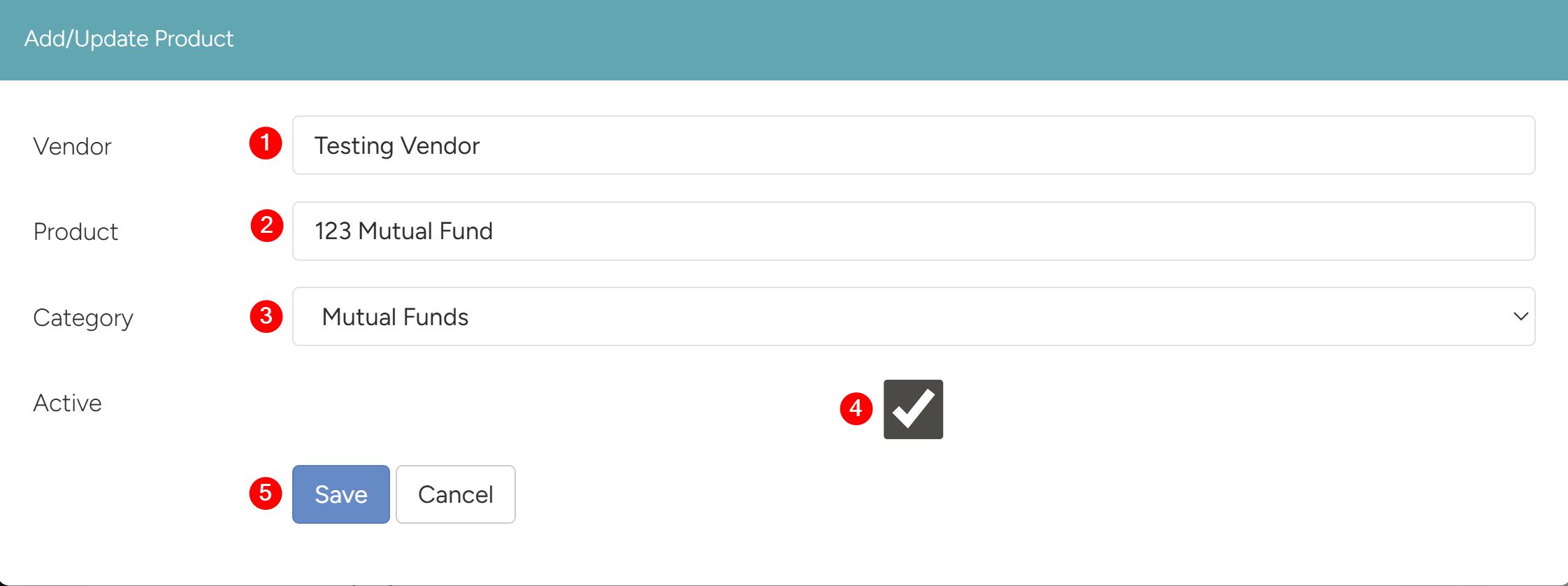
- The Add/Update Product panel will open.
- Fill in the Vendor name.
- Fill in the Product name.
- Choose the Category.
- Check Active to designate the product as active.
- Click Save – the vendor will be added.
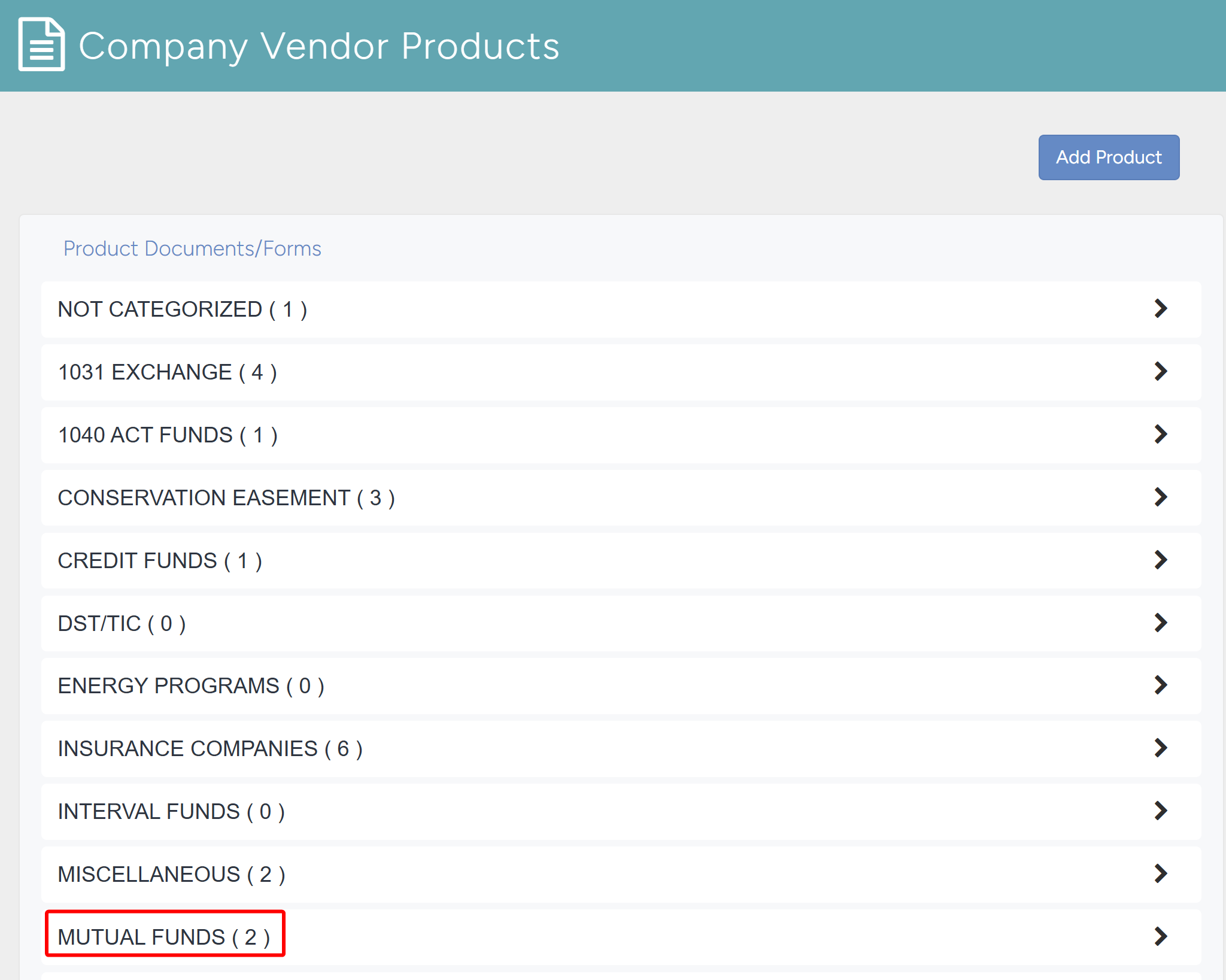
- Now that the vendor has been added, navigate to the Company Vendor Products page and find the category the vendor was placed in – in this case it was Mutual Fund. Click on the category to open the dropdown and see the vendors.
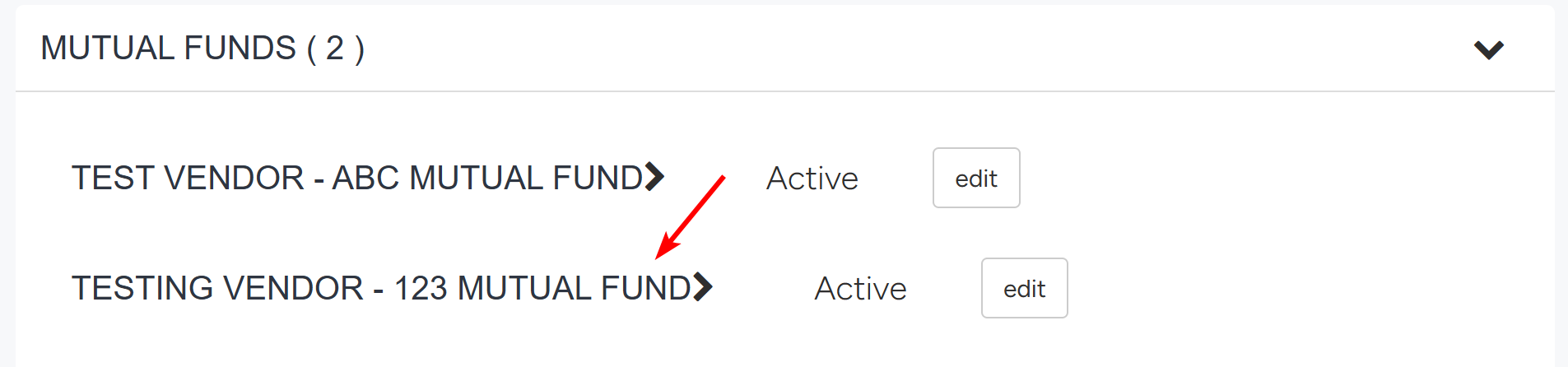
- Click the vendor (that was added) to expand it and view its forms.
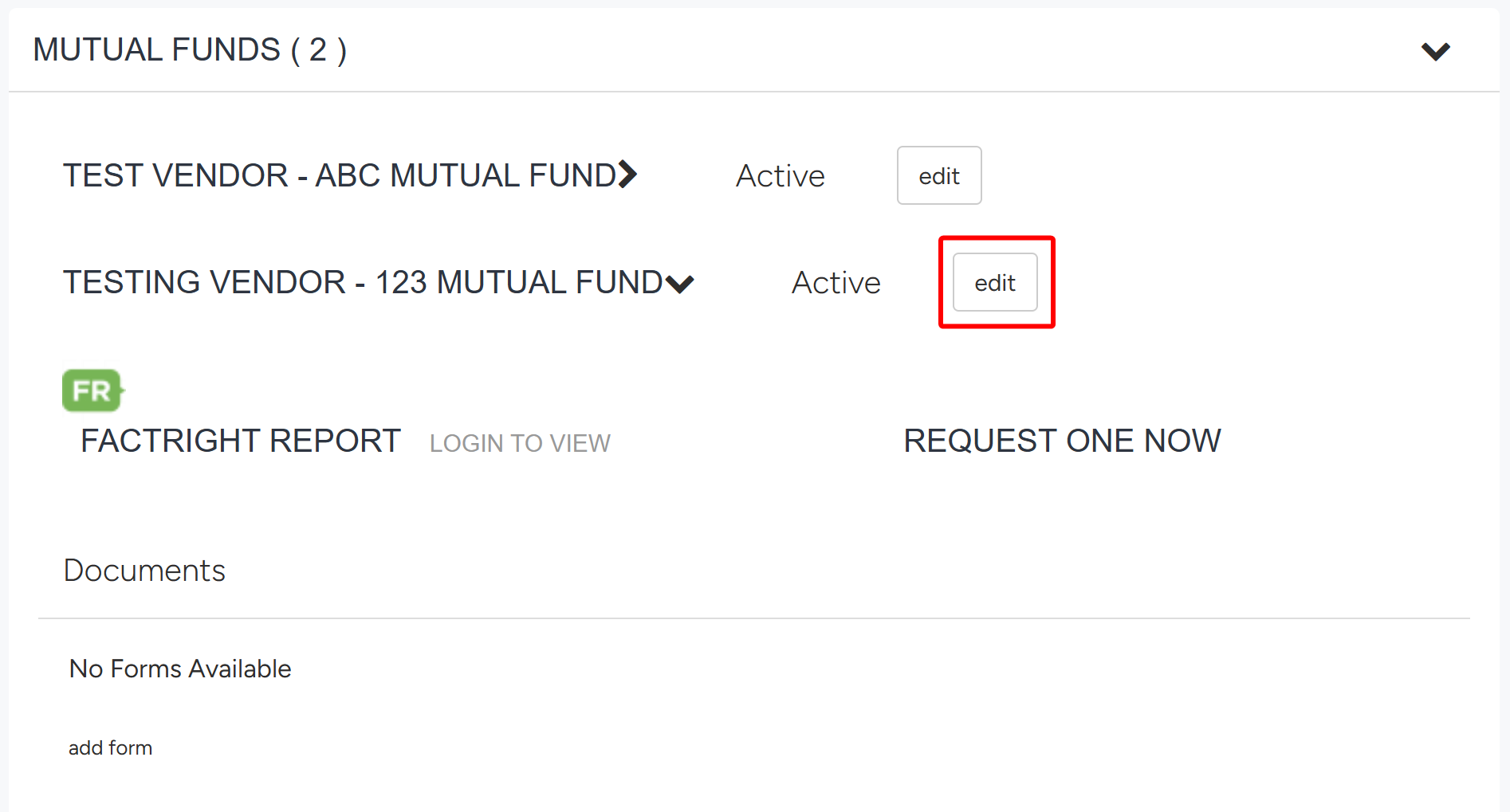
- To edit the Vendor, click the Edit button – this will open the Add/Update Product window where you can modify the Vendor.
- To add a form to the Vendor, click the add form button.
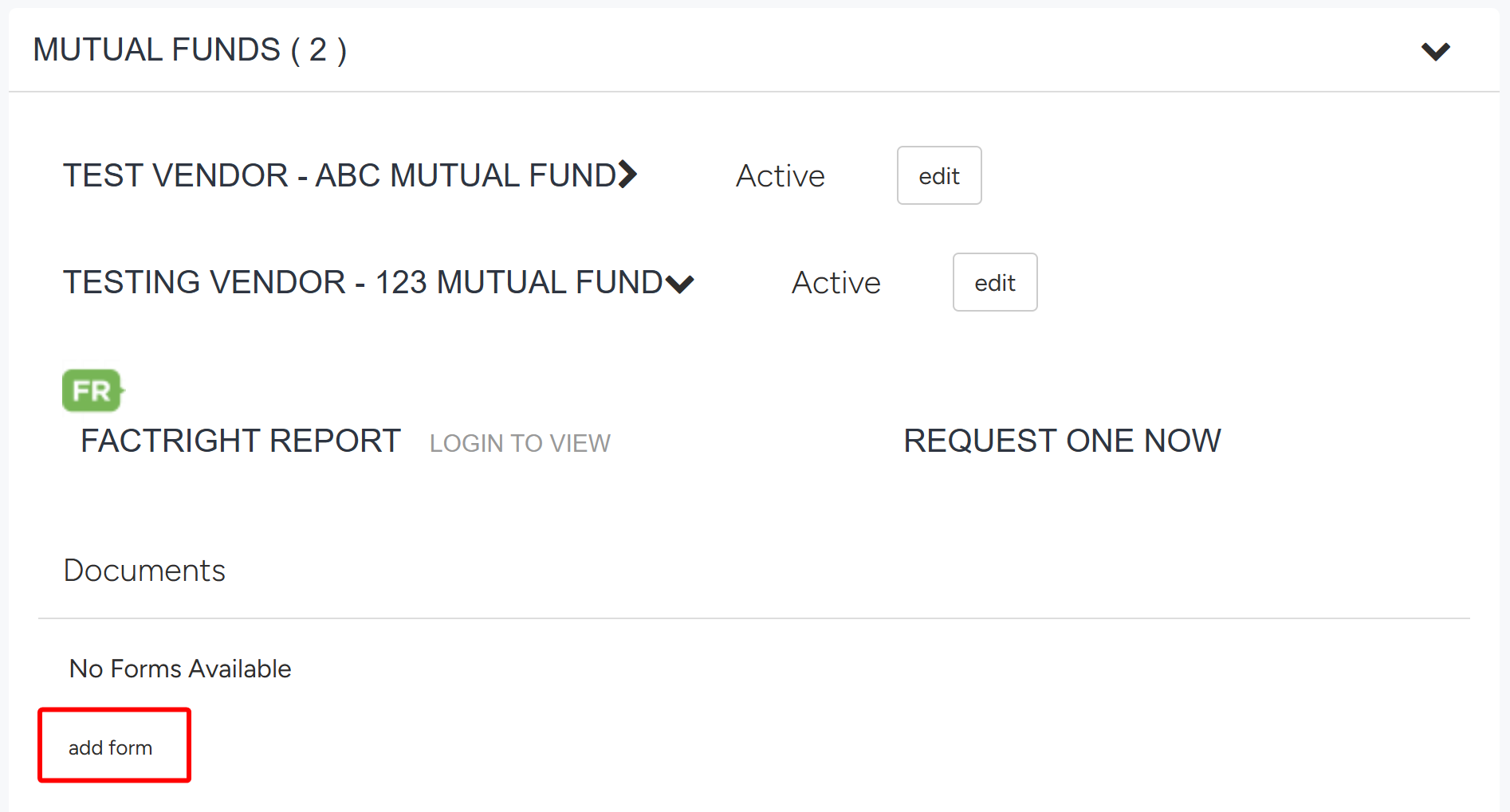
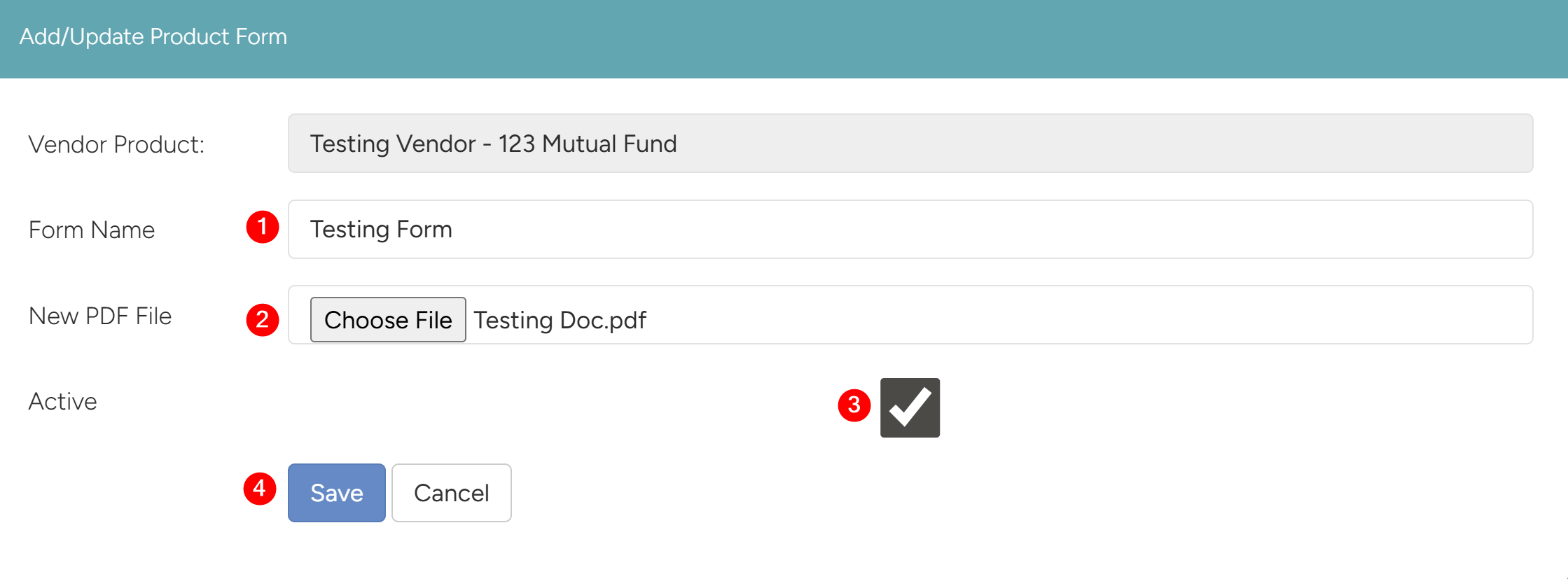
- The Add/Update Product Form panel will open where you will do the following:
- Fill in the Form Name.
- Choose the File to upload the file.
- Check Active to designate the form as Active.
- Click Save – the form will be added to that product.
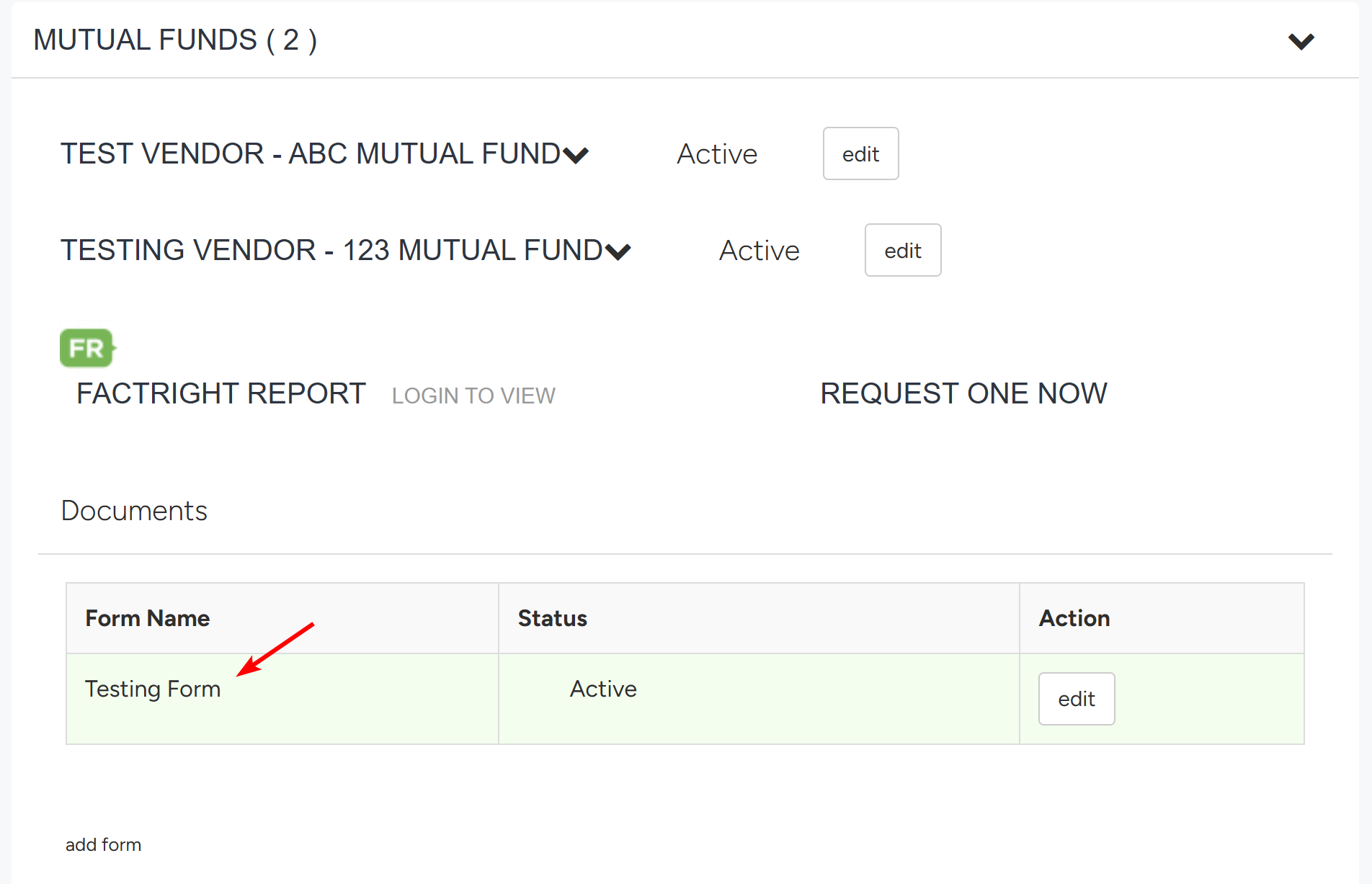
- The form that was added will now appear under Documents for that Vendor.
3.2 Viewing the Added Vendor and Vendor Forms
To verify the vendor and forms are available in the system, follow the steps below.
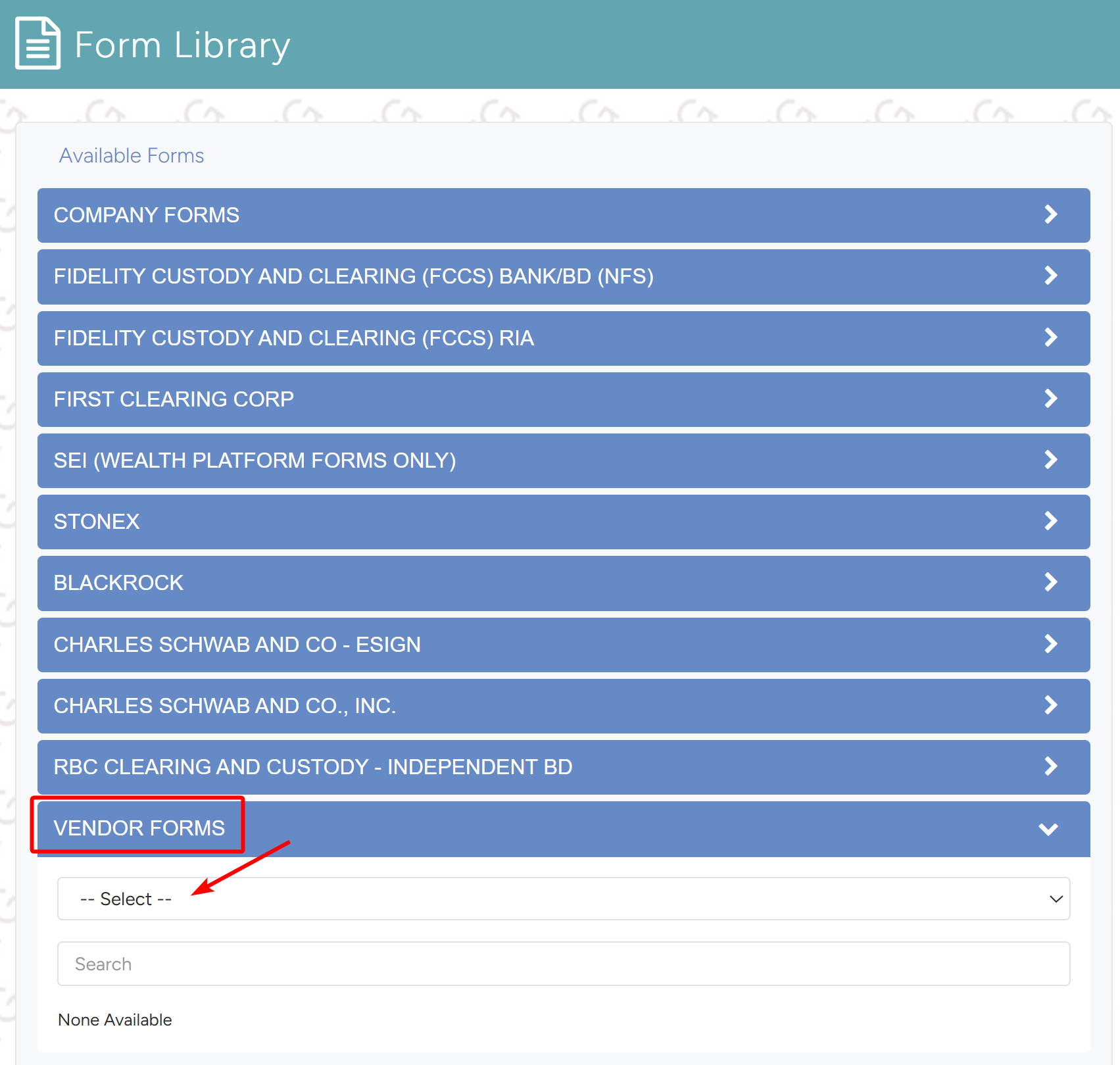
- From the side navigation menu, navigate to Form Library.
- Click the Vendor Forms dropdown and select the vendor that was added.
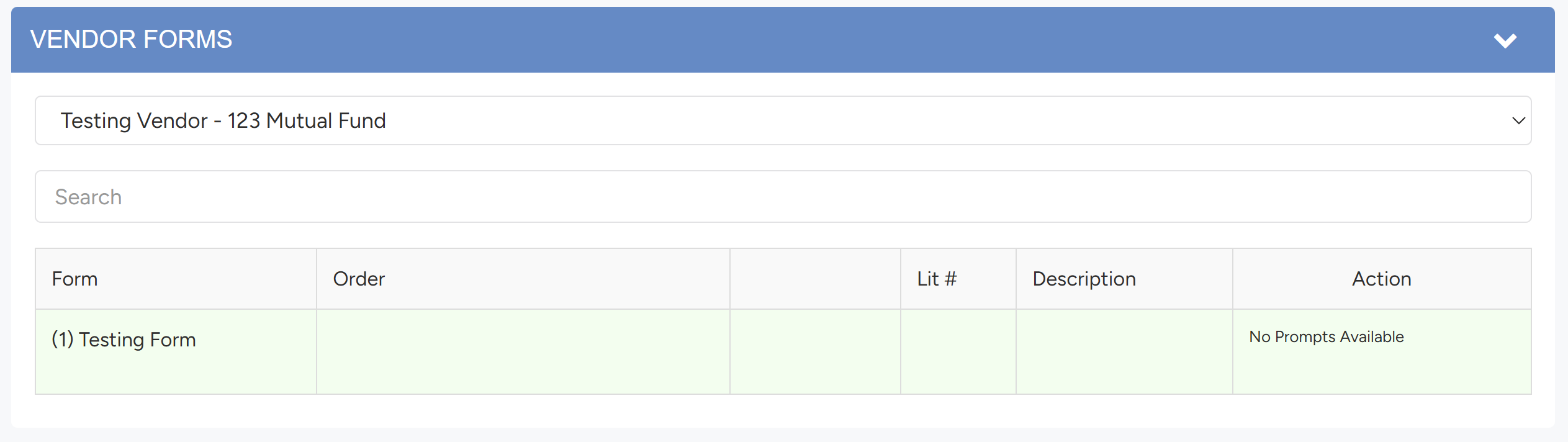
- One the Vendor is selected, the form that was added will appear.
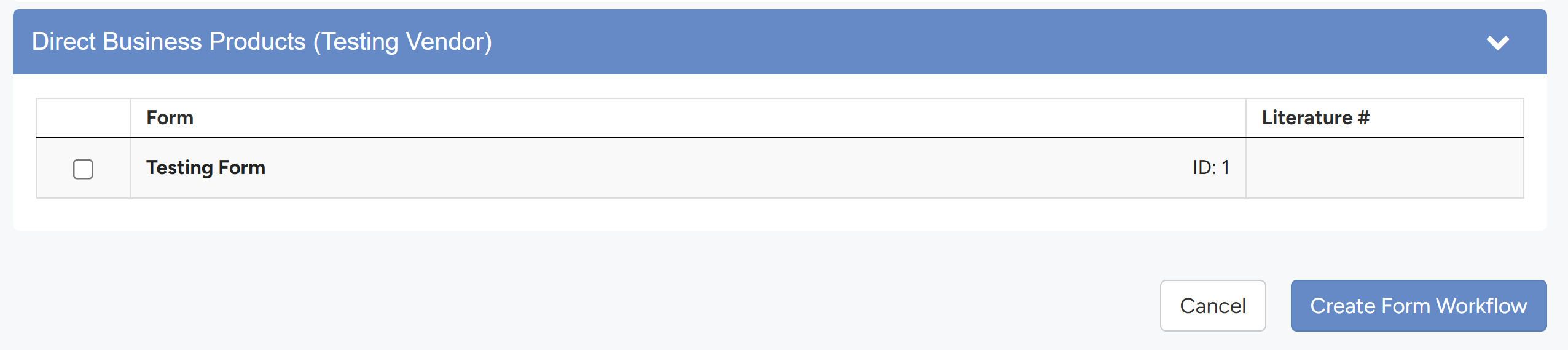
- When creating a workflow, the vendor will be an option under the Vendor/Product dropdown.
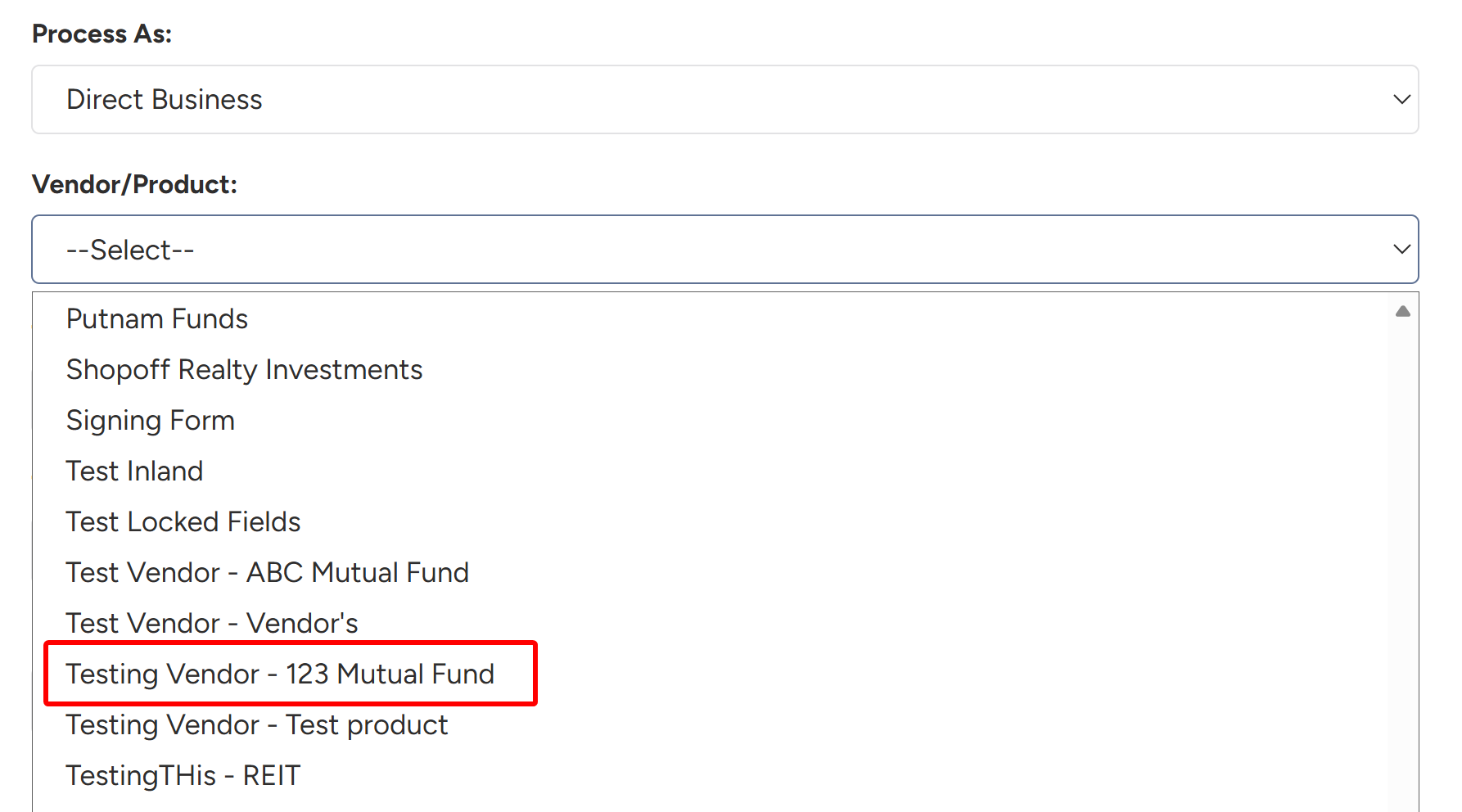
- When selecting forms for the workflow, the form will be available for selection.