

Approval Process & Next Steps
The Approval Process and Next Steps feature guides users through the necessary stages of obtaining approvals and processing the workflow paperwork. This feature ensures that each step in the approval process for the workflow is clearly defined, enabling users to track progress and identify pending actions. Once an item is submitted for approval, designated approvers from the back office are notified. They will review the workflow for completeness and respond in one of three ways: Designating the workflow as Approved, Request for More Information, or designate the workflow as Not-in-good-order.
12.1 Workflow is Approved by Reviewer
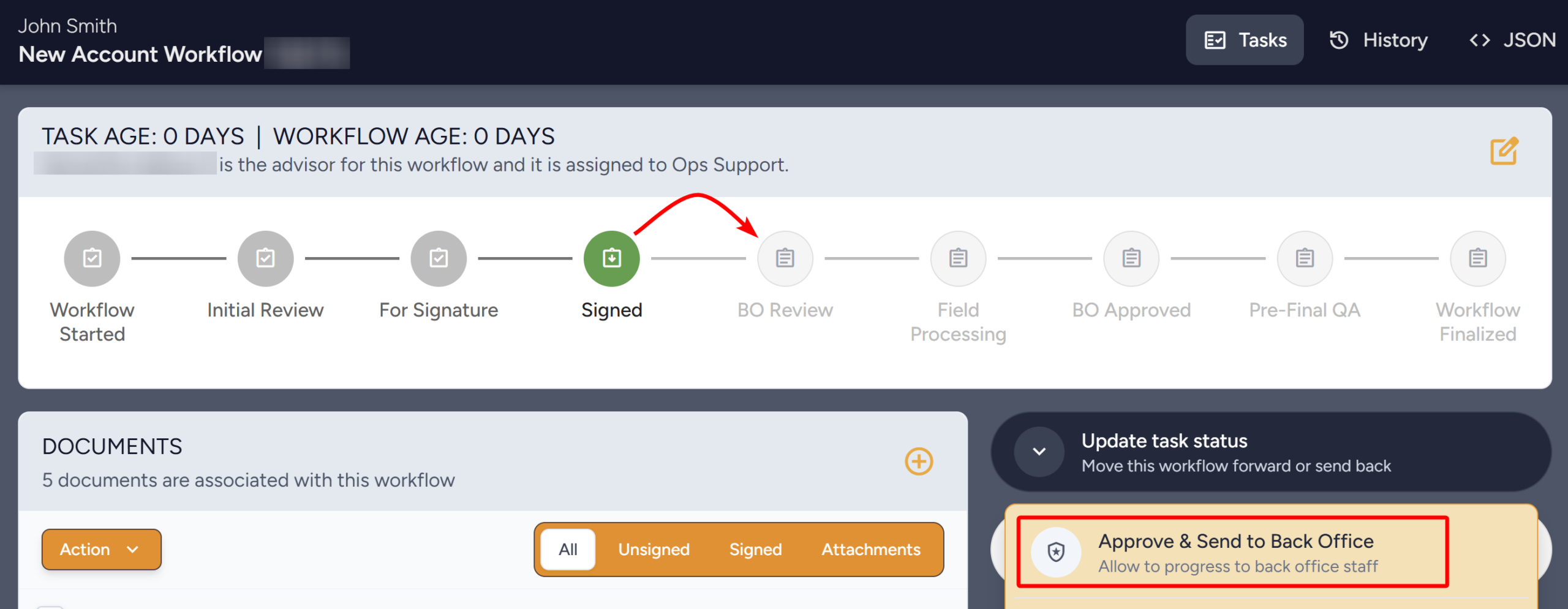
The Workflow is in a Waiting for Review/Approval status — this could be Signed or BO Review.
- When the reviewer approves the workflow, the workflow will be considered approved and will move to the next Task after Approval.
Note
The next step or Task is determined by your company’s process and may include statuses such as BO Review, FO Processing, Field Processing, Pre-Final QA, etc.
12.1.1 Next Steps
If paperwork is not automatically sent via straight-through processing, you will need to forward it manually according to your company’s policies. Use the steps below to document how it was forwarded.
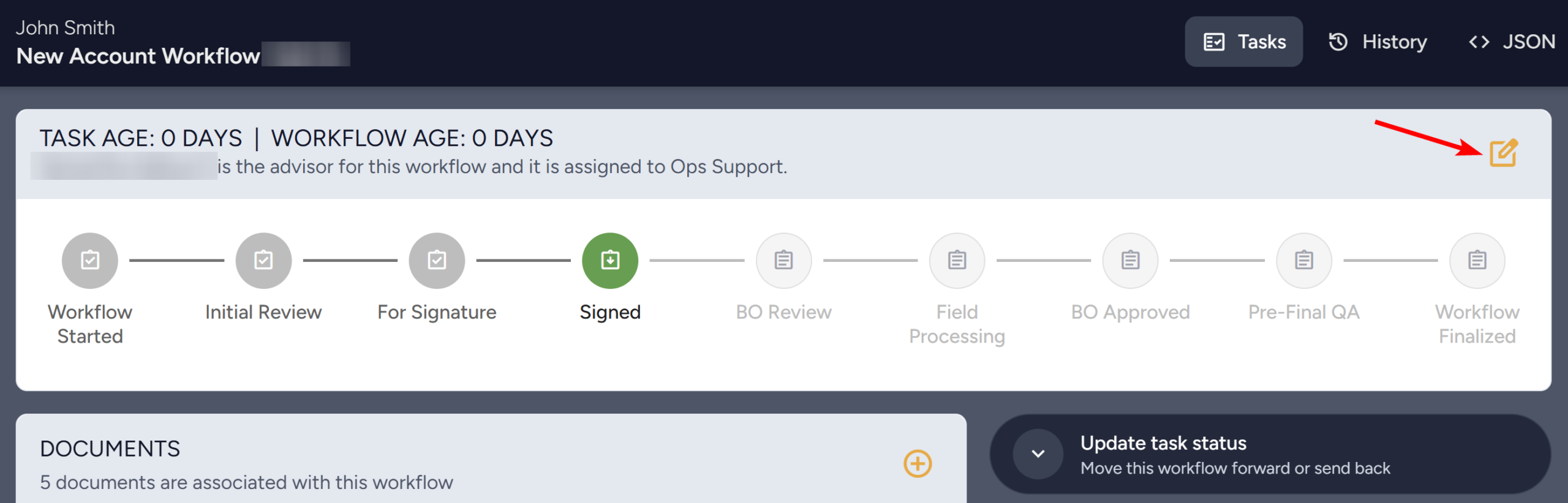
- Inside the Workflow, click the Workflow Basics button in the upper right (pen and paper icon).
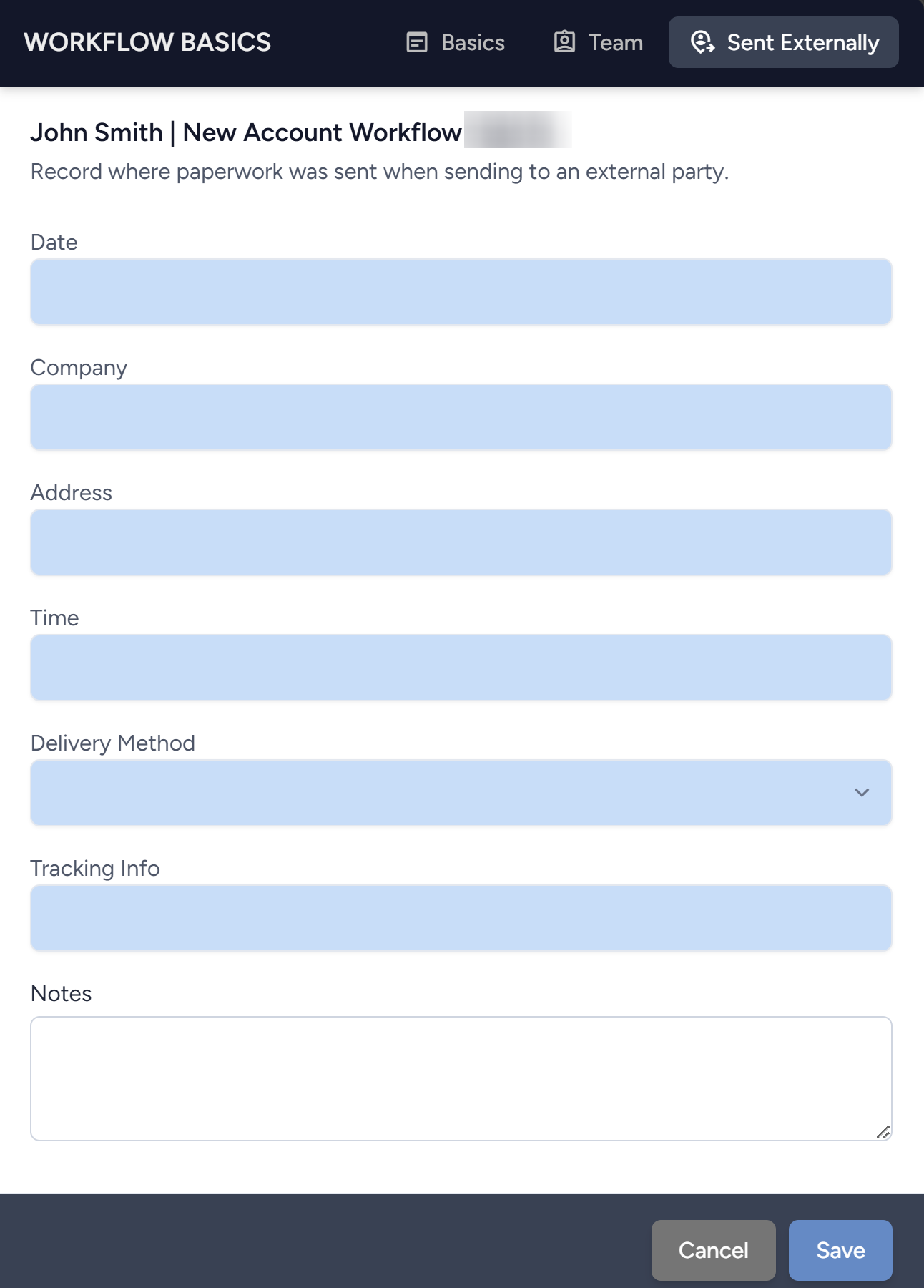
- The Workflow Basics Drawer will open. Navigate into the Sent Externally Tab.

- Enter the forwarding details — such as the Date, Company, Address, Time, Delievery Method, Tracking info, and a Note — and click Save.
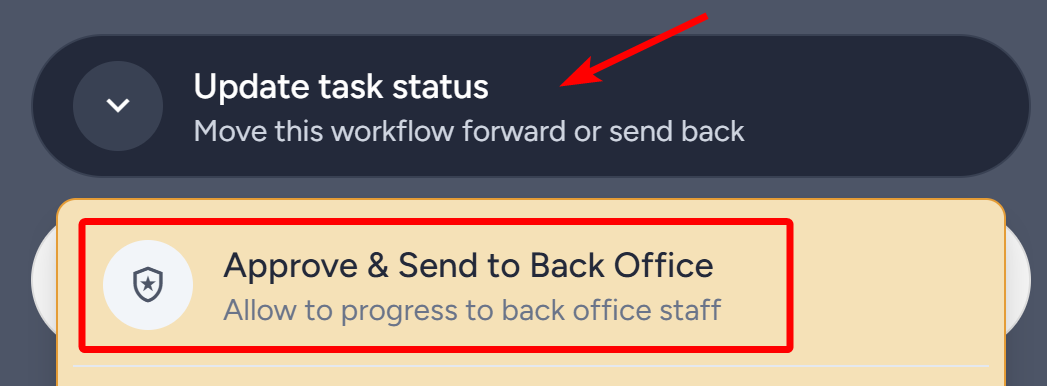
- Inside the Workflow, click Update Task Status and click the appropriate button from the dropdown to move the workflow to its next Task.
12.2 Reviewer Requesting for More Information
If the reviewer needs more information before approving the workflow, they will initiate a Request for More Information — which required the specified user to send this information. When there is an active Request for More Information assigned to you, follow the steps below:
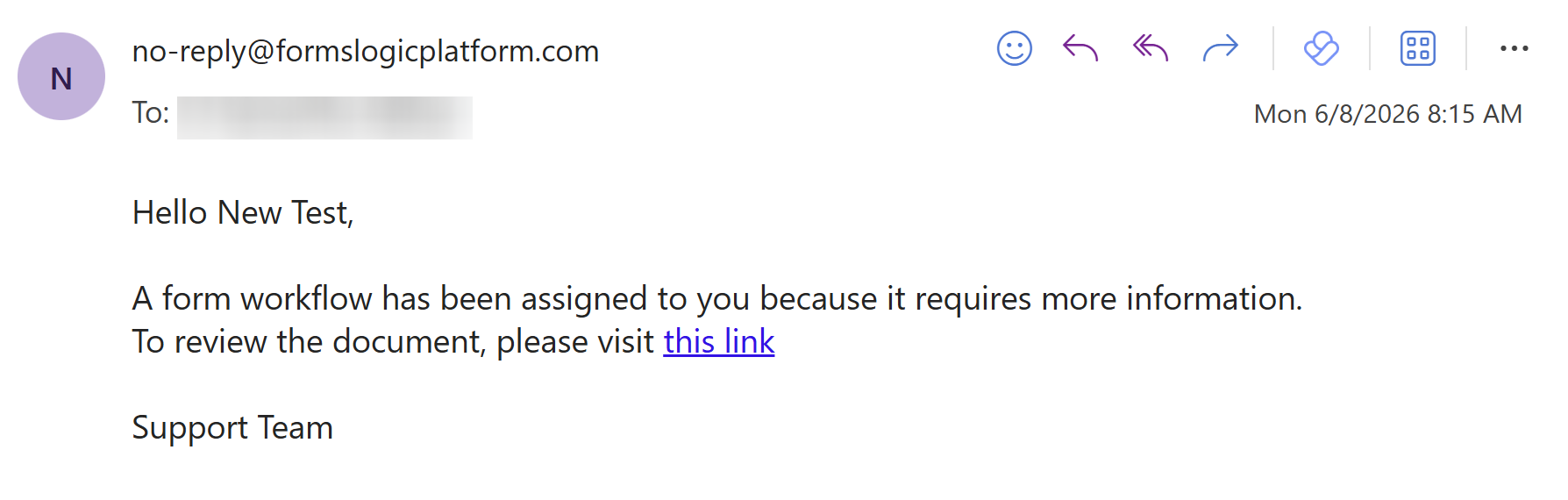
- You will receive an email notification of the request when it is assigned to you. Open the workflow via the Link in the email or directly from the Workflow List.
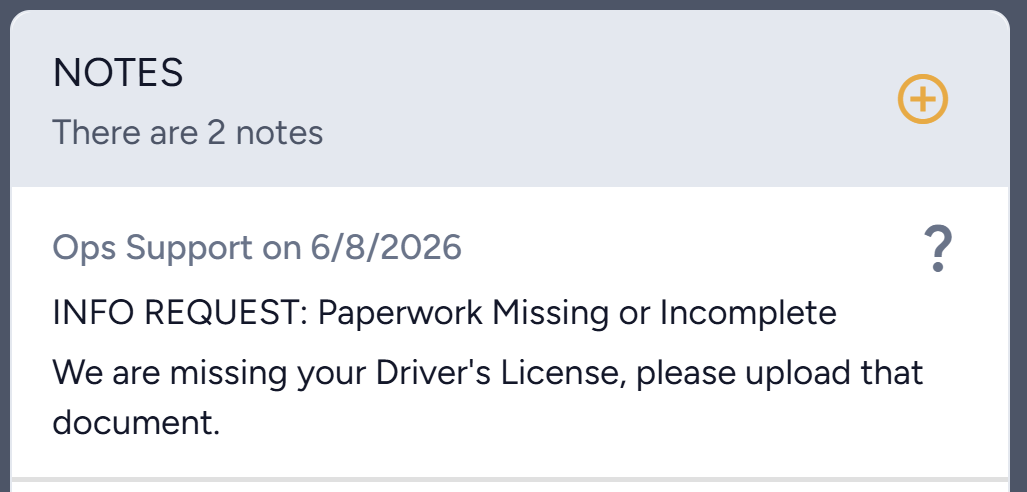
- View the reviewer’s request in the Notes section and identify what is needed from you.
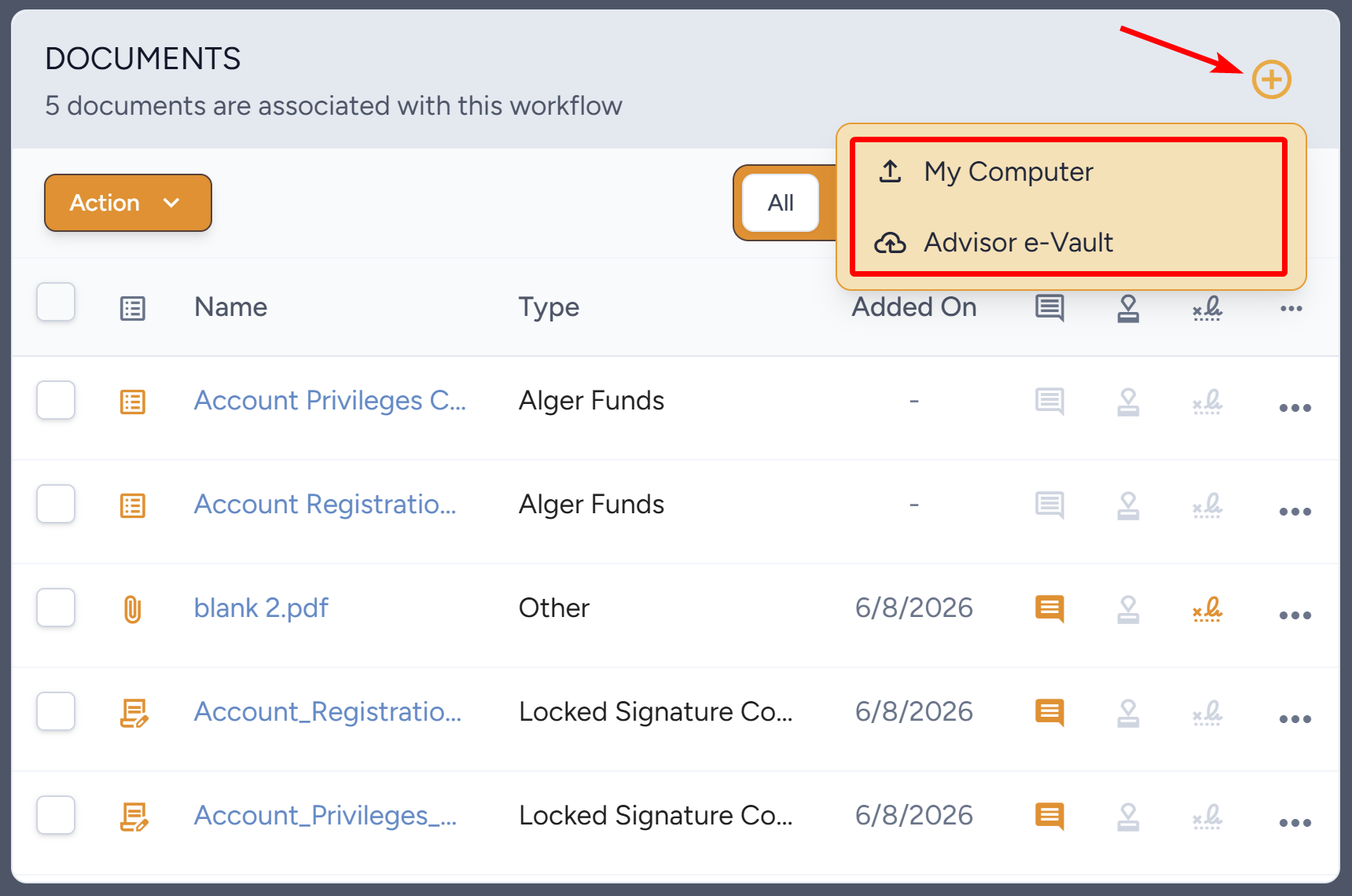
- Complete the action the request is asking for — in this case it requires the Driver’s License uploaded. To upload a document, click the plus icon and choose the option from the dropdown.
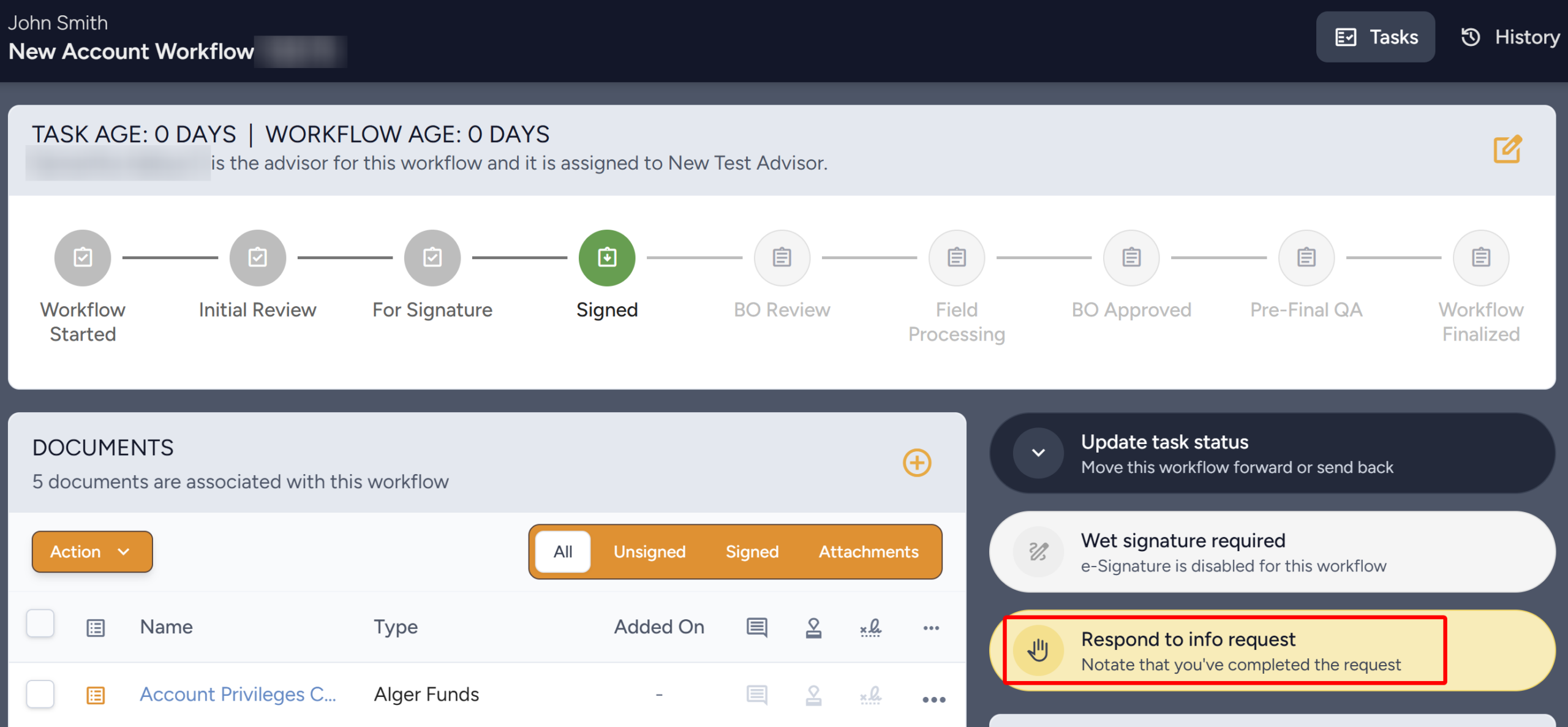
- Once the action for the request has been completed, click on the Respond to info request button to officially indicate your response to the RFMI.
- The Note Detail drawer will open. Write a Note for the requester and click Save Response.
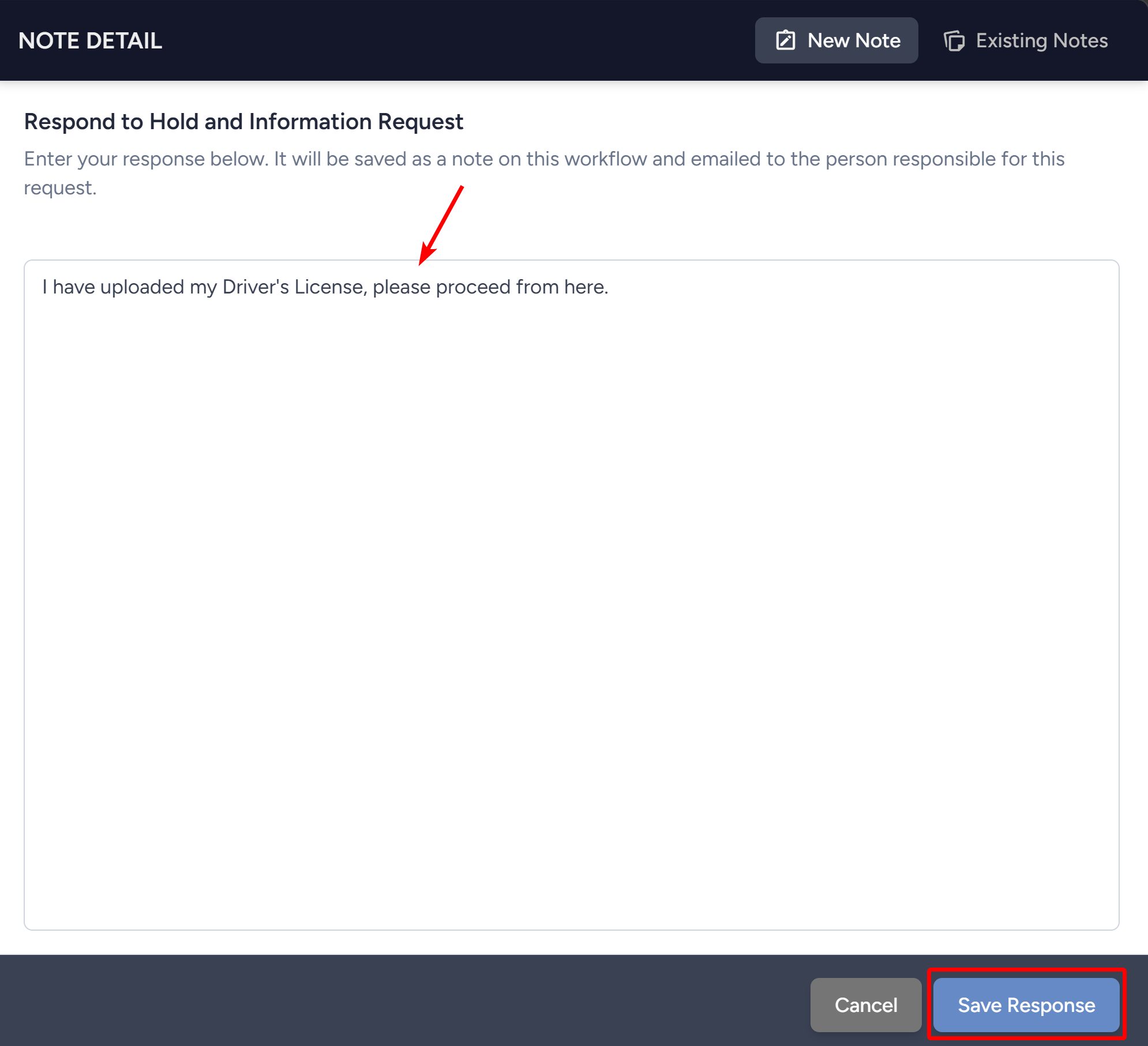
- The response will save in the Notes section.
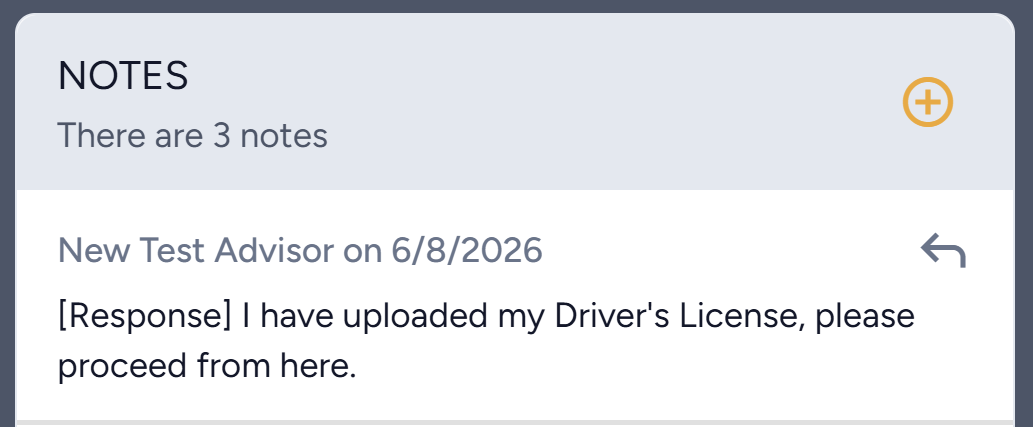
- The person that requested more information will be notified about the response and reassigned to the workflow. Now that more information has been provided, the workflow will be reviewed again for approval.
12.3 Reviewer Designating Workflow as Not-in-Good-Order (NIGO)
If the reviewer determines the workflow is incomplete or incorrect, it will be marked as Not in Good Order (NIGO). The workflow will need to be corrected and new signatures will be required to resubmit.
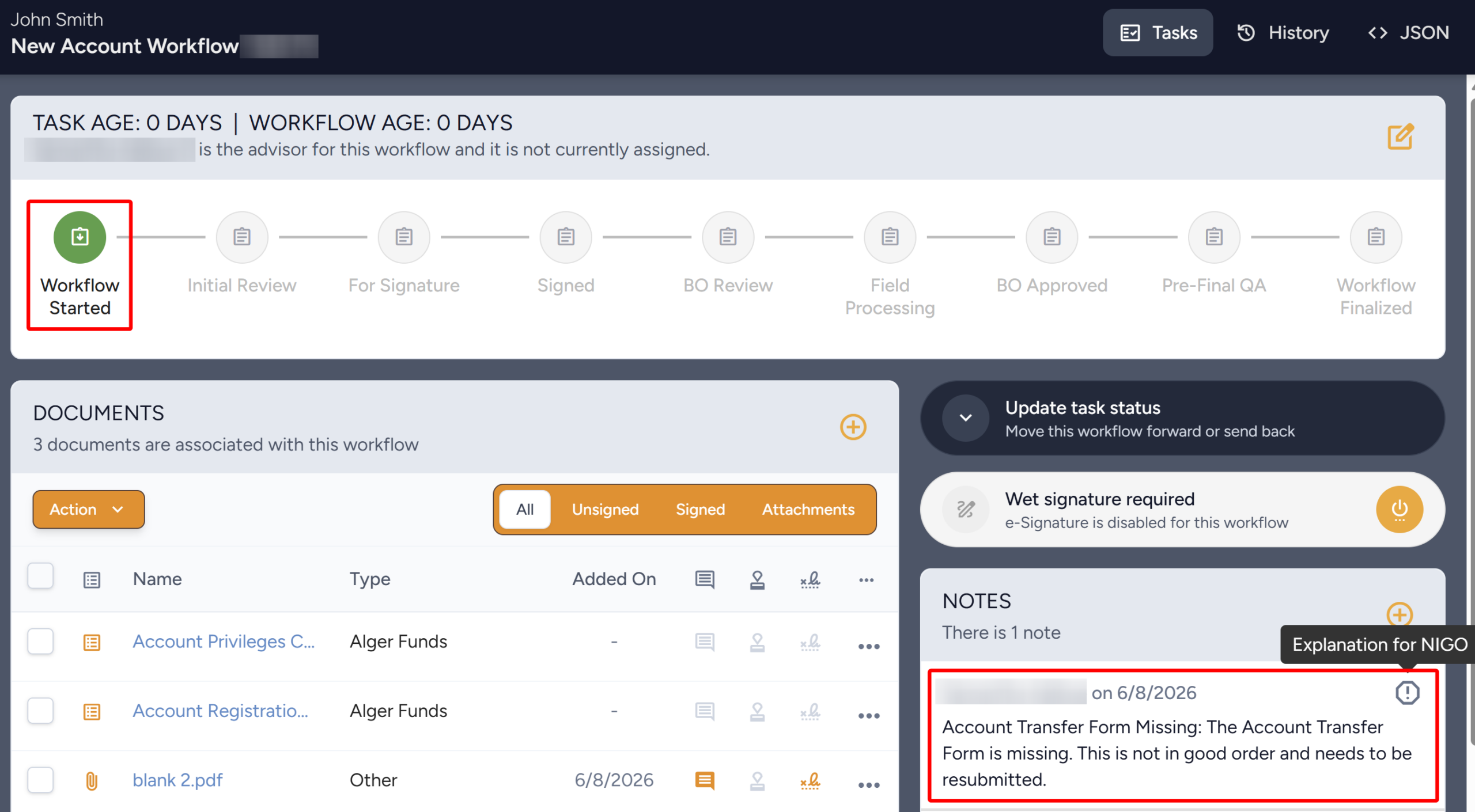
- The workflow status will update to Started. The reviewer’s comment(s) will be in the Notes section of the workflow. Review the identified deficiencies and complete the required action(s) identified — in this case, you need to add the Account Transfer form to the workflow.
Note
- A new workflow does not need to be created — corrections can be made within the same workflow.
- The original e-signed documents will be removed from the workflow.
- Any original wet-signed documents will remain available in the document section; check with your back office on their removal procedure.
- Once corrected and re-signed, the workflow will go through the approval process again.