

View Workflows & Tasks
The Workflows & Tasks page allows users to monitor and manage ongoing workflows in real-time. This functionality provides a comprehensive overview of all current workflows, displaying their status, progress, and any pending actions. Users can easily track the progression of tasks, identify bottlenecks, and ensure timely completion of activities.
2.1 Viewing Workflows & Tasks
To view the workflows & Tasks, follow the steps below.
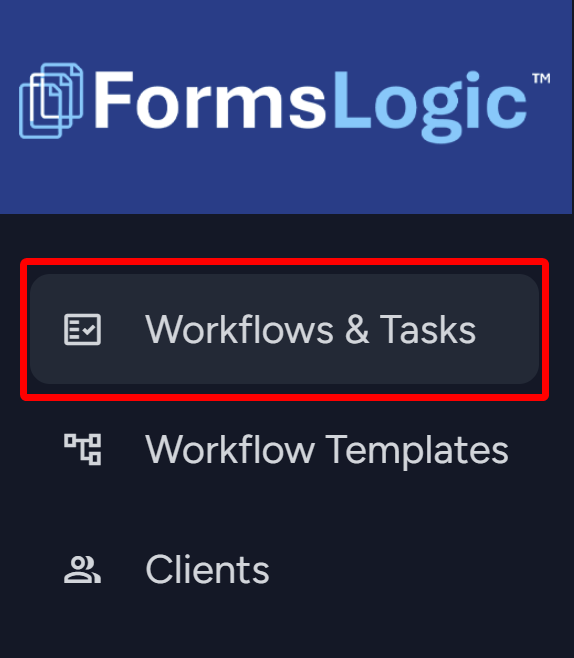
- From the side navigation menu, navigate to Workflows & Tasks.
- The system will navigate to the Workflow & Tasks page, which shows the Workflow List – where all workflows are listed for viewing and searching.
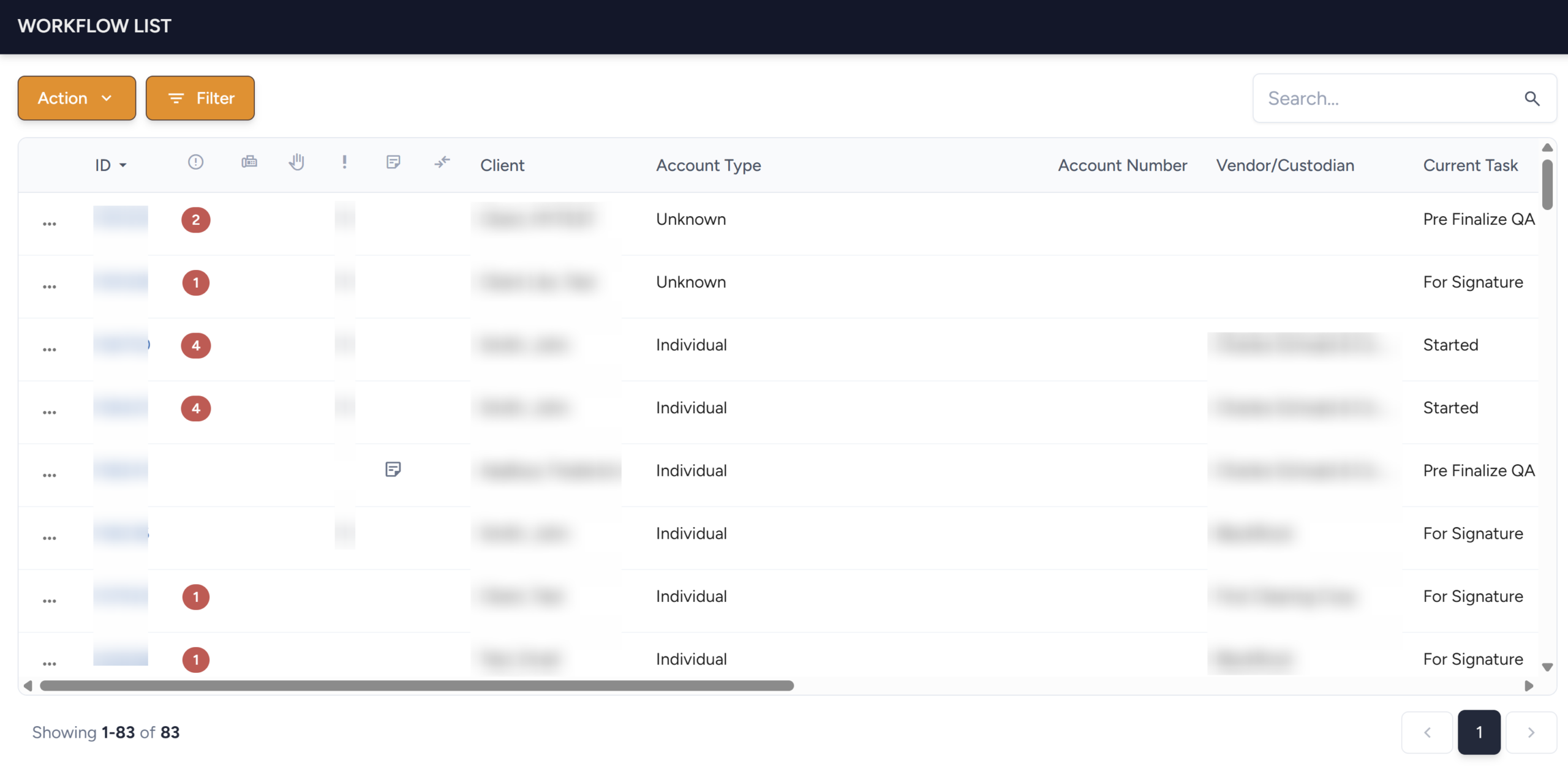
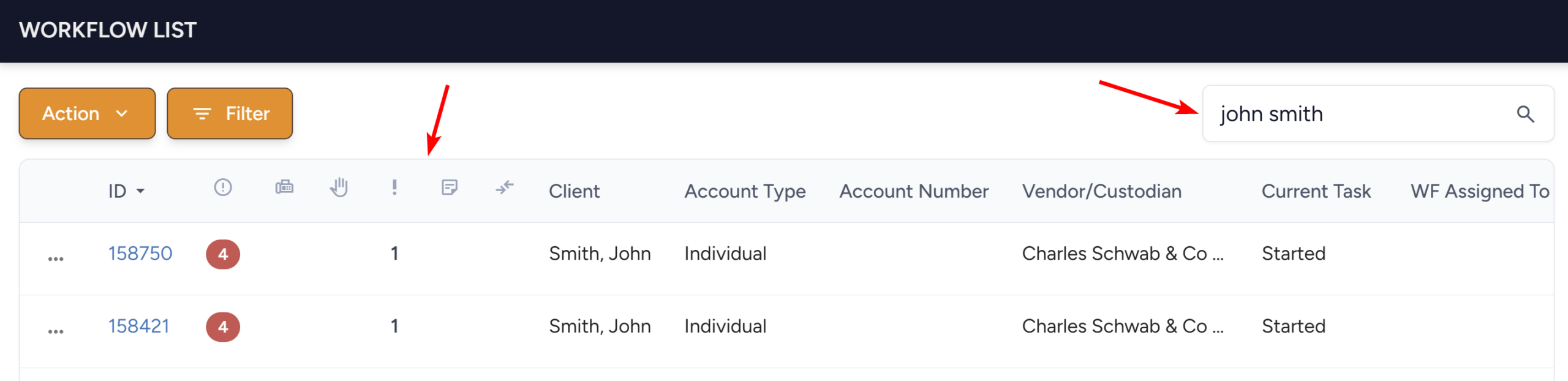
- To find a specific workflow, look through the list or use the Search box and search by client name or workflow ID number.
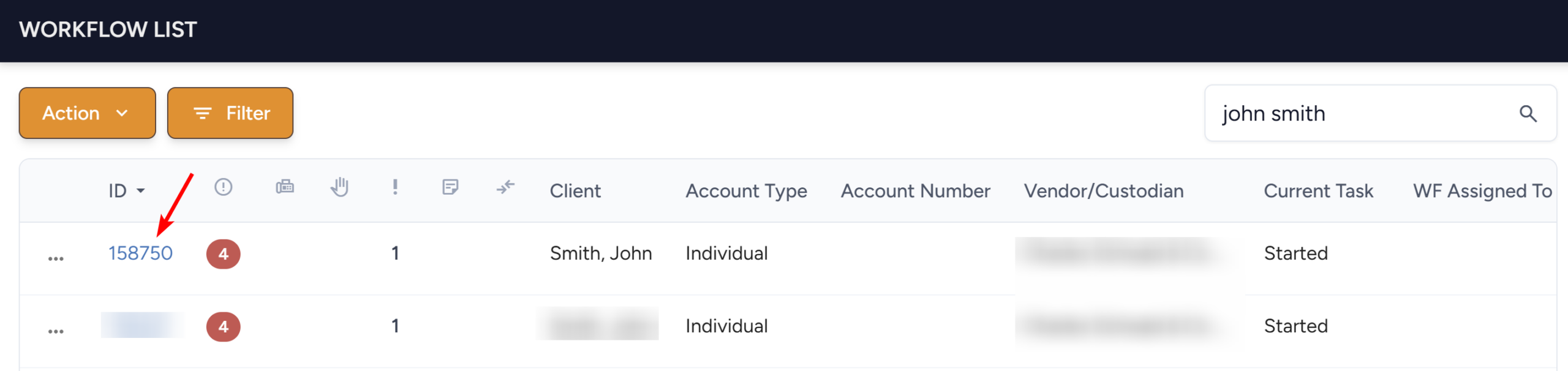
- Once you find the workflow in the list, click the Workflow ID # to open the workflow and view its contents.
2.2 Filtering the Workflow List
The Workflow List Filter allows users to combine multiple filter criteria to narrow the list down to exactly the workflows they need.
Note
For more information on Filtering the Workflow List, see the Workflow List Filter — New Feature guide attached here.
To filter the Workflow List, follow the steps below.
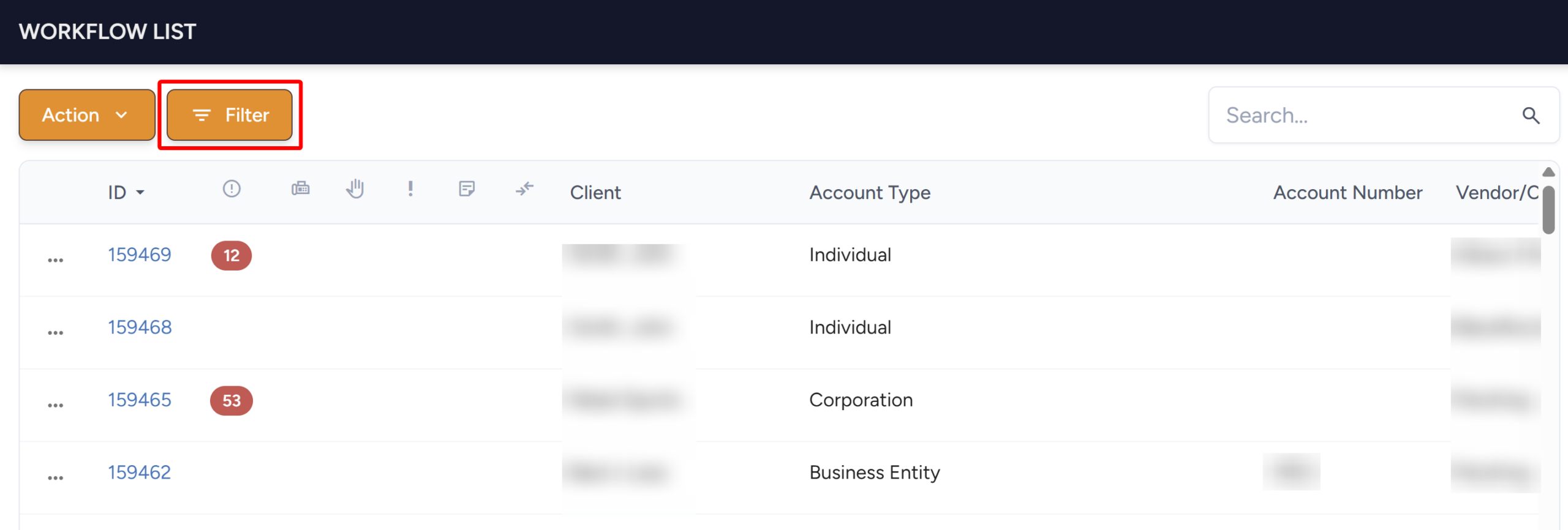
- Click the Filter button in the top left of the Workflow List to open the Workflow Filter drawer.
- From the Workflow Filter drawer, filter using either of two independent methods:
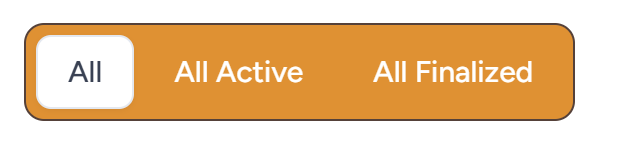
- Large Scale Filters — three buttons that filter the list by All, All Active, or All Finalized.
-
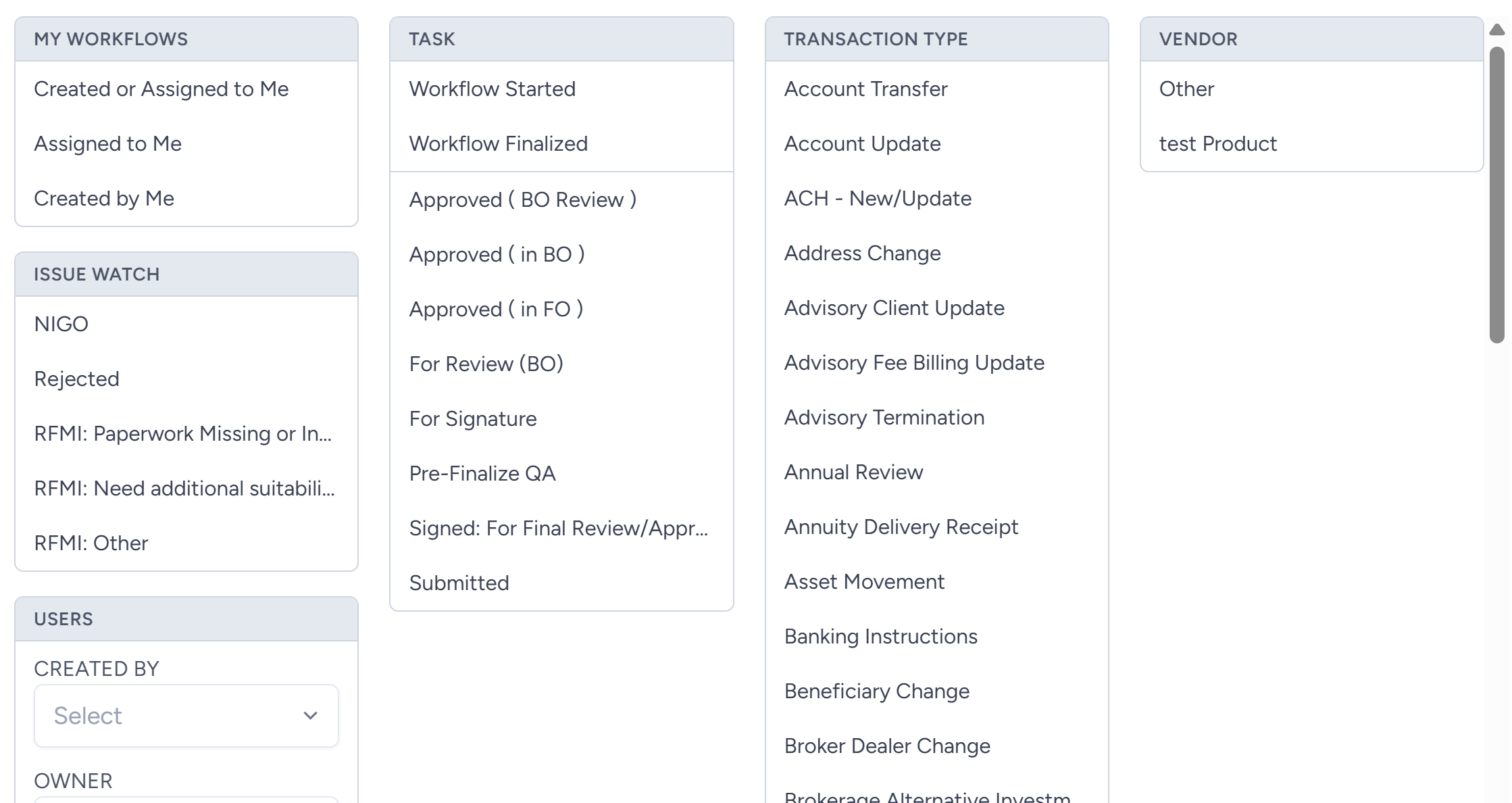
- Group Filters — six filter groups (My Workflows, Issue Watch, Task, Transaction Type, Vendor, and Users). Select one or more options across any of the groups.
2.2.1 Filtering with Large Scale Filters
- To filter on a large scale, select either All, All Active, or All Finalized.
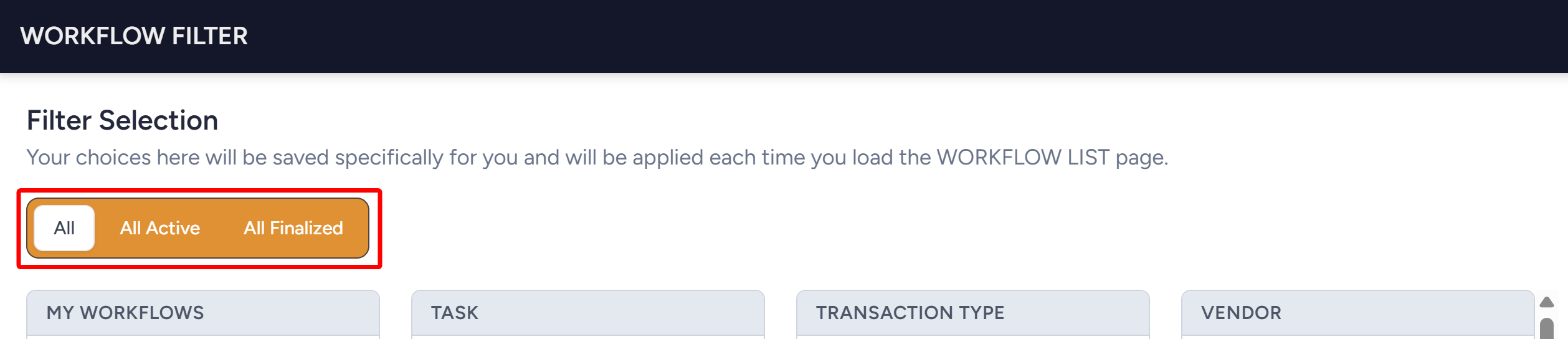
- Click the Apply Filter button at the bottom. The Workflow list will be filtered by your selection.

2.2.2 Filtering with Group Filters
- To filter by groups, select one or more options across any of the groups.
- For example, “Workflow Started” and “For Signature” are selected under the Task group and “Account Transfer” is selected under the Transaction Type group.
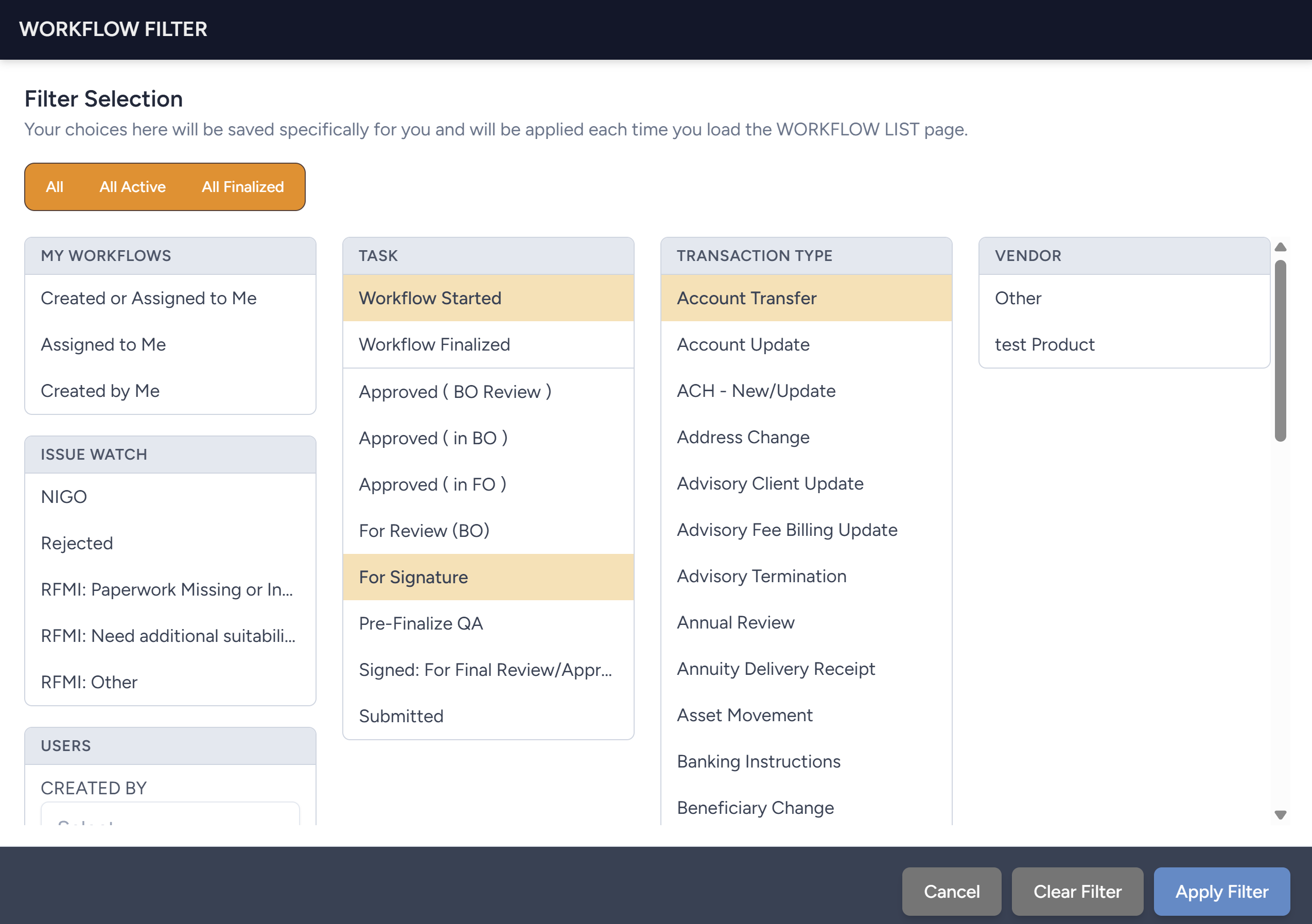
- Click Apply Filter at the bottom.
- After the Filter is applied, the Filter button will display the number of active filters.
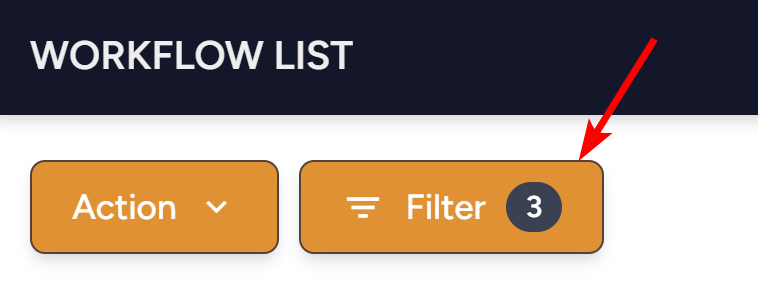
- The Workflow List should show workflows that meet the criteria of the applied filters.
- As you can see, the Workflow List is only showing workflows that are in Workflow Started or For Signature and have the Account Transfer transaction type.
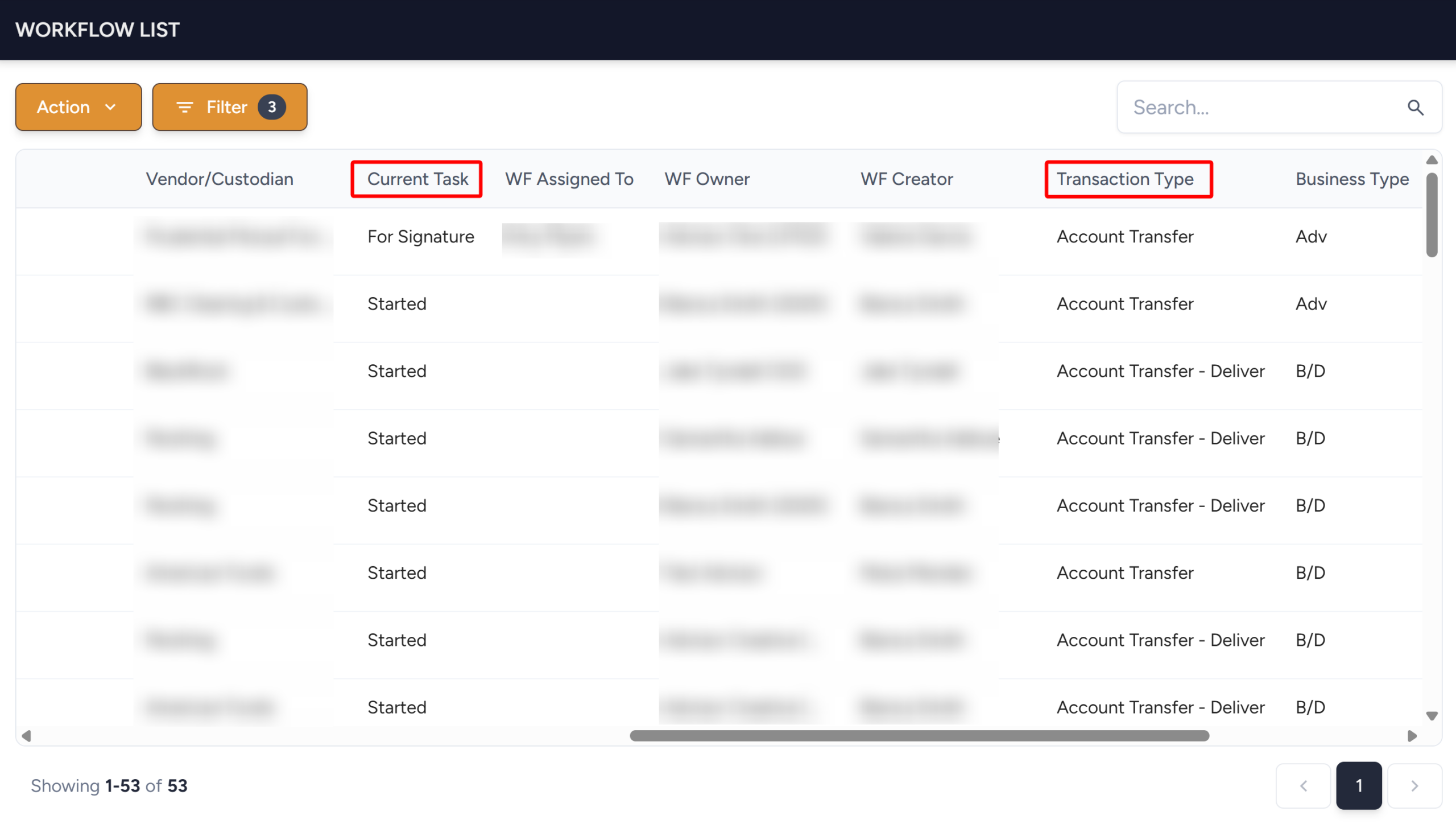
- Click Clear Filter at any time to remove all selections and return to the default, unfiltered view.

Note
- Large Scale Filters and Group Filters are mutually exclusive — selecting one clears the other.
- Selecting multiple options within a group broadens your results (matches either option).
- Example: Selecting “Workflow Started” and “For Signature” under Task returns workflows in either status.
- Selecting options across groups narrows your results (matches all selected groups’ criteria).
- Example: Adding “Pershing” under Vendor on top of “Workflow Started” and “For Signature” that returns only workflows in either task status and processed via Pershing.
- The Assigned option under Users only shows workflows for people who have specifically granted you visibility into their work. If no one has, this list will appear empty.