

Account Maintenance Workflows
The “Account Maintenance Workflows” feature streamlines the management of account-related tasks and updates. This tool allows users to efficiently handle various maintenance activities such as updating account information, managing user permissions, and resolving account issues. By providing a structured workflow, this feature ensures that all necessary steps are followed and that updates are accurately recorded and tracked. This enhances the reliability and security of account management processes, ensuring that accounts remain up-to-date and compliant with organizational policies and standards.
14.1 Client is Not in Forms Logic
To create a new maintenance workflow, when the client data is not available in the Forms Logic System, follow the steps below.
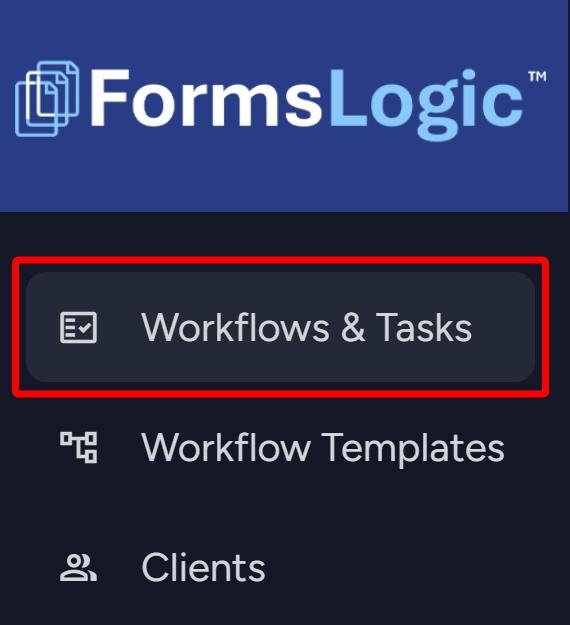
- From the side navigation menu, navigate to Workflows & Tasks – which will load the Workflow List.
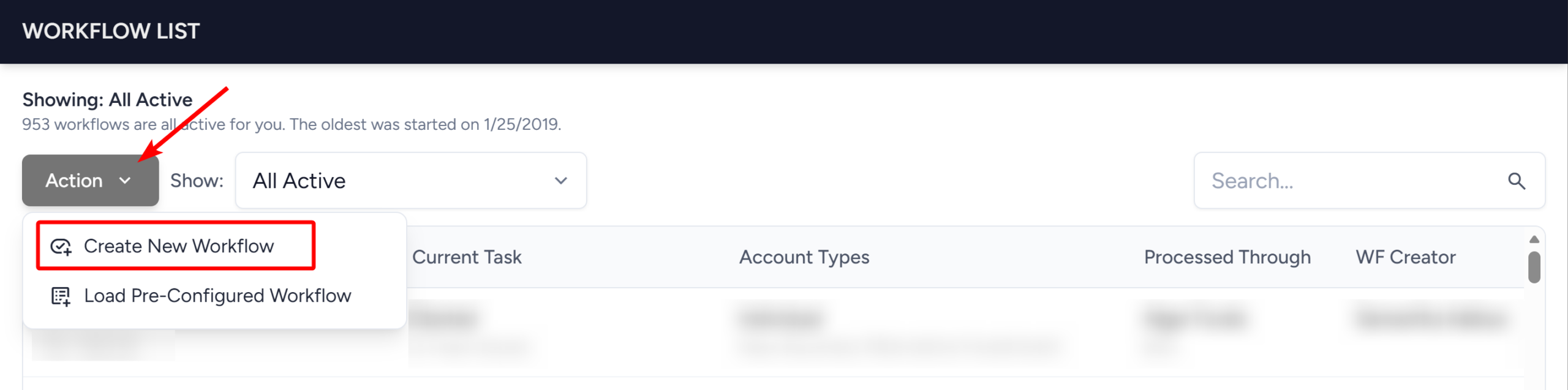
- Click the Action button in the upper left. From the dropdown, click Create New Workflow.
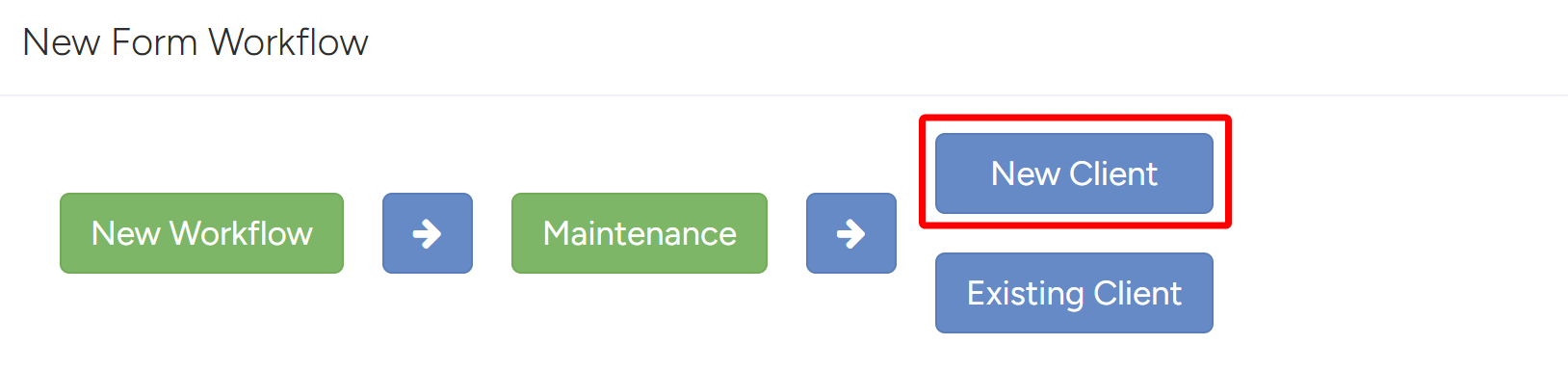
- The Workflow Wizard will open, where you will go through the process of doing Maintenance on an account. The Workflow Type is the first prompt – choose Maintenance.

- Choose New Client from the available options – this means you are creating a client to do maintenance on because the client does not exist in Forms Logic.
- Choose the Business Type/Relationship Type.
- In this case, Advisory (fee) was chosen.

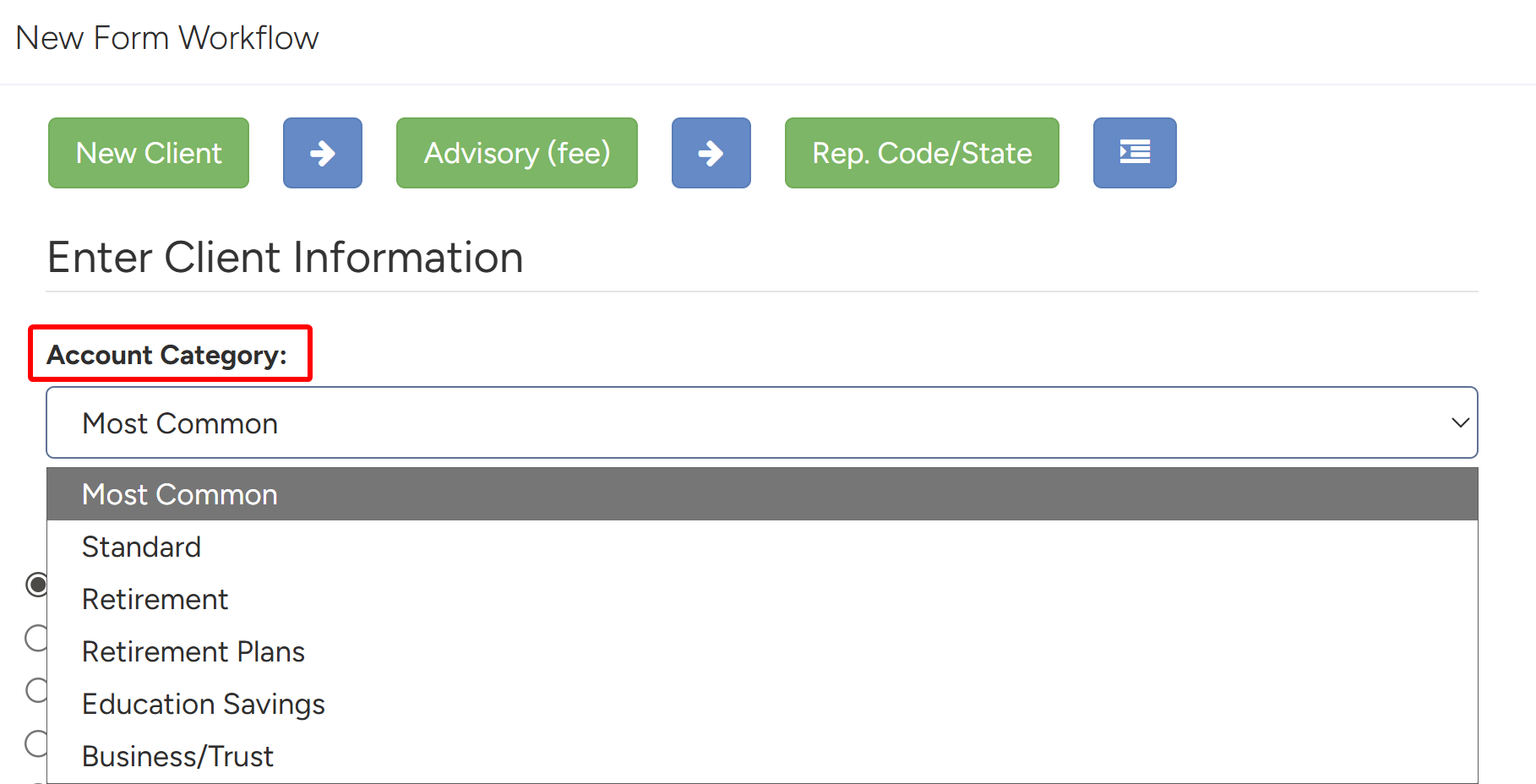
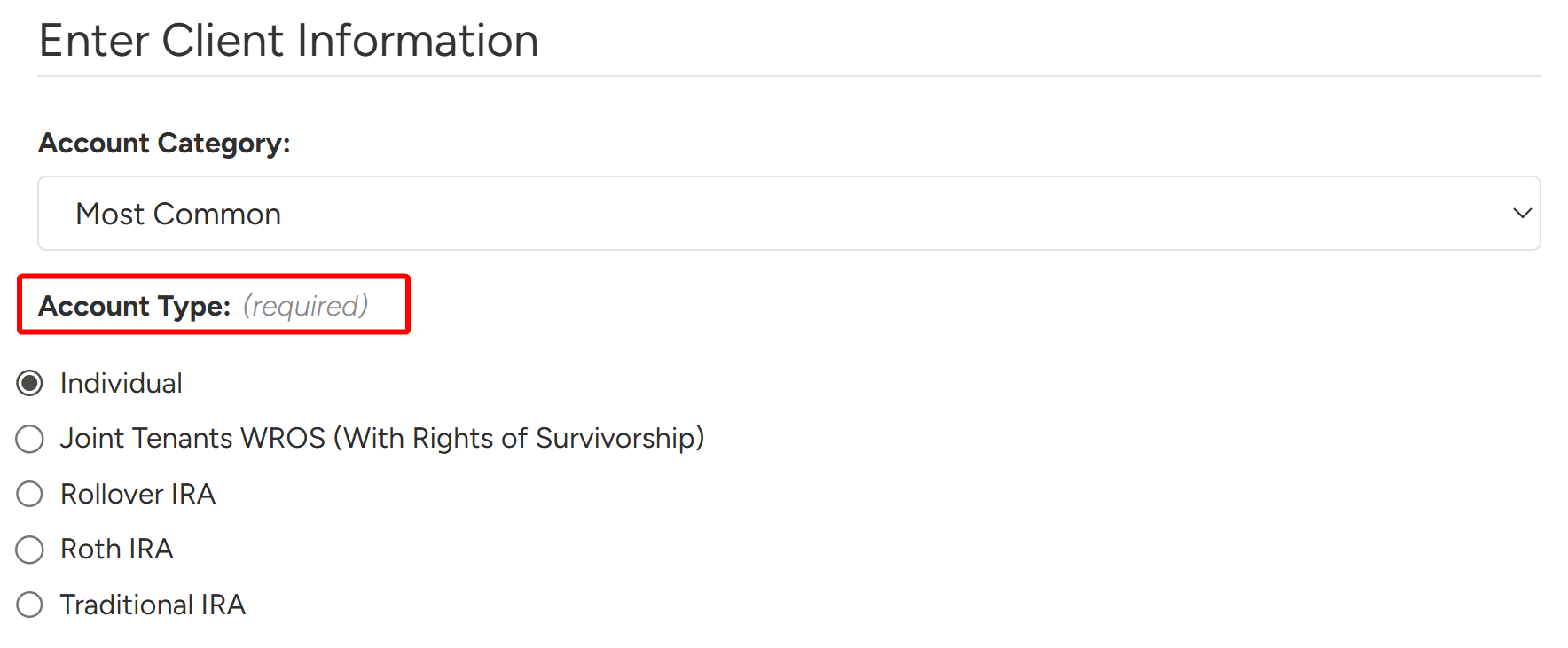
- Now select the appropriate Account Category. Each category filters the options in the Account Type list.
- The available categories are Most Common, Standard, Retirement, Retirement Plans, Education Savings, and Business/Trust. All of these options will filter the Account Type list.
- Once the category is chosen, select the Account Registration Type under the Account Type list.
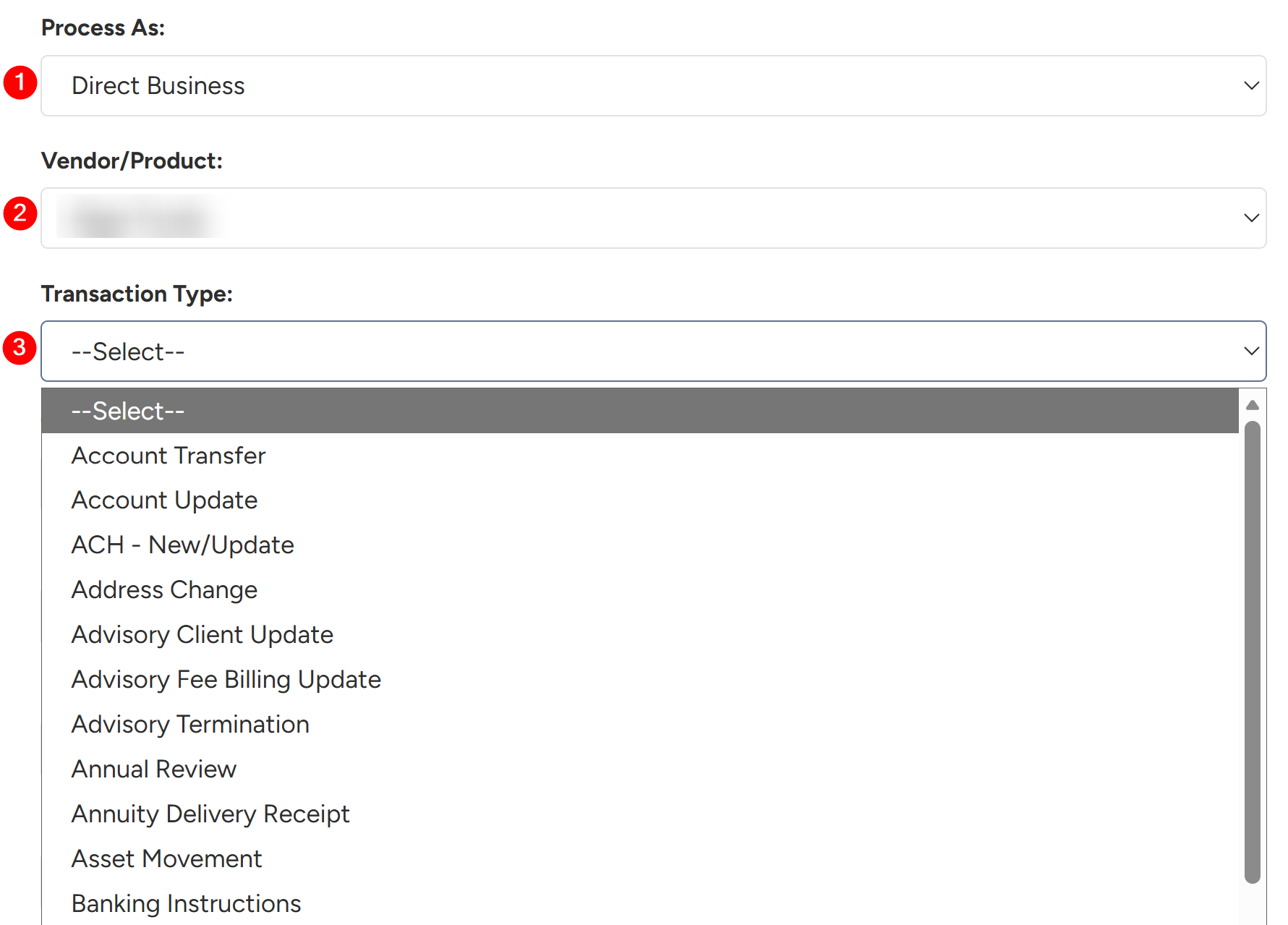
- Next, select the following:
- Select Process As — Custodian or Direct Business.
- Select the Vendor/Product or Custodian — This is dependent on Process As selection.
- Select the Transaction Type — this is the type of Maintenance being performed on the account.
- These options will depend on your organization.
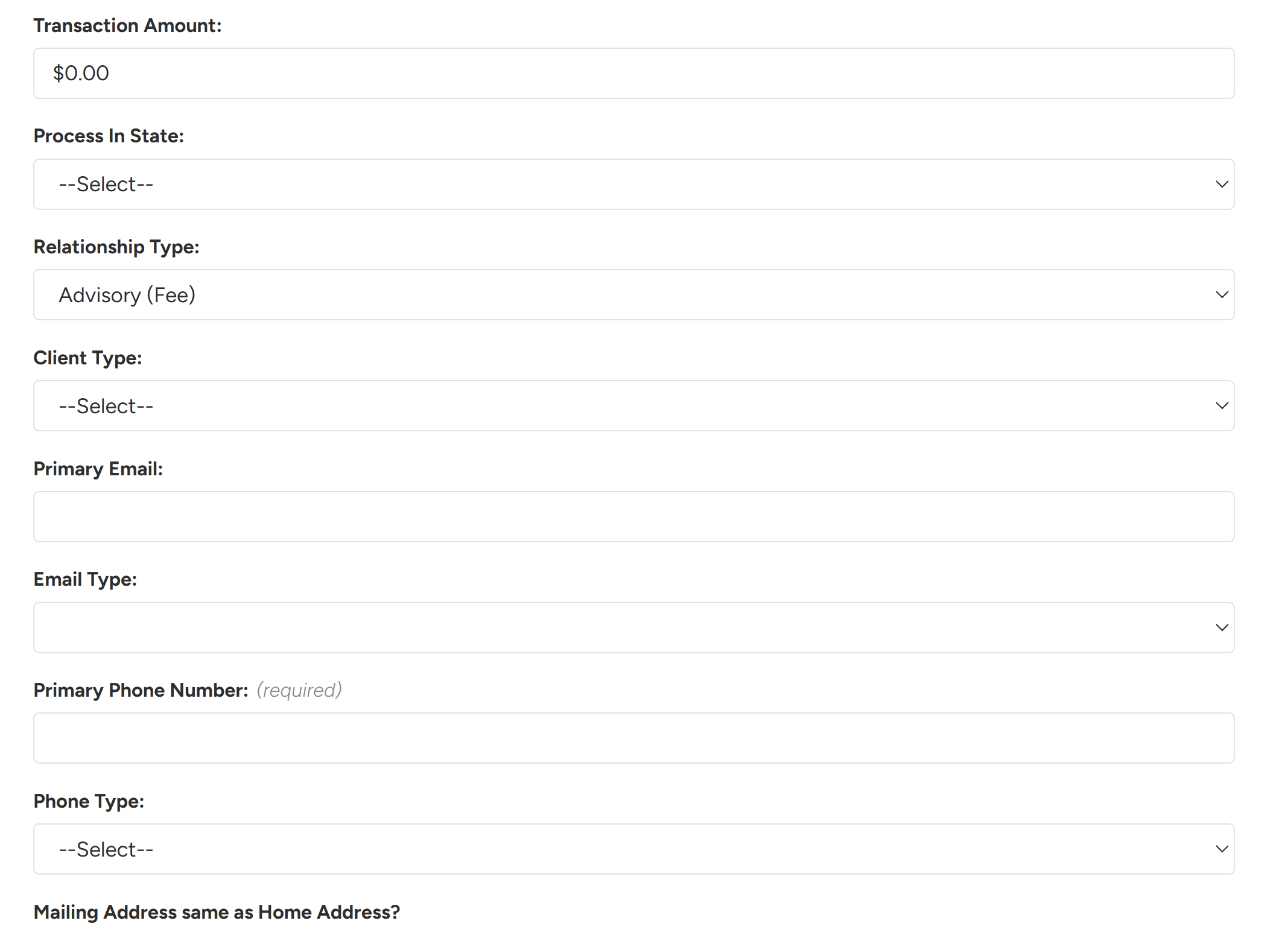
- Fill in the rest of the Client Information. Once everything is filled in, click Submit in the bottom right to save all the data and complete the wizard.
- The system will navigate to the Form Selection page, where you can select forms that will be included in the workflow.
- You can select from different types of forms – this will depend on the selections made in the wizard.
- Company Forms are Your Company’s forms
- Custodian Forms is the selected Custodial Library of Forms (RBC, Schwab, Pershing, etc).
- Direct Business Forms is the selected Vendor’s Library of Forms (American Funds, Lincoln Financial, etc)
- You can select from different types of forms – this will depend on the selections made in the wizard.
Note
All required forms will be automatically selected and added to the bundle.
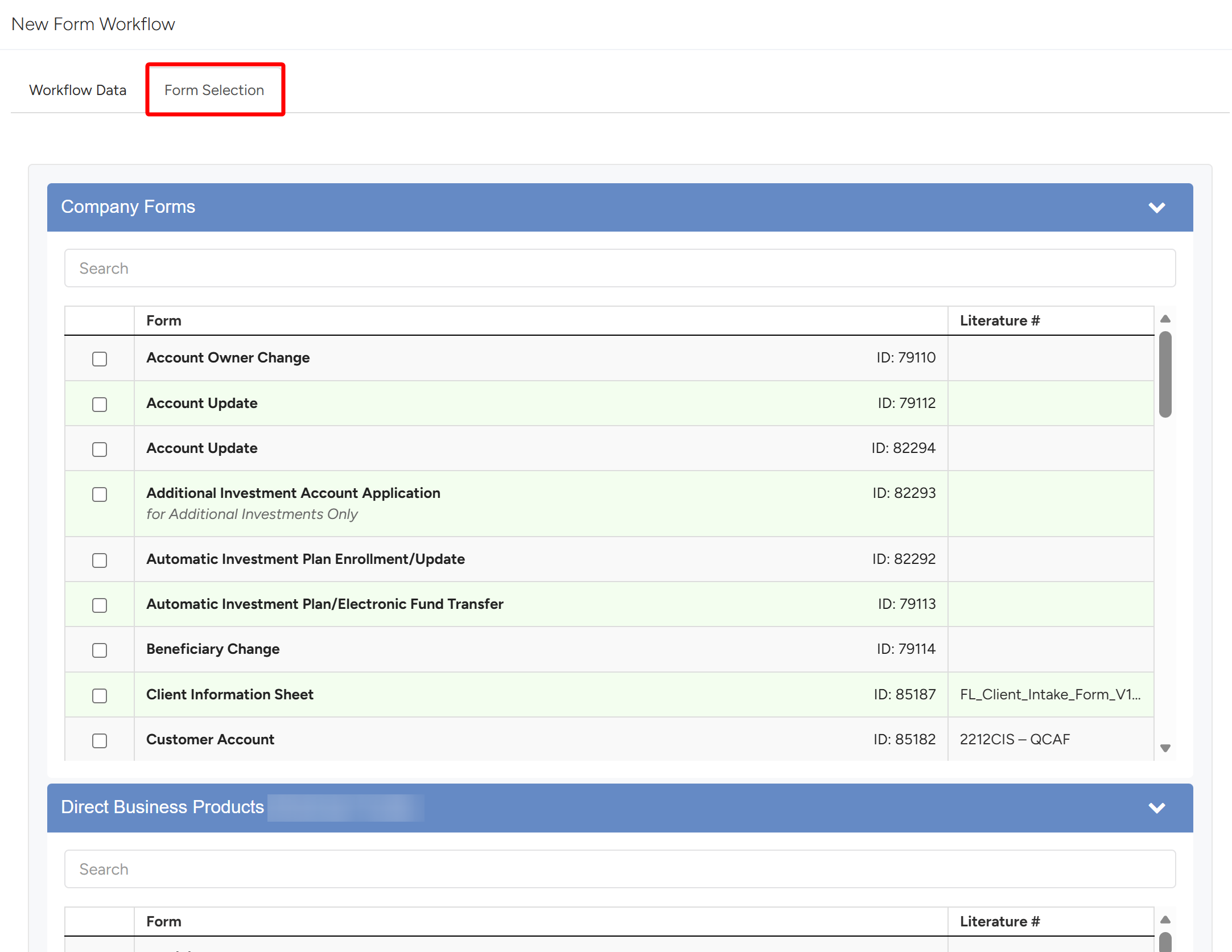
- Once all forms are added/selected, click the Create Form Workflow button to create the form workflow.

14.2 Client is in Forms Logic
To create a new maintenance workflow when the client is in the Forms Logic System, follow the steps below.
14.2.1 Account Already Exists
When the client is in the Forms Logic System and an appropriate account also exists, follow the steps below to create a maintenance workflow.
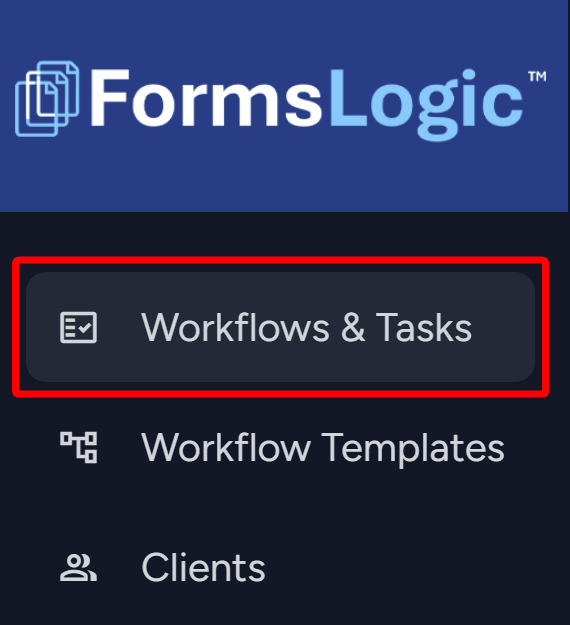
- From the side navigation menu, navigate to Workflows & Tasks – which will load the Workflow List.
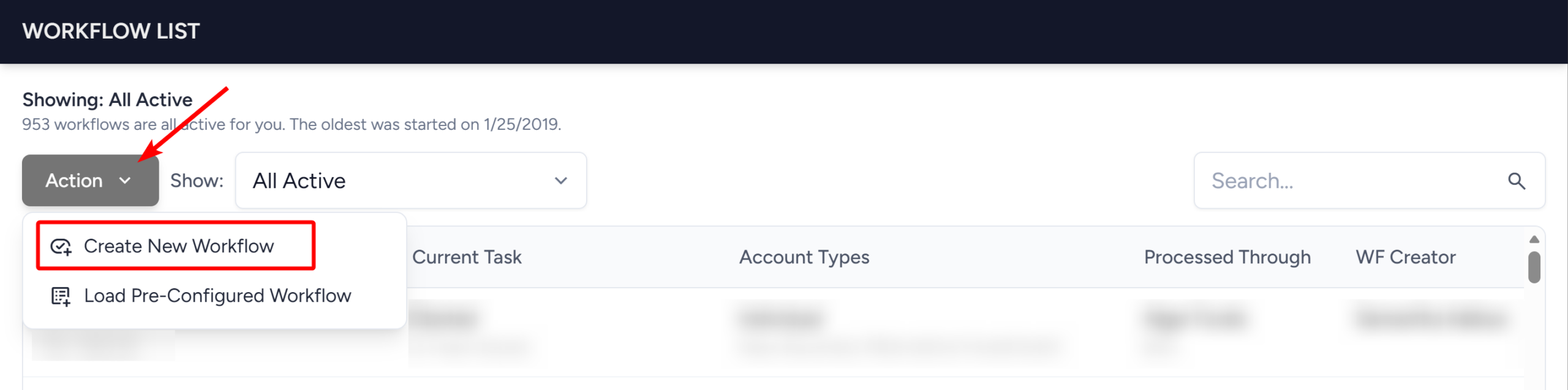
- Click the Action button in the upper left. From the dropdown, click Create New Workflow.
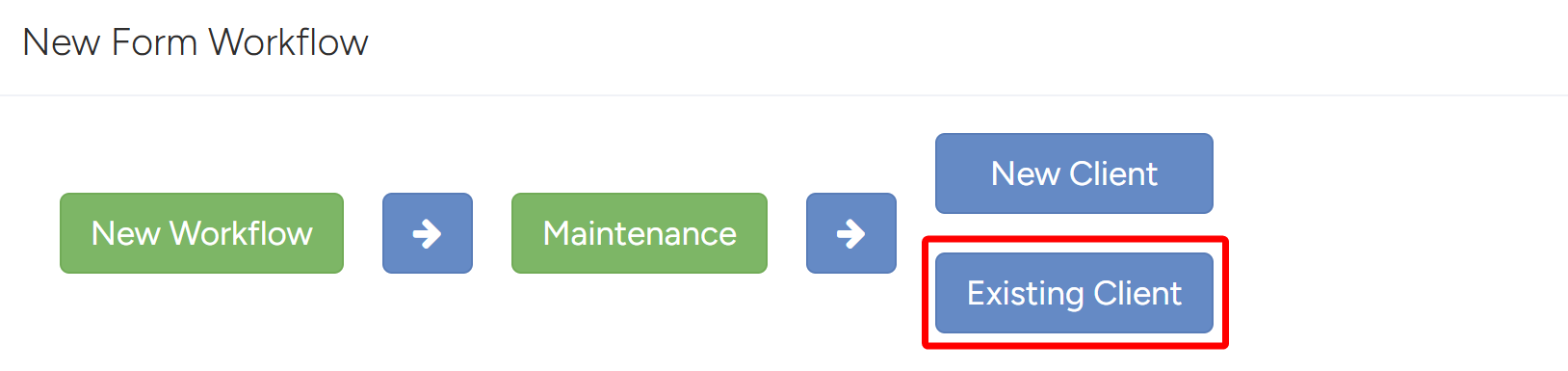
- The Workflow Wizard will open, where you will go through the process of doing Maintenance on an account. The Workflow Type is the first prompt – choose Maintenance.

- Choose Existing Client from the available options – this means you are doing maintenance on a client that already exists in Forms Logic.
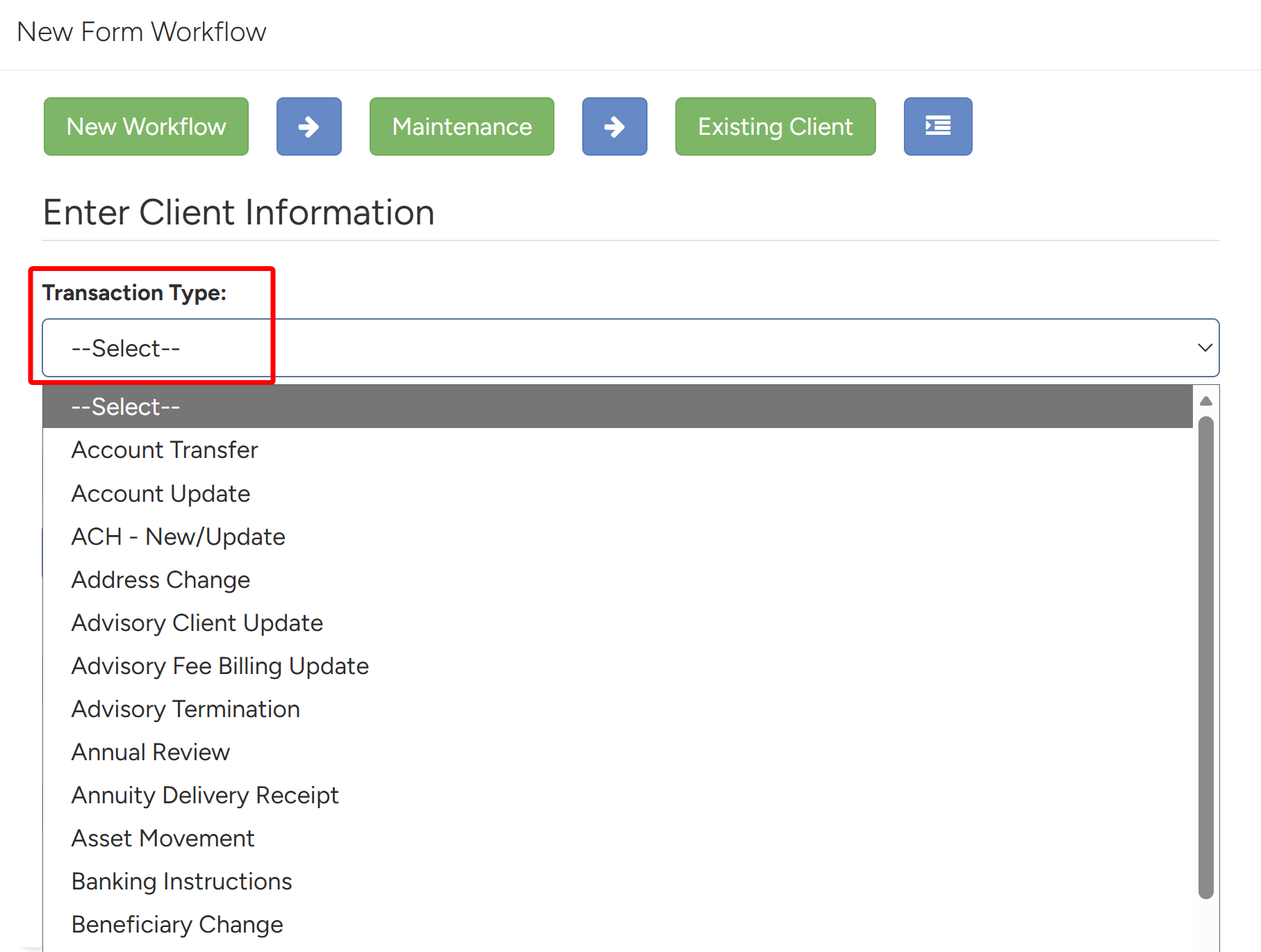
- Select the Transaction Type — this is the type of Maintenance.
- These options will depend on your organization.
- Choose the Client Account that needs maintenance — available client accounts will be listed in the dropdown.
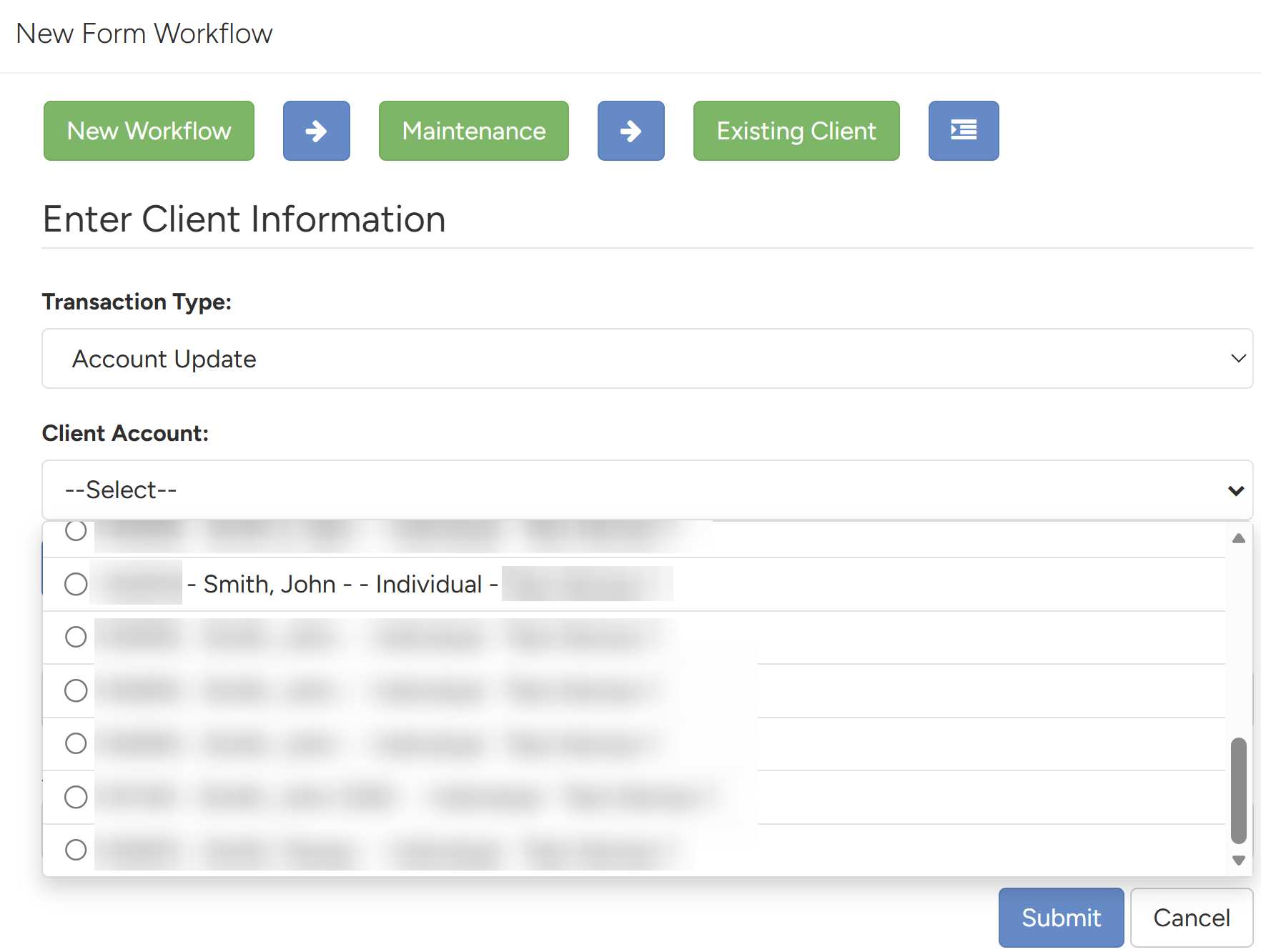
- Once everything looks good, click Submit.

- The system will navigate to the Form Selection page, where you can select forms that will be included in the workflow.
- You can select from different types of forms – this will depend on the selections made in the wizard.
- Company Forms are Your Company’s forms
- Custodian Forms is the selected Custodial Library of Forms (RBC, Schwab, Pershing, etc).
- Direct Business Forms is the selected Vendor’s Library of Forms (American Funds, Lincoln Financial, etc)
- You can select from different types of forms – this will depend on the selections made in the wizard.
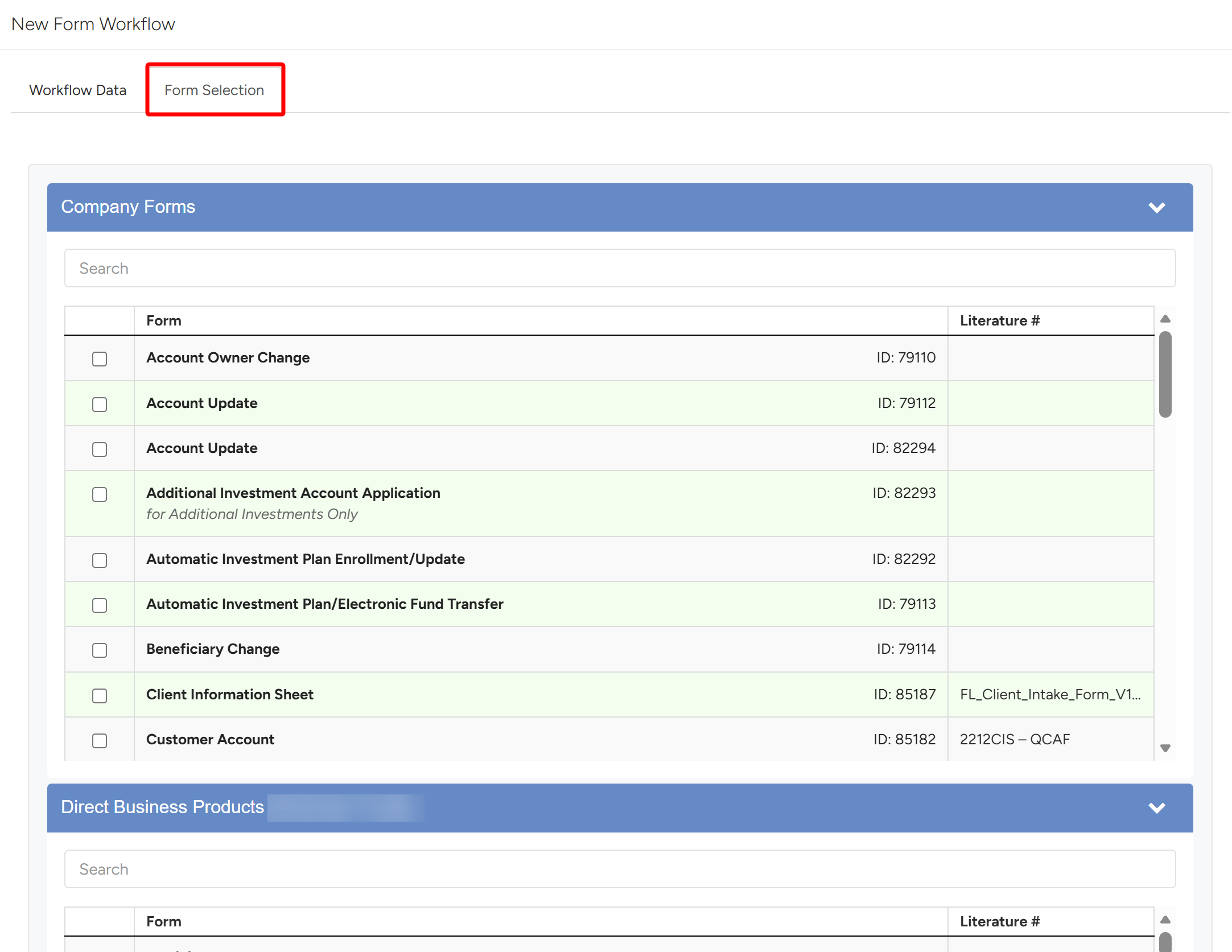
- Once all forms are added/selected, click the Create Form Workflow button to create the form workflow.

14.2.2 Account Does Not Exist
When the client is in the Forms Logic System but the client account does not exist yet, follow the steps below to create a maintenance workflow.
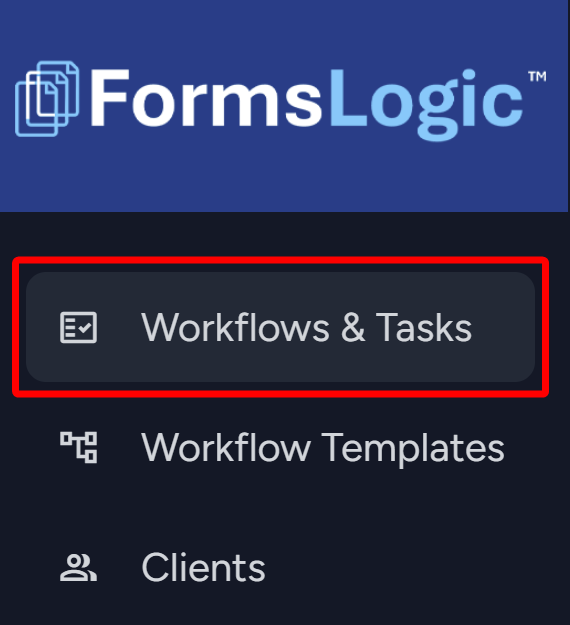
- From the side navigation menu, navigate to Workflows & Tasks – which will load the Workflow List.
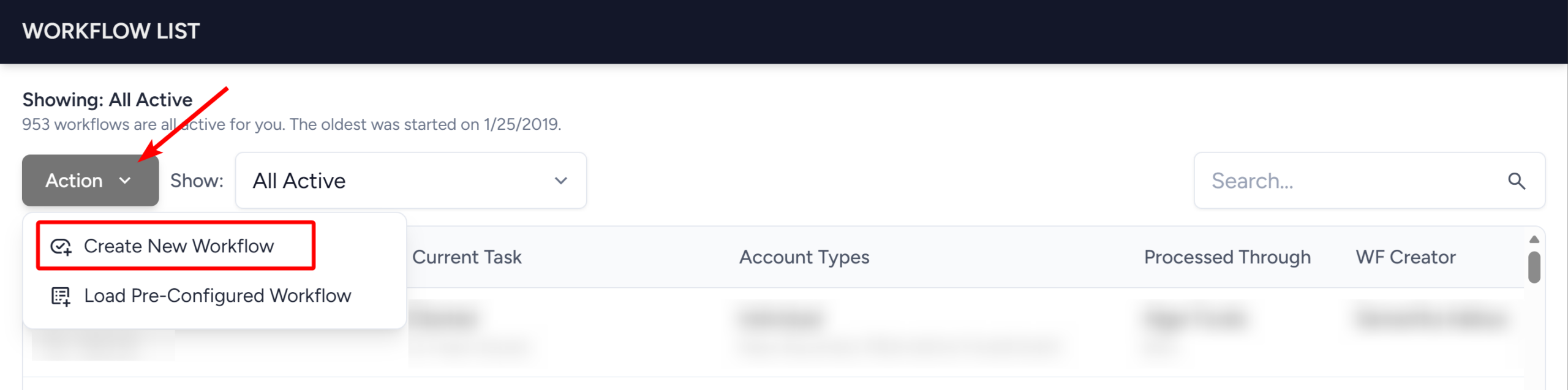
- Click the Action button in the upper left. From the dropdown, click Create New Workflow.
- The Workflow Wizard will open, where you will go through the process of doing Maintenance on an account. The Workflow Type is the first prompt – choose Maintenance.

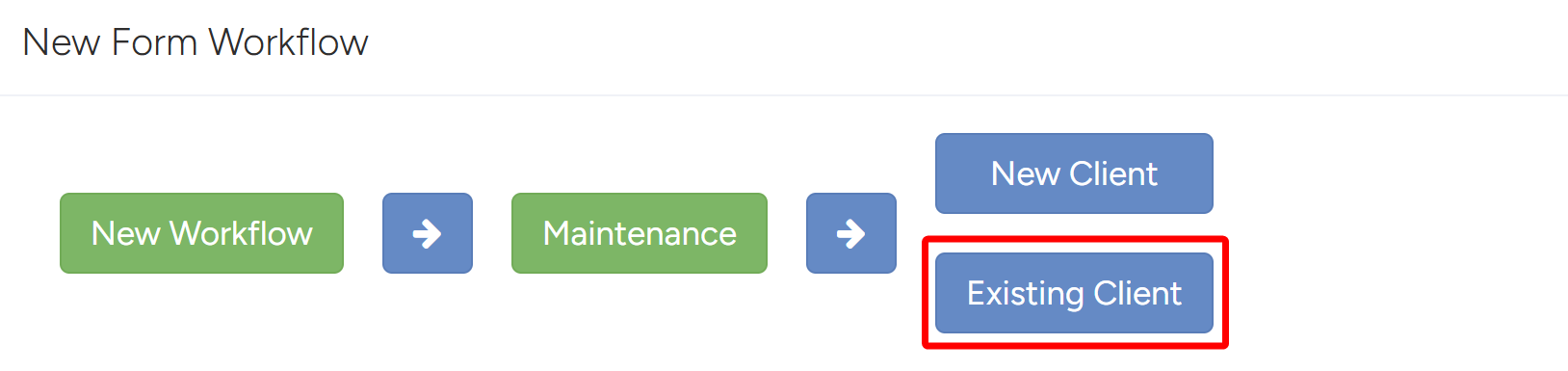
- Choose Existing Client from the available options – this means you are doing maintenance on a client that already exists in Forms Logic.
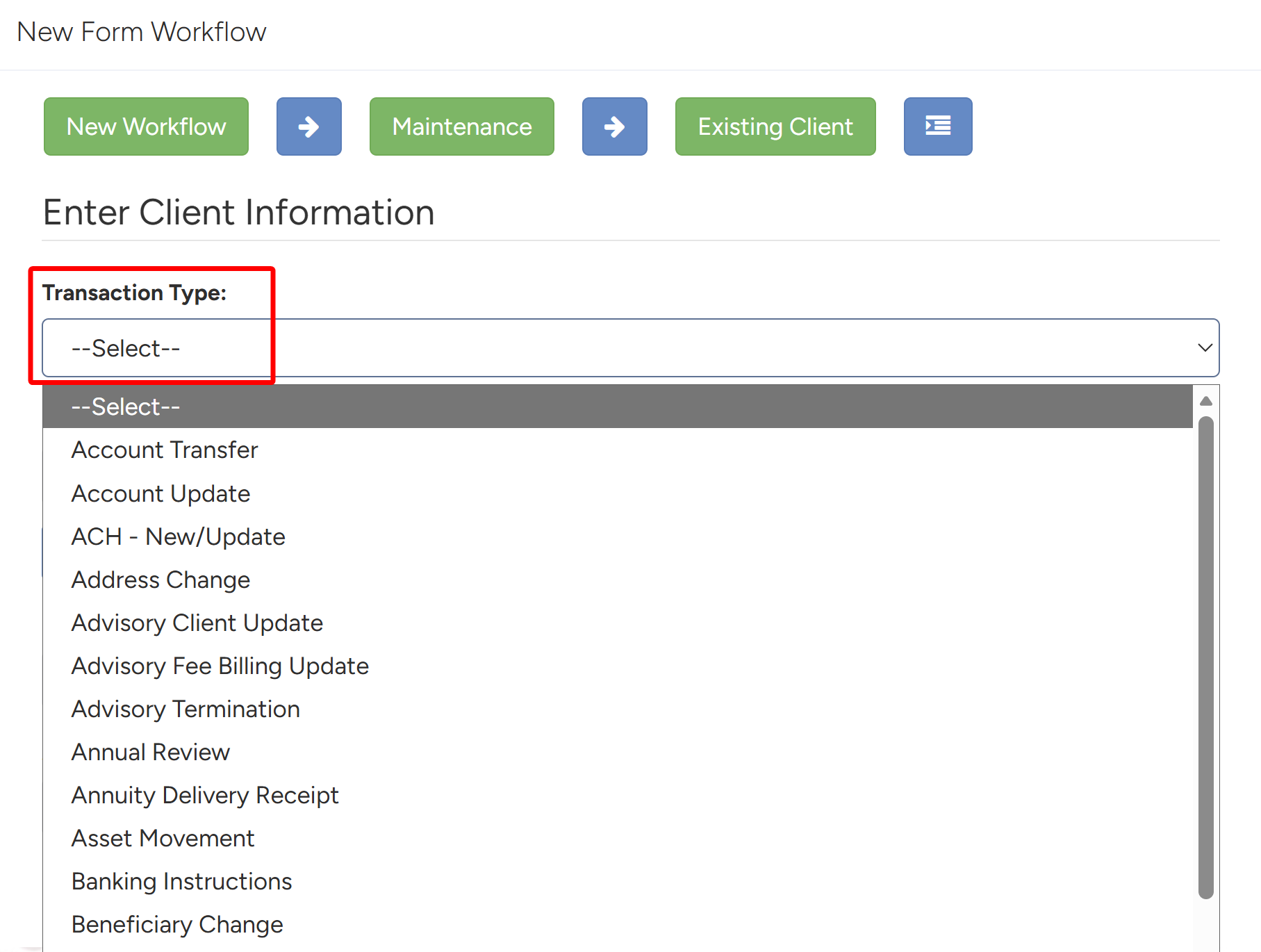
- Select the Transaction Type — this is the type of Maintenance.
- These options will depend on your organization.
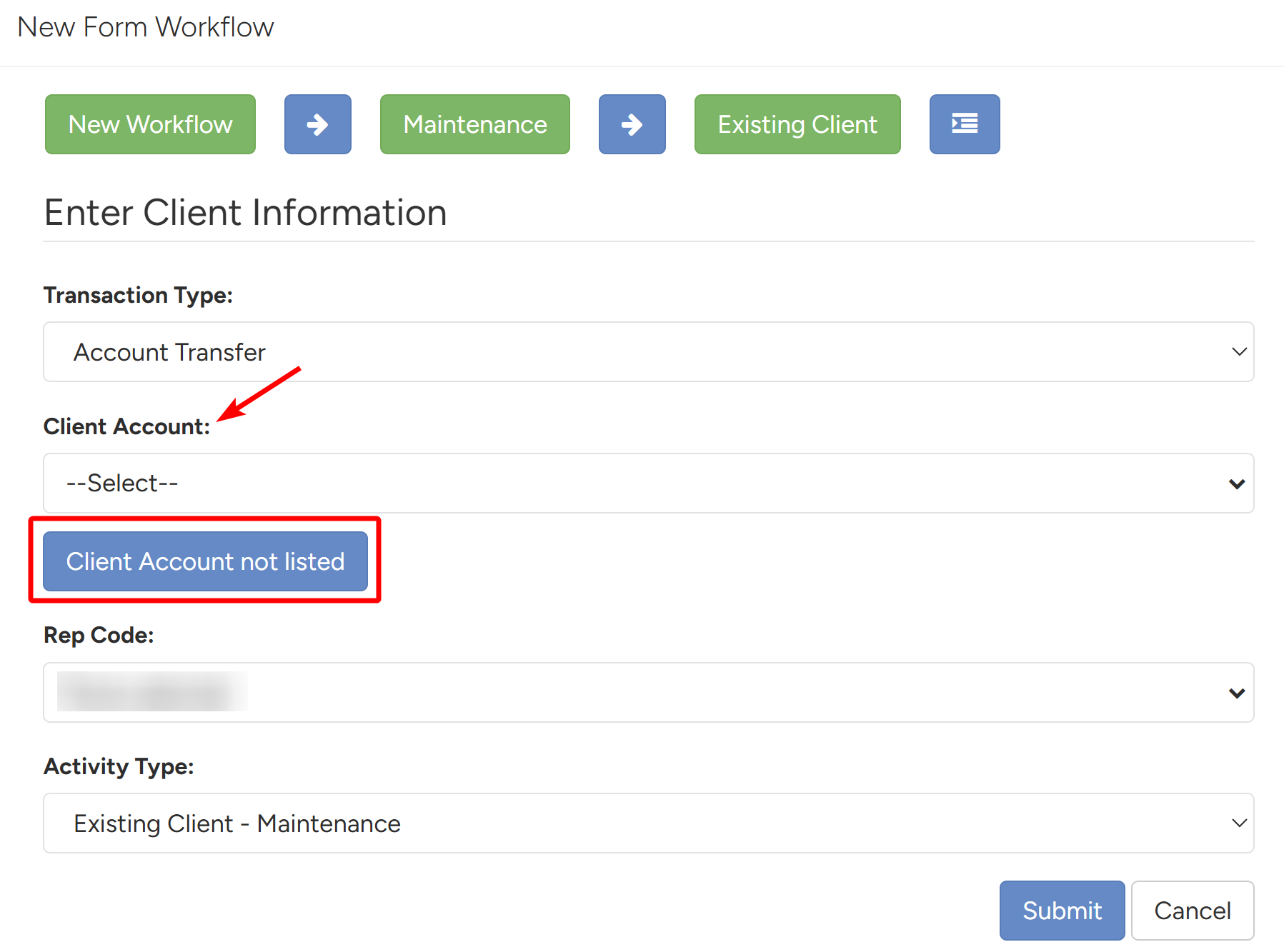
- If the Client Account is not available, click the Client Account Not Listed button.
- The system will have you put in more information for the account. The Wizard will require the Business Type/Relationship Type to be chosen.
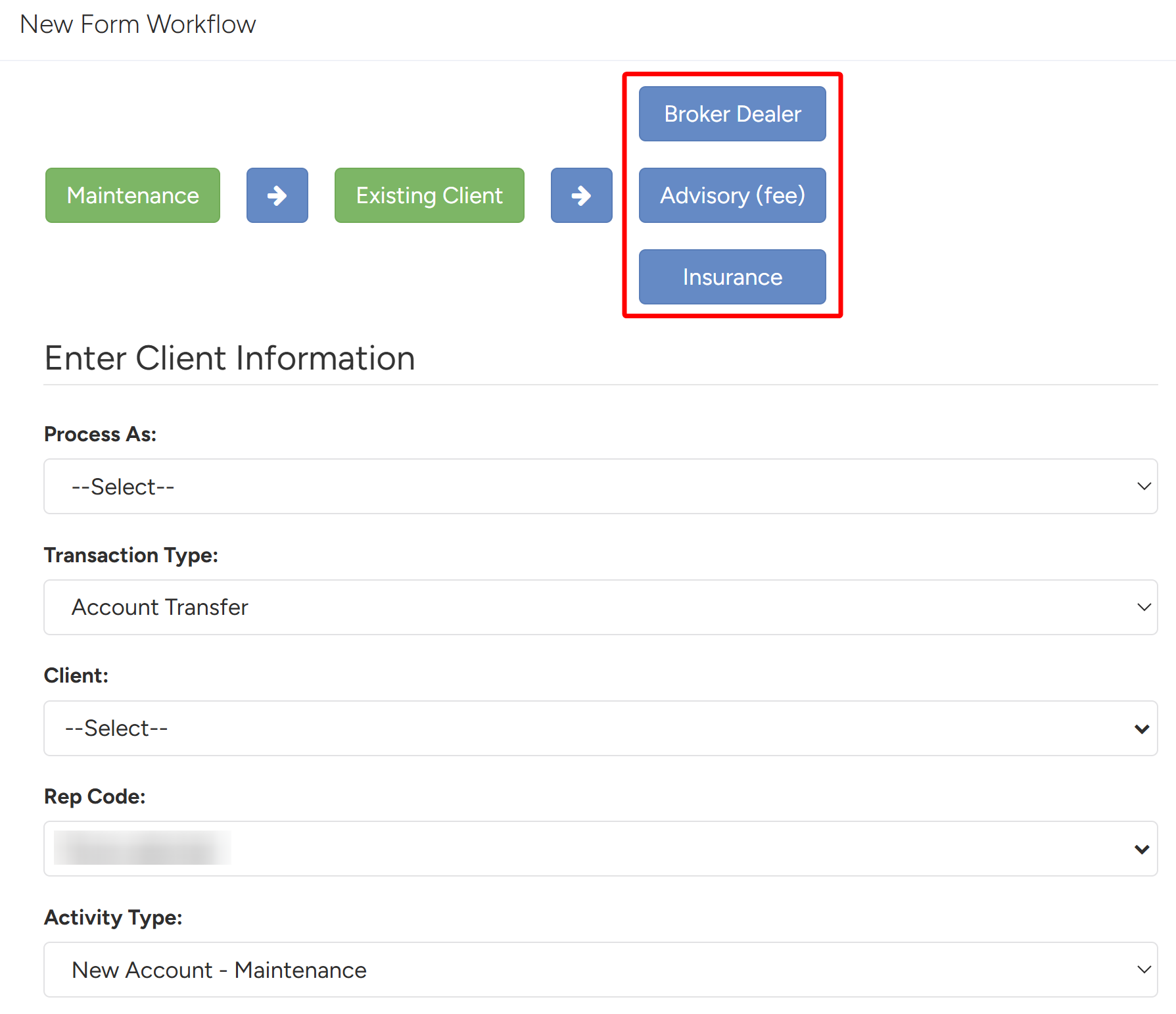
- Now select the appropriate Account Category. Each category filters the options in the Account Type list.
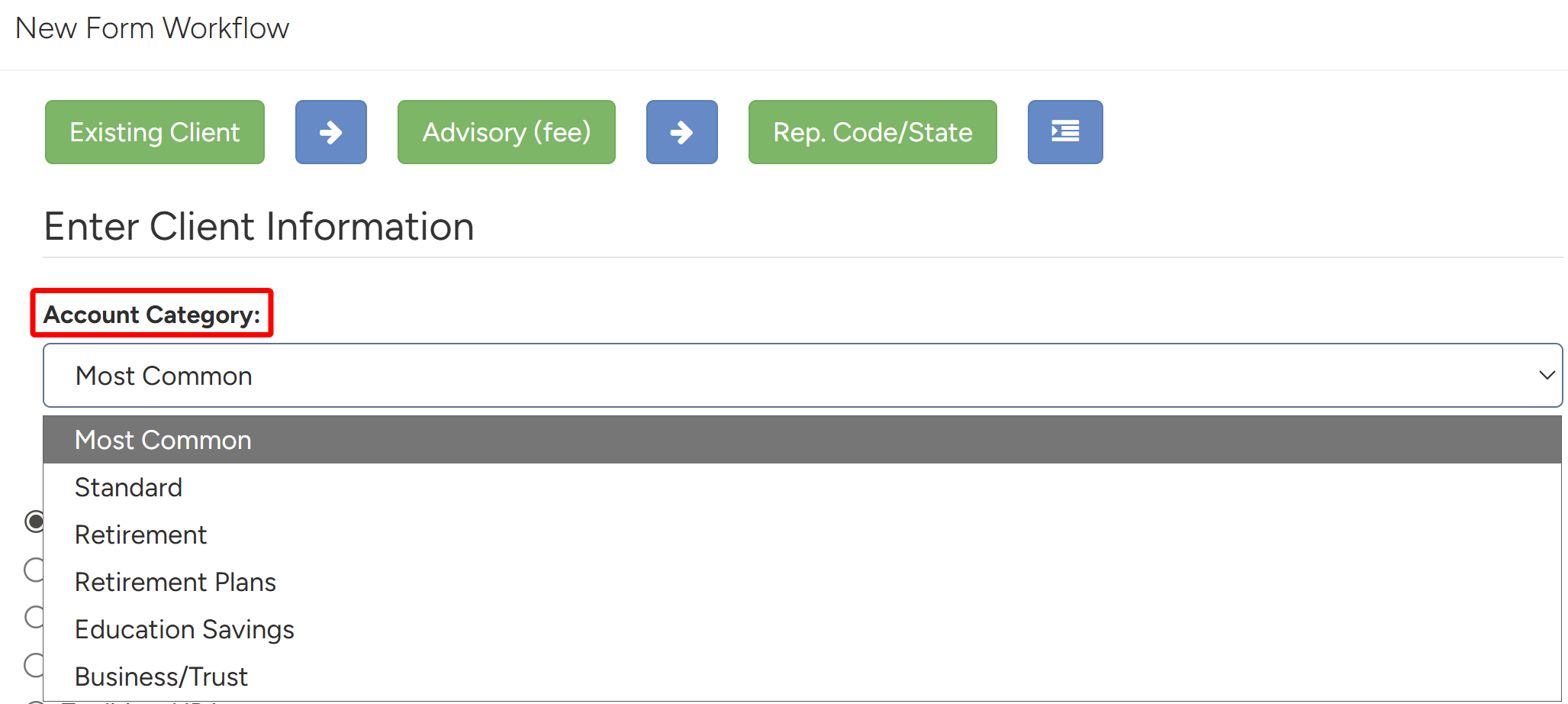
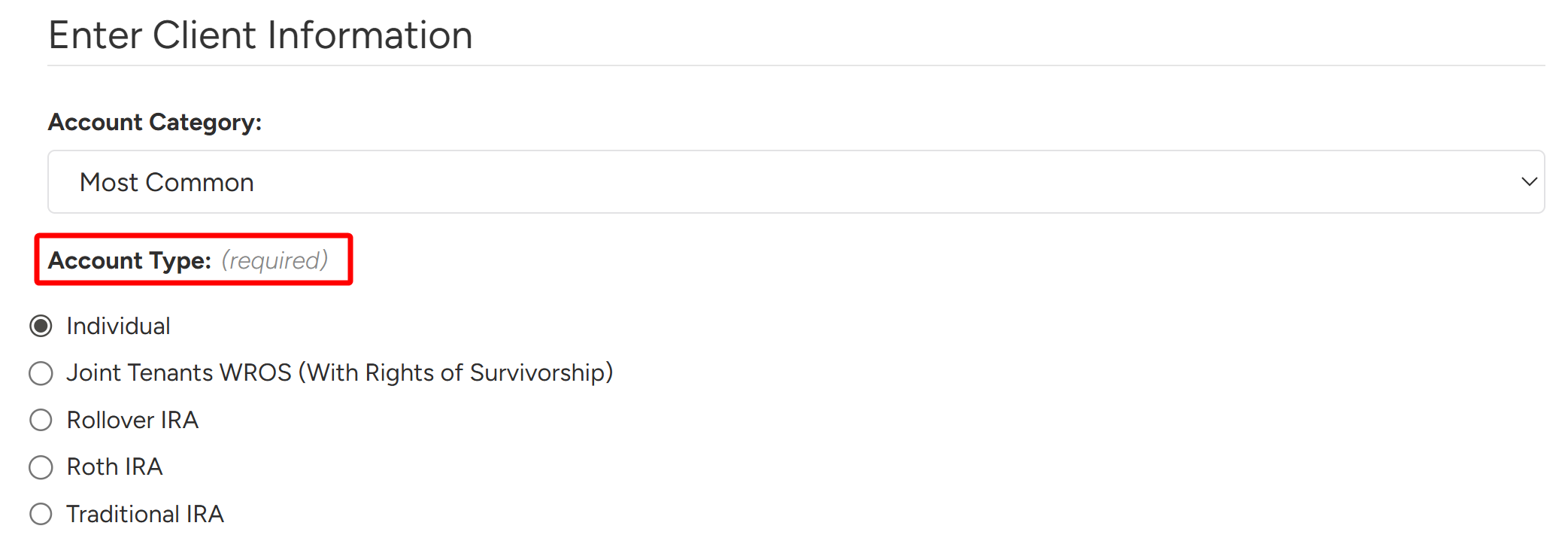
- Once the category is chosen, select the Account Registration Type under the Account Type list.
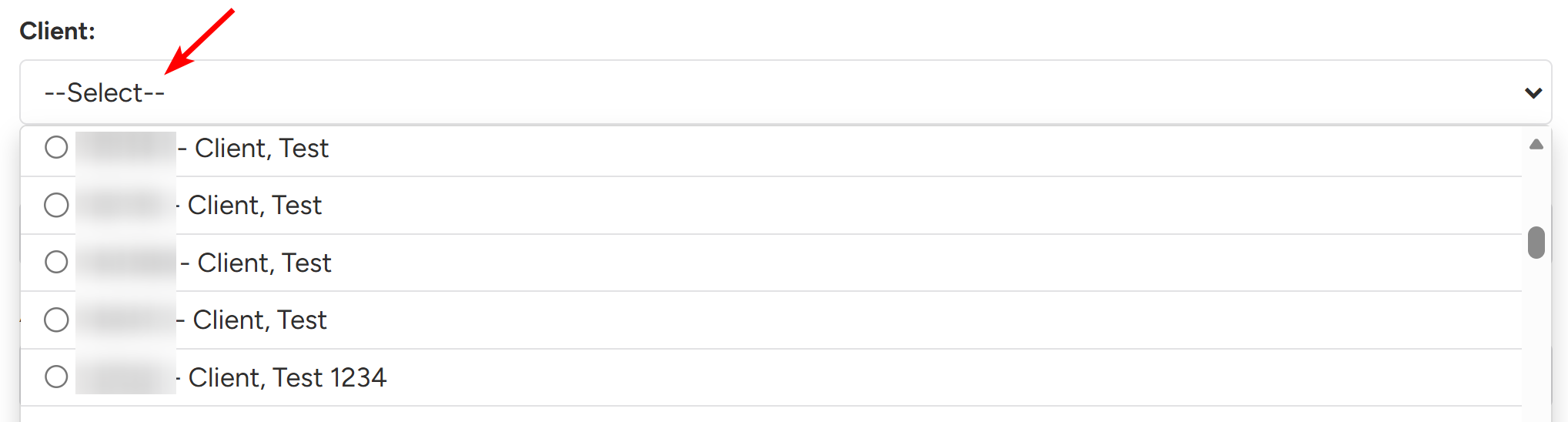
- Under Client, the correct clients will be listed in the drop down. Select the appropriate Client.
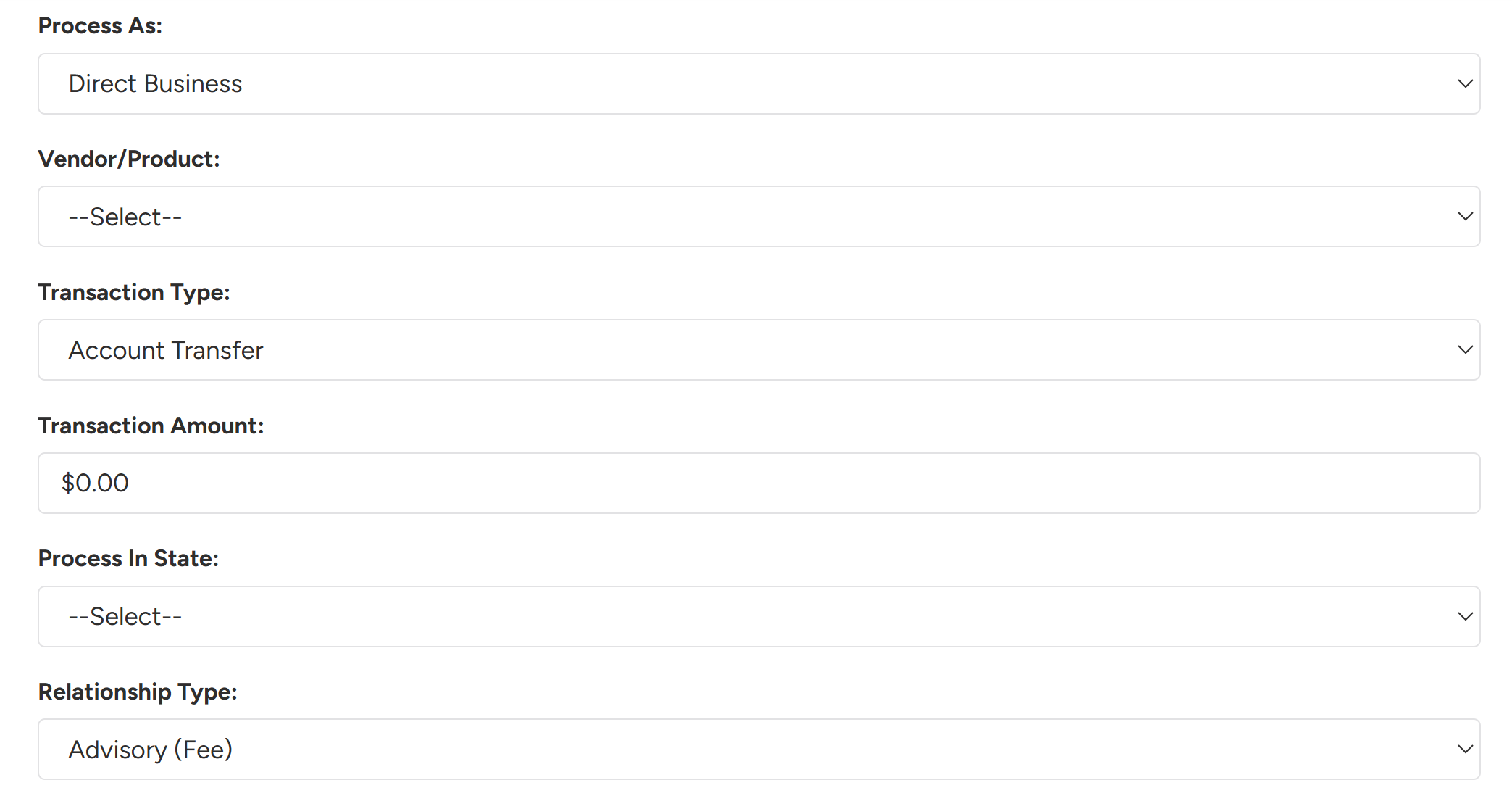
- Fill in the rest of the Client Information. Once everything is filled in, click Submit in the bottom right to save all the data and complete the wizard.
- The system will navigate to the Form Selection page, where you can select forms that will be included in the workflow.
- You can select from different types of forms – this will depend on the selections made in the wizard.
- Company Forms are Your Company’s forms
- Custodian Forms is the selected Custodial Library of Forms (RBC, Schwab, Pershing, etc).
- Direct Business Forms is the selected Vendor’s Library of Forms (American Funds, Lincoln Financial, etc)
- You can select from different types of forms – this will depend on the selections made in the wizard.
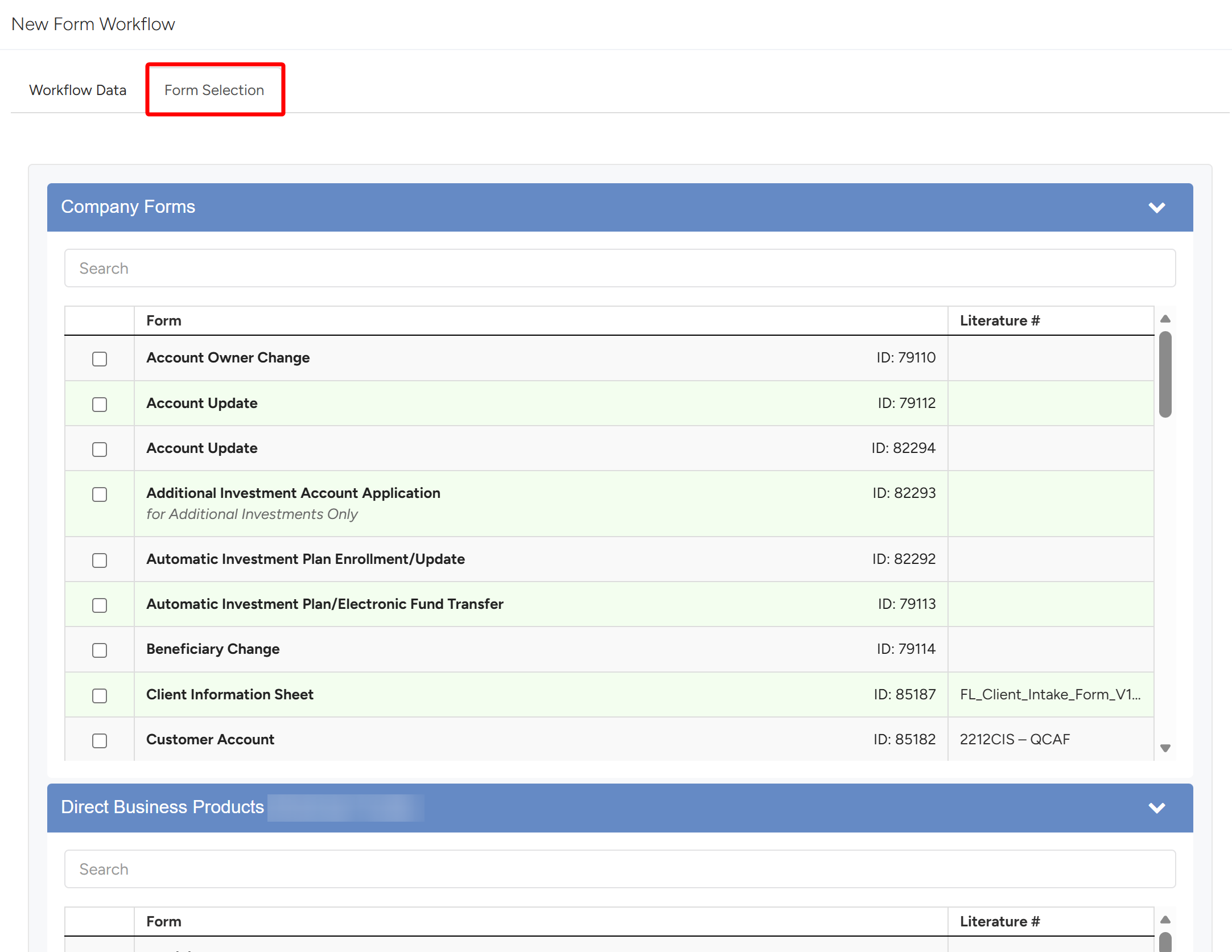
- Once all forms are added/selected, click the Create Form Workflow button to create the form workflow.
