

Client Data Uploader
The Client Data Uploader feature enables advisors to securely send forms from the workflow to clients to complete in an easy and secure manner. From the Data View option within the workflow you can download a secure linked PDF to your client to open, complete, and save on their private computer. Then via the upload button, the client sends the data only directly to the form in the workflow. This feature provides for an efficient and secure way to collect sensitive client data, improves the accuracy of data collection, and creates a positive client experience.
8.1 Client Data Uploader
To gather data from the client safely and securely, follow the steps below.
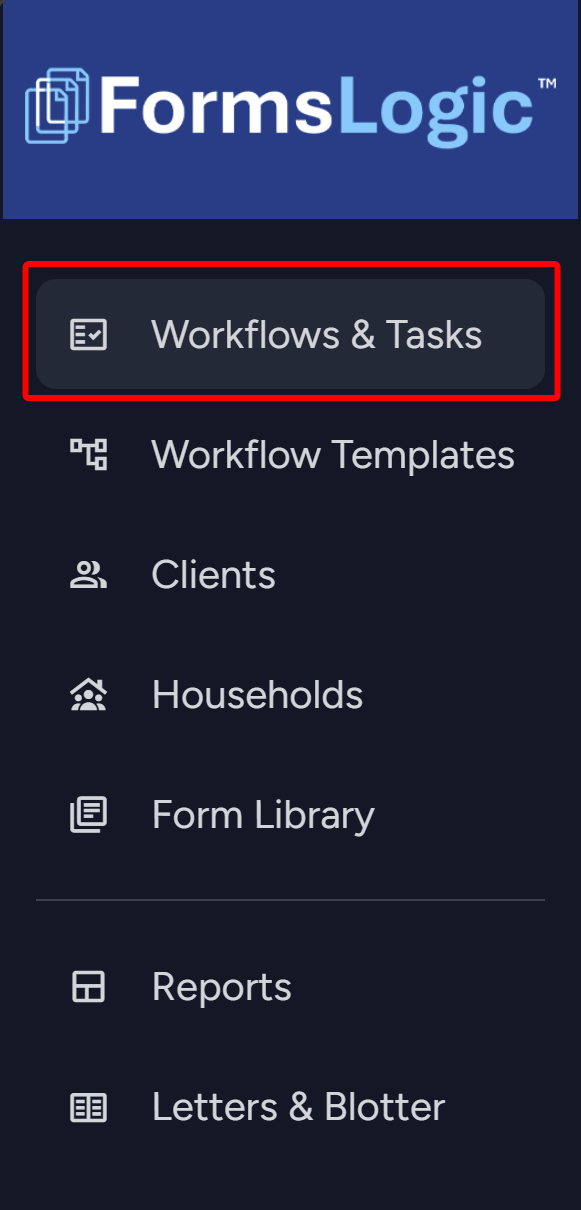
- Navigate to Workflows & Tasks on the Navigation bar.
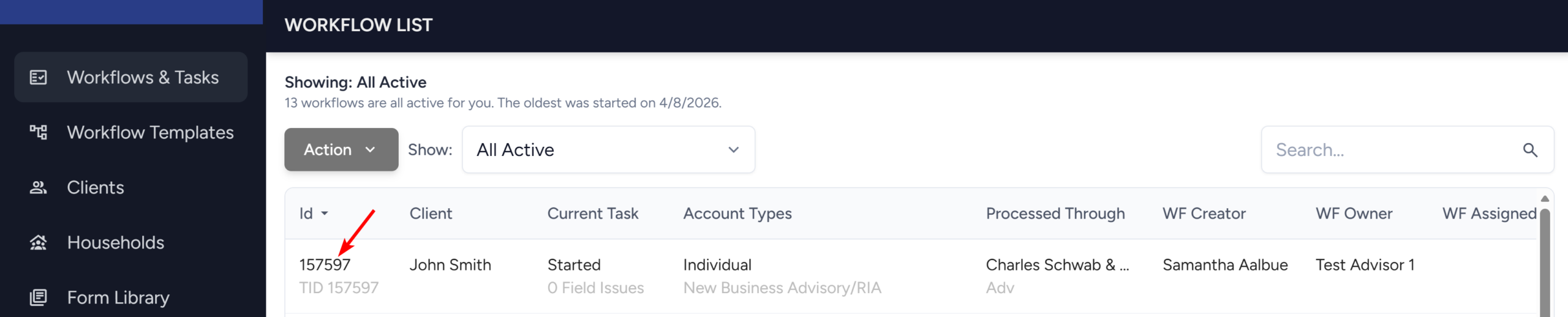
- The system will navigate to the Workflow List screen as shown below. Find the desired workflow and click the workflow id, which will take you inside the workflow.
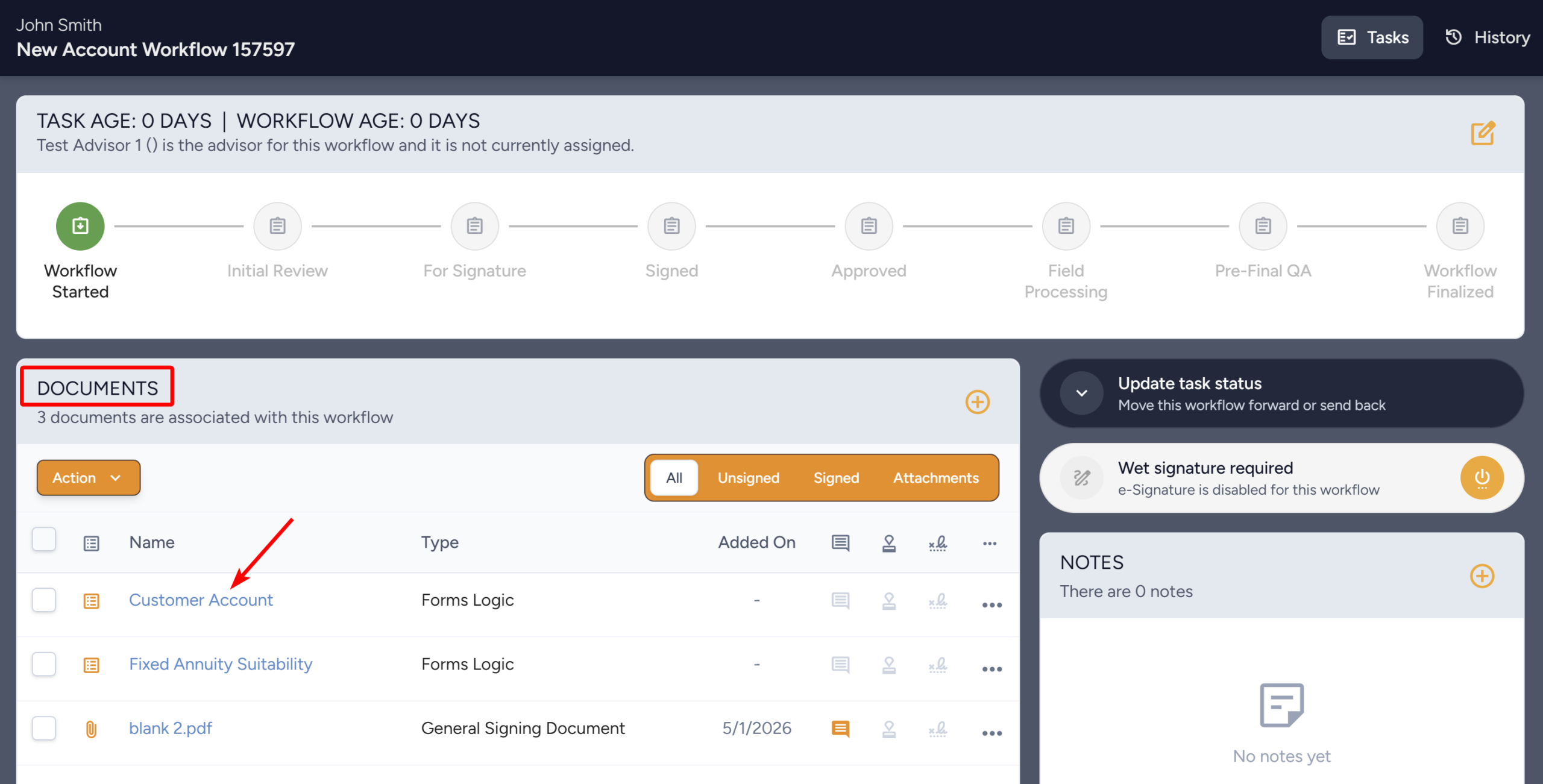
- Once you are in the workflow, the Documents section will show the list of forms and documents in the workflow. Click on the form that will need client data uploaded.
- The system will now open the PDF Form Detail drawer, where users can complete many actions related to the form. Click the Linked PDF Download button.

- Once the file is downloaded, compose an email and send the PDF as an attachment to the email. Refer to the example email screen below for details.

Note
The following steps will be performed by the Client.
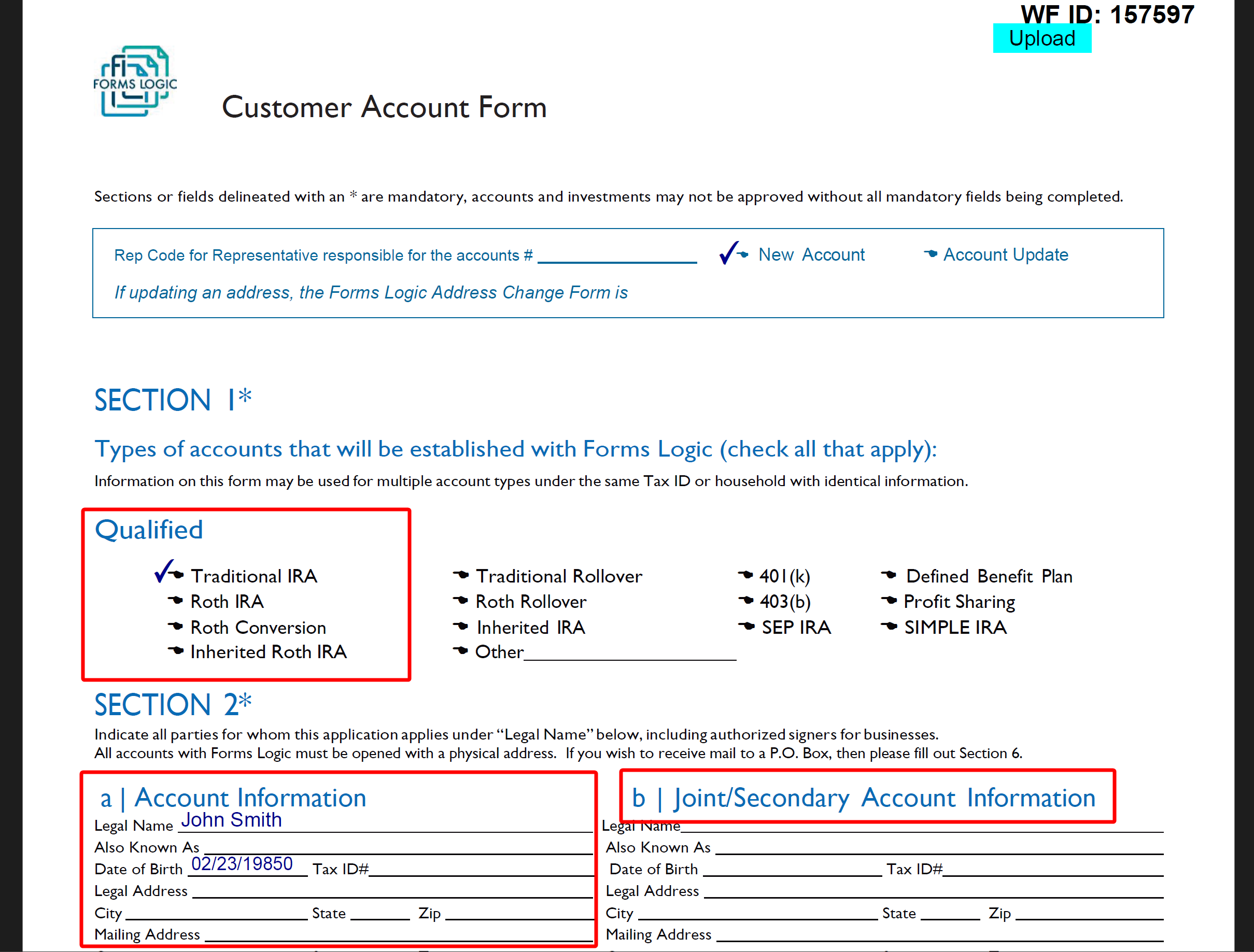
- Once the client receives the email, the client will have to download the PDF file. Once downloaded, the client will open the file and start editing the PDF file and filling in all required information as shown below.
Note
The client has to have Adobe PDF software installed.
- Once all editing is done, the client has to click the Upload button to send the document back to the Forms Logic system.

Note
- You can send multiple forms in one email, but keep each of them as a separate attachment.
- To save the uploaded data to all the forms in the workflow just hit save and the data will be sent to all the forms.
- The client can go back into the form as many times as needed to finish it, even if they have hit the upload button.
- Once you hit the blue submit button the form will lock, and no additional changes can be made by the client.